Best Free PowerPoint to Video Converters, Compared
Why a Truly Free PowerPoint to Video Converter Matters
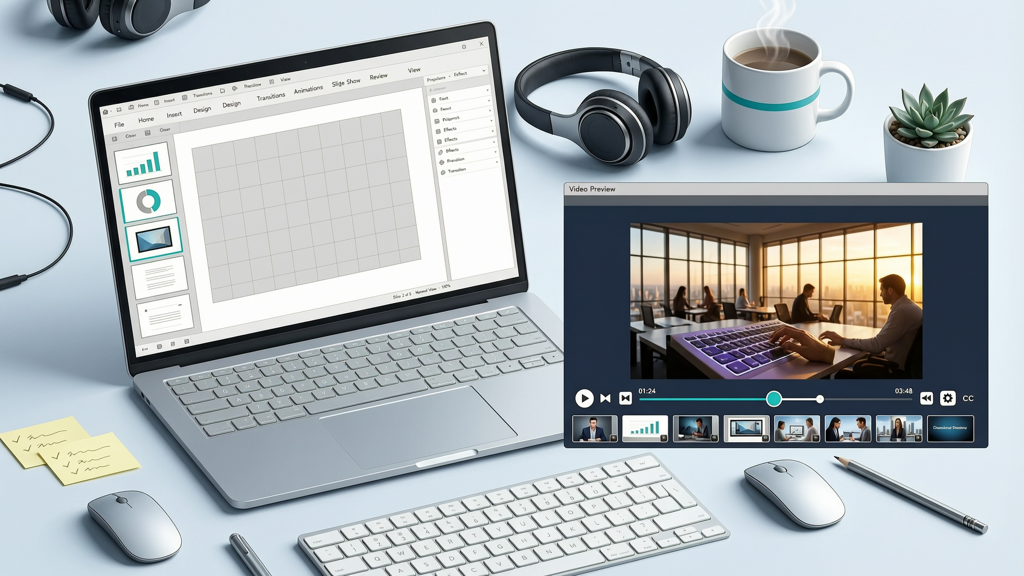
Turning a PowerPoint presentation into a polished video is now essential—for remote training, asynchronous updates, marketing demos, or academic submissions. But not all free powerpoint to video converter options deliver equal value. Some appear free at first glance but impose hard limits on voice quality, output resolution, language support, or branding. Others require signups, restrict editing, or embed watermarks that undermine professionalism.
This comparison cuts through the noise. We evaluate three distinct categories of powerpoint to video free solutions using consistent criteria: Microsoft PowerPoint’s native export (no third-party software), browser-based AI tools (no install required), and SlideToTalk—a dedicated free ppt to mp4 converter designed for fidelity and clarity. Each is assessed on what ‘free’ actually means—not just price, but usability, flexibility, and output integrity.
How We Compare: The Same 6 Criteria Across All Options
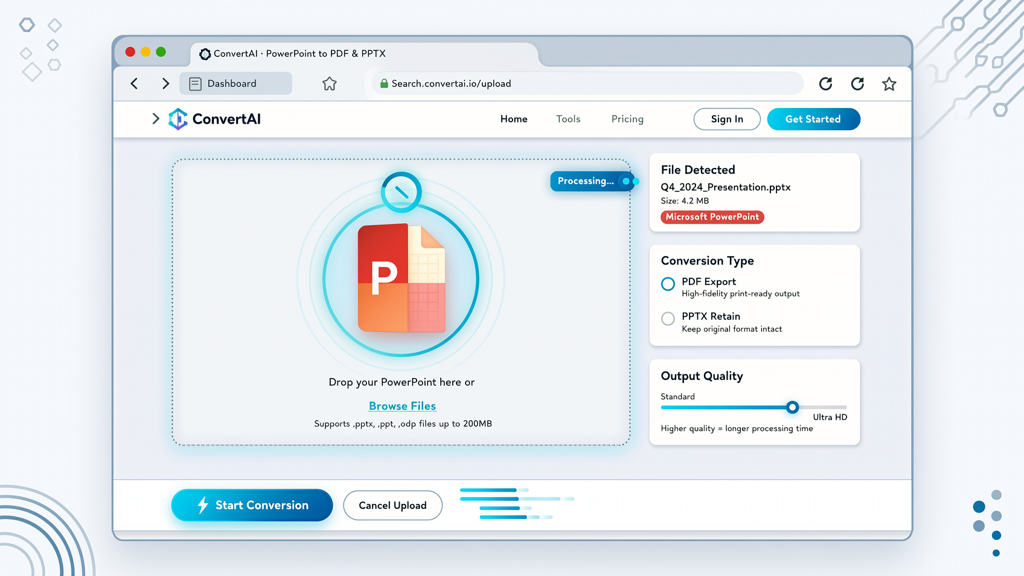
To ensure fairness and usefulness, every solution is evaluated against these six objective, user-centered dimensions:
- Narration options: Can you use AI voice, upload your own audio, or record live?
- Subtitles: Are auto-generated or editable subtitles included—and are they synced accurately?
- Output quality: Maximum resolution (e.g., 720p, 1080p), frame rate, and file format (MP4, MOV, etc.)
- Watermark policy: Is there a visible logo, timestamp, or branding—and is it removable without payment?
- Languages: How many spoken languages are supported for AI narration and subtitle generation?
- Access & friction: Does it require signup, email verification, or account creation? Are there usage caps per session or per month?
No feature is inflated or omitted. Our goal is transparency—not promotion.
Option 1: Microsoft PowerPoint’s Built-in Export (Free, Manual)
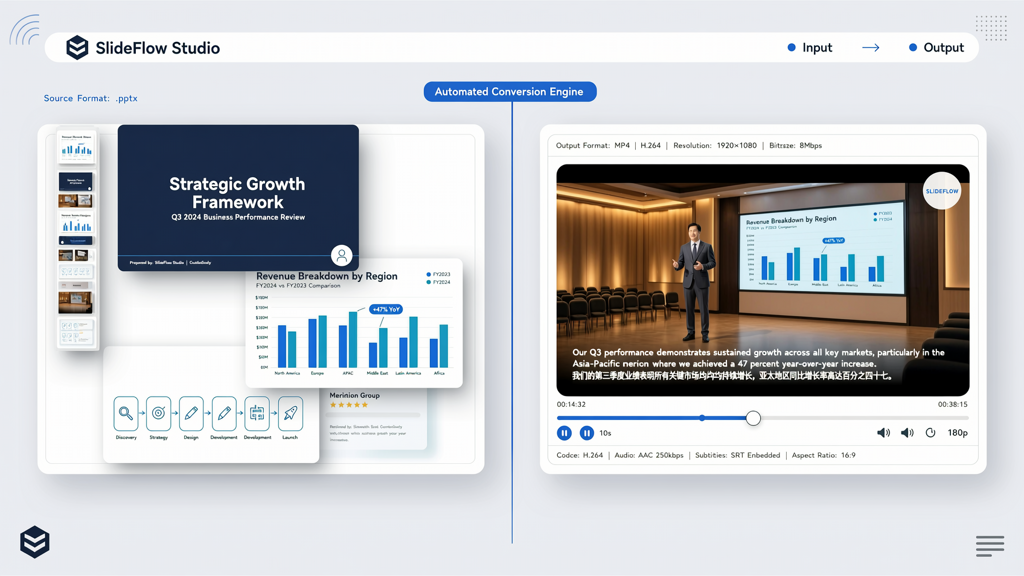
Every licensed copy of Microsoft PowerPoint (desktop app, part of Microsoft 365 or perpetual Office suites) includes a native powerpoint to video free export function under File > Export > Create a Video. It requires no download, no sign-up, and no internet connection during export—making it the most accessible starting point.
What ‘free’ really means here:
- No watermark: Output videos are clean and fully branded by you.
- No language limits: Narration depends entirely on your input—record your own voice or import pre-recorded audio files in any language.
- No signup or account: Works offline, with no login required.
- But — it’s manual and limited: You must record narration slide-by-slide (no bulk AI voice), and timing adjustments happen only via slide transition durations. Subtitles are not generated automatically—you’d need to add them separately in PowerPoint or a video editor.
- Output quality: Supports up to 1080p MP4 at 30 fps. File size can be large depending on embedded media.
Best for: Users who already own PowerPoint, prefer full control over pacing and tone, and don’t need AI assistance. Not ideal if you lack time to record or want multilingual accessibility out-of-the-box.
Option 2: Browser-Based AI Tools (Free Tiers Vary Widely)

A growing number of web-based platforms offer AI-powered best ppt to video tool functionality—upload a .pptx, select a voice, and generate a narrated video in minutes. Most operate on freemium models. While convenient, their ‘free’ tiers come with significant trade-offs.
What ‘free’ typically means across this category:
- Watermarks: Nearly all embed prominent logos or banners (e.g., “Created with [Tool Name]”) on every frame—often unremovable without upgrading.
- Voice & duration limits: Free plans commonly cap total narration time (e.g., 5–10 minutes/month), restrict voice selection (1–2 voices), or throttle speed (longer processing queues).
- Language support: Usually limited to English only—or 2–3 major languages—with AI voices sounding less natural outside English.
- Subtitles: Some offer basic auto-captions, but syncing is often inaccurate, and editing is either unavailable or locked behind paywalls.
- Signup friction: Email registration is almost universal; some require social logins or phone verification—even for one-time use.
- Output quality: Typically capped at 720p MP4. Advanced features like custom aspect ratios, variable bitrates, or transparent backgrounds are reserved for paid plans.
Practical tip: Before uploading sensitive or proprietary slides, review each tool’s privacy policy. Many free-tier services retain uploaded files temporarily—or indefinitely—for model training unless explicitly opted out.
Option 3: SlideToTalk — A Focused, Transparent Free Tier
SlideToTalk is a dedicated free ppt to mp4 converter built specifically for turning presentations into clear, professional videos—without bloat or hidden gates. Its free tier is intentionally scoped: functional, honest, and designed for real-world use—not as a teaser for upgrades.
What ‘free’ means with SlideToTalk:
- Watermark policy: A subtle, bottom-right corner watermark appears on all free-tier exports. It’s small, non-intrusive, and does not cover slide content—but it remains present unless upgraded. No trial periods or time-limited removal.
- Narration options: Two modes. AI Narration supports six languages (English, Spanish, French, German, Italian, Portuguese) with natural-sounding, gender-balanced voices. Free Recording Mode lets you speak live—no time limit, no voice restrictions, and zero AI processing fees.
- Subtitles: Auto-generated, synced subtitles in all six supported languages. They’re editable before export—font, position, and timing can be adjusted manually.
- Output quality: Full HD 1080p MP4 output at 30 fps. No compression artifacts or resolution downgrades. Videos preserve original fonts, animations (where compatible), and image fidelity.
- Languages: Six fully supported languages for both AI narration and subtitles—no regional variants or beta labels. Voice quality is consistent across all six.
- Access & friction: No signup required to start. Upload and convert instantly. Optional email sign-in enables cloud saving and project history—but it’s never mandatory.
What SlideToTalk doesn’t promise—and doesn’t need to:
It doesn’t claim to replace video editors, nor does it offer stock footage libraries or advanced motion graphics. Its strength lies in slide-faithful output: transitions stay smooth, text remains legible, and layout integrity is preserved. That makes it especially valuable for educators, compliance teams, and technical communicators who prioritize accuracy over flash.
Practical tip: Use Free Recording Mode when presenting nuanced topics (e.g., medical explanations or legal disclosures). Your voice adds authority and emotional resonance—while still benefiting from SlideToTalk’s automatic subtitle sync and HD rendering.
Side-by-Side Comparison Summary
| Feature | PowerPoint Export | Browser AI Tools (Free Tier) | SlideToTalk (Free Tier) |
|---|---|---|---|
| Narration options | Record live or import audio (any language) | Limited AI voices (1–2), often English-only; recording not supported | AI narration in 6 languages + live recording mode (no limits) |
| Subtitles | None (manual only) | Basic auto-captions (often inaccurate; editing restricted) | Accurate, editable auto-subtitles in all 6 languages |
| Output quality | Up to 1080p MP4 | Usually capped at 720p MP4 | 1080p MP4, full fidelity, no compression loss |
| Watermark | None | Prominent, full-frame branding (unremovable) | Small, non-obstructive corner watermark |
| Languages | User-defined (no AI dependency) | 1–3 languages, voice quality inconsistent | 6 languages, balanced voices, consistent quality |
| Signup required? | No | Yes (email or social) | No (optional for saving) |
Which Free PowerPoint to Video Converter Is Right for You?
There is no universal “best” option—only the best fit for your priorities:
- Choose PowerPoint export if: You own the desktop app, need zero-friction offline conversion, and are comfortable recording or editing audio externally. Ideal for internal reports or one-off presentations where AI isn’t needed.
- Consider browser AI tools if: You need quick drafts for informal use, don’t mind branding, and only require English output under short durations. Avoid if privacy, fidelity, or multilingual reach matters.
- Try SlideToTalk if: You want reliable HD output, accurate multilingual subtitles, flexible narration (AI or live), and a free tier that respects your time and content. Especially strong for educators, global teams, and professionals who present complex information clearly.
Remember: “Free” should mean freedom—not compromise. Whether you're converting a quarterly sales deck, a compliance training module, or a conference abstract, the right free powerpoint to video converter helps you communicate with confidence—not constraints.
For those ready to explore SlideToTalk’s free tier, visit slidetotalk.com. No credit card. No trial expiration. Just a straightforward, slide-faithful way to turn your PowerPoint into video—today and always.
Try SlideToTalk free
Upload your PPT, PDF, or images. Add narration with text-to-speech or your own voice, and export a narrated video in one click.
Start for free →