Best Tools for Adding Voiceover to Google Slides, Compared
Why Google Slides Lacks Native Voiceover — And What That Means for You
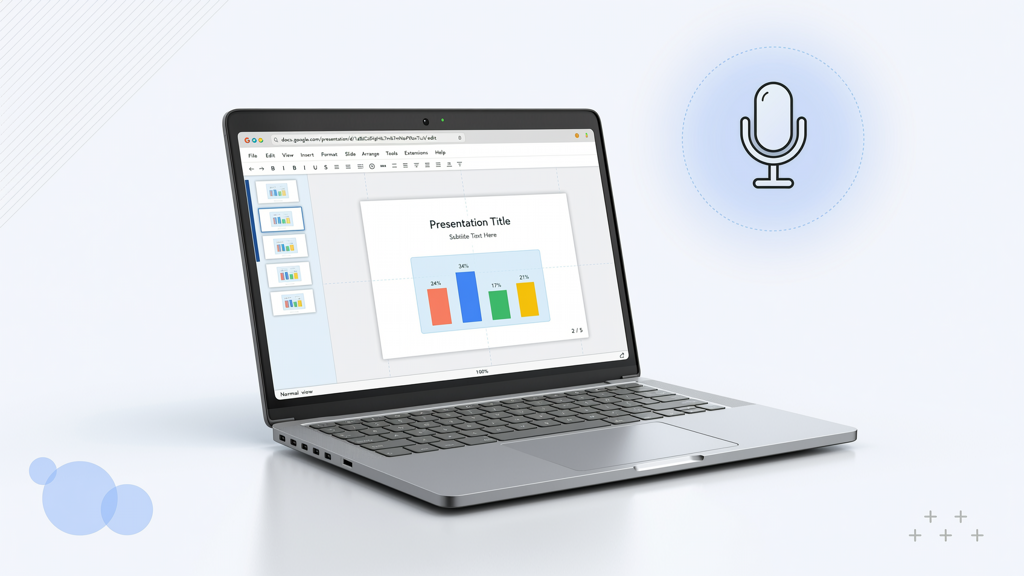
Google Slides is built for collaboration, simplicity, and cloud-based accessibility — not multimedia production. Unlike PowerPoint, it offers no built-in recording interface, timeline editor, or synchronized audio playback per slide. This isn’t an oversight; it’s a deliberate design choice prioritizing lightweight editing over rich media authoring. As a result, adding voiceover requires workarounds — and each comes with trade-offs in quality, control, accessibility, and scalability.
If you're preparing training decks, asynchronous presentations, or accessible learning materials, narration adds clarity, engagement, and inclusivity. But without native support, your path depends on your goals: Do you need quick-and-dirty narration for internal review? Professional-sounding output for external stakeholders? Consistent, multilingual voiceovers across dozens of slides? Or fully automated, editable narration that integrates smoothly into your workflow?
This article compares realistic, currently viable approaches — not theoretical or deprecated methods — and evaluates them by accuracy, ease of use, editing flexibility, accessibility compliance (e.g., WCAG), and long-term maintainability.
Option 1: Manual Screen Recording — Simple, but Fragile
The most accessible method requires no third-party tools: record your screen while narrating live using your OS’s built-in recorder (e.g., QuickTime on macOS, Xbox Game Bar on Windows) or free web-based tools like Loom or Screencast-O-Matic.
- How it works: Open your Google Slides presentation in full-screen mode, start recording, advance slides manually while speaking, and stop when finished.
- Pros: Zero setup cost, full vocal control (tone, pacing, emphasis), natural inflection, immediate availability.
- Cons:
- No per-slide audio separation — one monolithic video file makes edits painful (e.g., re-recording Slide 7 means redoing the entire sequence).
- No automatic captioning or transcript generation unless added post-hoc (and often inaccurately).
- Audio quality depends entirely on your mic, room acoustics, and speaking consistency — no noise suppression or leveling.
- Playback is tied to video — viewers can’t scrub audio independently or download just the narration.
- Not scalable: recording 30 slides takes ~30+ minutes, plus editing time for mistakes or pauses.
Practical tip: If choosing this route, rehearse once silently to time your pacing, use a quiet room with soft furnishings to reduce echo, and insert 2-second pauses between slides to aid post-editing. Always export as MP4 with embedded audio — avoid uploading raw screen captures directly to shared folders without compression checks.
This approach remains viable for one-off, low-stakes presentations — but it fails under scrutiny for accessibility, reuse, or version control.
Option 2: Browser Extensions — Convenient, but Limited and Unreliable
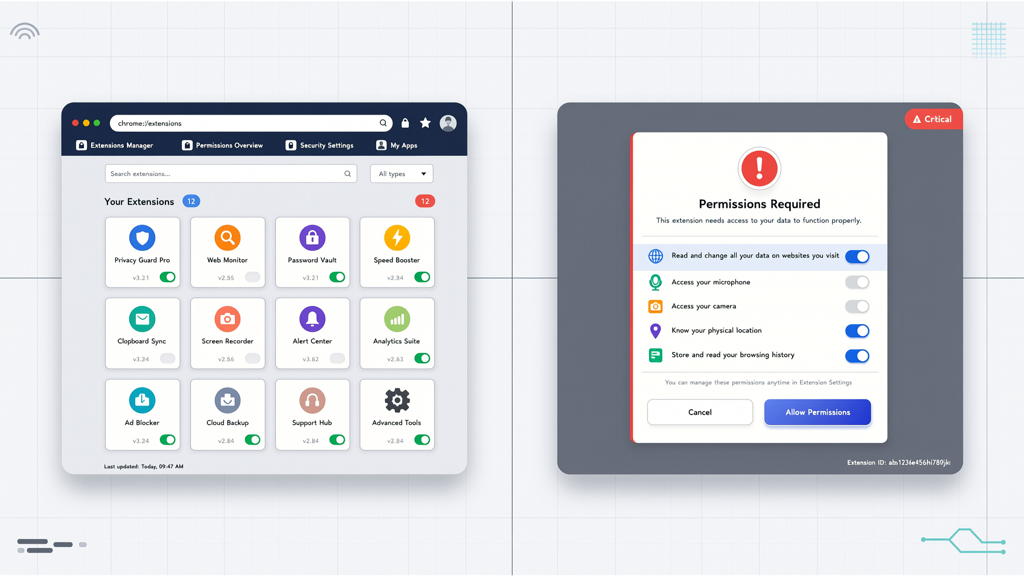
A handful of Chrome extensions claim to “add voiceover to Google Slides.” They typically inject a floating control panel into the Slides editor, allowing you to click a button per slide and speak into your microphone. Some even promise auto-sync or basic export.
However, real-world usage reveals consistent limitations:
- No persistent audio storage in Google Drive: Most extensions store recordings temporarily in browser memory or local cache — not in your Google account. Close the tab or clear cookies, and narration vanishes.
- No export flexibility: Few allow exporting individual audio files (e.g., MP3 per slide). Many only generate a single embedded video or force sharing via proprietary links.
- Inconsistent permissions & security: Extensions requiring “read/write access to all sites” pose privacy risks — especially for enterprise or education users handling sensitive content.
- Bug-prone syncing: Slide reordering, copy-paste edits, or template updates frequently break audio-to-slide mapping. No extension reliably maintains narration after structural changes.
- Zero accessibility features: None generate transcripts, captions, or semantic timing metadata — critical for screen reader compatibility or LMS integration.
While convenient for rapid prototyping, browser extensions lack the stability and fidelity needed for professional or regulated environments (e.g., compliance training, academic submissions, public-facing resources). Use them only for personal drafts — never for deliverables requiring revision history, audit trails, or accessibility validation.
Option 3: Dedicated Narration Tools — Precision, Control, and Scalability
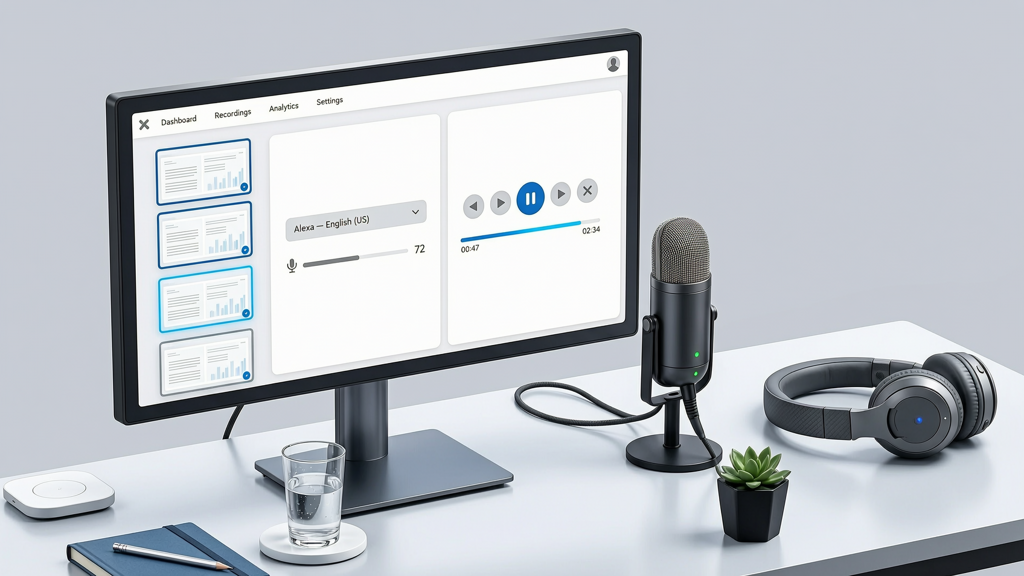
Dedicated tools bridge the gap between Google Slides’ simplicity and professional narration needs. They don’t modify Slides directly — instead, they import your deck (via PDF, PPTX export, or direct Google Drive sync), let you record or generate voiceover per slide, and return an enhanced, self-contained package: either a narrated PDF, video export, or embeddable web player.
Among current options, SlideToTalk stands out for its balance of automation and human control. It supports both text-to-speech (TTS) narration — with adjustable voice, speed, and language — and manual voice recording per slide. Crucially, it preserves slide structure, handles animations intelligently, and exports cleanly to MP4, MP3, or interactive HTML — all while keeping source files editable in Google Slides.
Here’s how SlideToTalk compares against core requirements:
- Editing fidelity: Edit narration per slide without affecting others. Re-record Slide 5? Done — no ripple effect.
- Accessibility-first output: Generates SRT captions automatically, supports keyboard navigation in exported HTML, and includes ARIA labels where applicable.
- Workflow integration: Imports directly from Google Drive (no manual download/upload), respects fonts and layouts, and exports back to Drive with versioned naming.
- Consistency at scale: Apply the same TTS voice across 50 slides in one click — or mix human narration on title slides with synthetic voice for data-heavy sections.
- No vendor lock-in: Your original Google Slides file remains untouched and editable. SlideToTalk operates as a companion layer — not a replacement platform.
Other dedicated tools exist (e.g., some LMS-native narrators or desktop-only converters), but most require PPTX conversion, lack Google-native auth, or impose rigid templates. SlideToTalk’s architecture aligns most closely with how teams actually work inside Google Workspace — making it the most sustainable choice for recurring narration tasks.
Practical tip: For best results with SlideToTalk, write concise speaker notes directly in Google Slides before importing. Its TTS engine reads those notes — so clean, active-voice phrasing yields more natural output than dense paragraphs. Also, enable “pause on animation” in SlideToTalk’s settings if your deck uses build-ins — this ensures narration syncs precisely with visual reveals.
Choosing the Right Path: A Decision Framework
There’s no universal “best tool to add voiceover to Google Slides.” The optimal solution depends on your specific constraints. Use this framework to decide:
| Your Priority | Best Fit | Why |
|---|---|---|
| Speed + zero cost | Manual screen recording | Requires only what’s already on your device; no signups or permissions. |
| Quick draft + light editing | Browser extension (with caution) | Fastest for testing flow or internal feedback — but treat as disposable. |
| Professional delivery + accessibility | Dedicated tool (e.g., SlideToTalk) | Ensures accurate sync, captioning, reusability, and compliance-ready output. |
| Large volume + multilingual needs | Dedicated tool with TTS | Automates narration across languages and variants without hiring voice talent. |
Also consider long-term maintenance: Will you update this deck quarterly? Does your organization require VPAT documentation or 508 conformance? If yes, manual or extension-based paths introduce technical debt — every edit demands re-recording or remapping. Dedicated tools minimize that overhead through structured, slide-level audio management.
Finally, remember that narration is only one part of inclusive design. Pair voiceover with descriptive alt text for images, logical heading structure, sufficient color contrast, and readable font sizes — otherwise, even perfect audio won’t serve all learners.
Final Summary: Clarity Over Convenience
When evaluating google slides voiceover tools compared, it’s essential to separate marketing claims from operational reality. Google Slides narration software doesn’t exist natively — and pretending otherwise leads to fragile, inaccessible outputs.
Manual screen recording delivers immediacy but sacrifices precision and sustainability. Browser extensions offer convenience at the cost of reliability, security, and accessibility. Dedicated tools like SlideToTalk provide the only path that balances control, compliance, and scalability — turning narration from a workaround into a repeatable, professional practice.
The best tool to add voiceover to Google Slides isn’t defined by features alone — it’s defined by how well it fits your actual workflow, audience needs, and long-term goals. If your priority is accuracy, reuse, and inclusivity, invest in a purpose-built solution. If it’s speed for a one-time demo, lean on screen recording — but know its limits.
Ultimately, narration should enhance understanding — not create new barriers. Choose the method that honors both your content and your audience.
Try SlideToTalk free
Upload your PPT, PDF, or images. Add narration with text-to-speech or your own voice, and export a narrated video in one click.
Start for free →