How to Add Voiceover to PowerPoint Like a Pro (Easy Guide)
Why Adding Voiceover to PowerPoint Matters
Adding voiceover to PowerPoint transforms static slides into engaging, accessible, and memorable presentations. Whether you're creating training materials, sales pitches, e-learning modules, or remote meeting decks, spoken narration adds clarity, personality, and emotional resonance that text alone cannot deliver.
When viewers hear your voice guiding them through concepts, pacing the information, and emphasizing key points, retention improves significantly. Voiceovers also support inclusivity — they benefit learners with visual impairments, neurodiverse audiences, or those who absorb information more effectively through auditory channels.
Importantly, adding voiceover to PowerPoint doesn’t require advanced audio engineering skills or expensive software. Modern tools — both native and third-party — make high-quality narration accessible to everyone, from educators to executives.
Method 1: Using PowerPoint’s Built-in Recording Feature
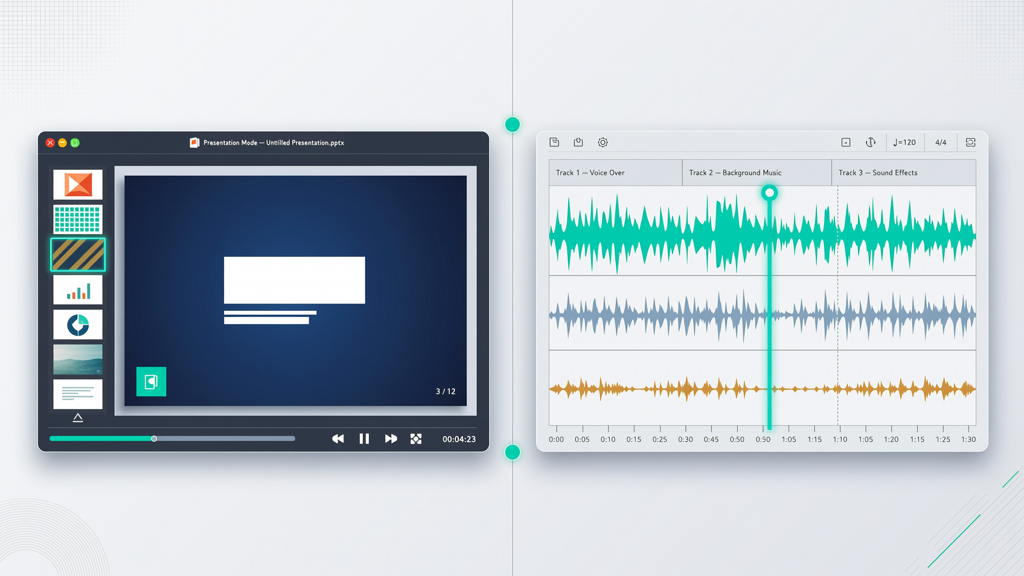
Microsoft PowerPoint includes a robust, free narration tool that lets you record, edit, and synchronize voice directly within your presentation. It works across Windows and macOS (with minor interface variations) and integrates seamlessly with slide transitions and animations.
Step-by-step: How to Add Voiceover to PowerPoint Natively
- Prepare your environment: Find a quiet space, use headphones with a built-in mic (or a USB condenser mic for better quality), and close background apps that might cause audio interference.
- Open your presentation and go to the Slide Show tab → click Record Slide Show.
- Choose recording options: Select whether to start from the beginning or current slide, and toggle on Record from Current Slide, Use Narration and Laser Pointer, and Record Slide and Animation Timings.
- Begin recording: Click Start Recording. A countdown appears, then PowerPoint begins capturing your voice and slide timings. Speak clearly and pause naturally between points — avoid rushing.
- Edit as needed: After recording, navigate to the Animations tab → Animation Pane. Here, you’ll see audio icons next to each slide. Right-click any audio object to trim, delete, or adjust playback settings (e.g., Play Across Slides or Hide During Show).
- Save & export: Save your file as a .pptx to retain editable narration. To share widely, export as a video (File > Export > Create a Video) — choose “Use Recorded Timings and Narrations” to preserve your voiceover and pacing.
Pro Tips for Better Native Recordings
- Script lightly: Write bullet-point notes instead of full scripts — this keeps delivery natural and conversational.
- Pause before speaking: Leave 1–2 seconds of silence at the start of each slide to prevent clipping.
- Re-record individual slides: You don’t need to redo the entire deck. In Slide Show > Record Slide Show, select Record from Current Slide to overwrite just one segment.
- Check volume consistency: Play back recordings and watch the audio waveform. If peaks are too low or clipped (red), adjust mic input level in your system settings before re-recording.
Method 2: Leveraging AI Tools to Add Voiceover to PowerPoint

While PowerPoint’s native recorder is reliable, it demands time, vocal stamina, and technical comfort. AI-powered solutions simplify the process — especially when you need multilingual output, consistent tone, or rapid turnaround without recording yourself.
These tools convert written slide content or speaker notes into lifelike speech, automatically sync narration to slide durations, and often include customization for voice gender, speed, emphasis, and pauses. They’re ideal for educators producing scalable courseware, marketers building demo videos, or professionals managing high-volume presentations.
Key Benefits of AI Voiceover Tools
- Time savings: Generate polished narration in minutes instead of hours.
- Voice consistency: Maintain uniform tone and pronunciation across dozens of slides or multiple presentations.
- Accessibility-first output: Automatically generate transcripts and support screen readers.
- Language flexibility: Translate and narrate in dozens of languages — useful for global teams or localized training.
- No hardware dependency: Eliminate mic setup, echo control, and background noise cleanup.
How SlideToTalk Streamlines the Process
Among AI-powered solutions, SlideToTalk stands out for its deep PowerPoint integration and intuitive workflow. It reads your slide titles, bullet points, and speaker notes — then generates studio-quality narration synced precisely to your slide timings.
What makes SlideToTalk particularly effective is its contextual awareness: it intelligently adjusts pacing based on content density, inserts natural pauses after lists or questions, and allows fine-grained editing of voice parameters per slide. You can preview, tweak, and re-generate segments instantly — no re-uploading or reprocessing delays.
Once generated, SlideToTalk exports a fully editable PowerPoint file (.pptx) with embedded audio — meaning your voiceover stays intact, plays in PowerPoint’s native player, and retains all timing and animation logic. There’s no proprietary viewer or external hosting required.
Troubleshooting Common Voiceover Issues
Even with mature tools, challenges arise. Here’s how to resolve the most frequent ones:
Audio Not Playing in PowerPoint
- Cause: Audio files may be linked rather than embedded — especially if imported manually.
- Solution: Right-click the audio icon → Properties → ensure Link to File is unchecked. For best portability, embed audio by inserting via Insert > Audio > Audio on My PC and selecting Insert (not Link to File).
Timing Drift Between Voice and Slides
- Cause: Manual recording without enabling Record Slide and Animation Timings, or inconsistent pacing during narration.
- Solution: Re-record using Record Slide Show with timing enabled. Alternatively, in SlideToTalk, re-sync narration by adjusting slide duration sliders or regenerating with updated speaker notes.
Poor Audio Quality (Hiss, Echo, Muffled Sound)
- Cause: Low-bitrate mic, room reverberation, or system-level audio compression.
- Solution:
- Use a dedicated USB microphone in a carpeted, furnished room.
- In Windows: Go to Sound Settings > Input > Device Properties > Additional Device Properties > Enhancements and disable all enhancements except Noise Suppression (if available).
- For AI tools like SlideToTalk, skip hardware concerns entirely — the output is studio-processed and optimized for clarity.
Exported Video Has No Sound
- Cause: Export settings ignored recorded narration, or audio was inserted post-export setup.
- Solution: Before exporting as video, confirm File > Export > Create a Video shows Use Recorded Timings and Narrations selected. Also verify audio icons appear on every slide in Normal View.
Best Practices for Professional PowerPoint Voiceovers
Technical execution matters — but so does communication design. Follow these principles to maximize impact:
Align Voice with Visual Hierarchy
Your narration should guide attention, not compete with visuals. Avoid reading every word on-screen. Instead:
- Introduce the concept *before* revealing complex diagrams.
- Pause briefly after displaying a chart — let viewers absorb it visually before explaining trends.
- Use vocal emphasis (“This sharp decline signals a critical inflection point”) to mirror bold or highlighted text.
Optimize for Accessibility and Reach
- Include captions: PowerPoint auto-generates subtitles for exported videos (under Export > Create a Video > Subtitles). For maximum compatibility, also provide a downloadable transcript.
- Test playback across devices: Verify audio sync and volume on laptops, tablets, and projectors — especially when using Bluetooth speakers or older AV systems.
- Offer multiple formats: Share both the editable .pptx (with embedded audio) and an MP4 version. Some LMS platforms accept only video; others require editable files for localization.
Maintain Authenticity — Even with AI
AI narration shouldn’t sound robotic — it should sound like you, just more efficient. To achieve that:
- Write speaker notes in your natural voice — contractions, rhetorical questions, and brief anecdotes work well.
- Use SlideToTalk’s voice customization to match your brand tone (e.g., “confident but approachable”, “calm and instructional”).
- Add subtle human cues: insert ellipses (...) for thoughtful pauses, or em dashes (—) to indicate emphasis shifts.
- Review the AI output aloud — if a sentence feels unnatural, rewrite the underlying note and regenerate.
Summary: Choose the Right Approach for Your Needs
Adding voiceover to PowerPoint is no longer a technical hurdle — it’s a strategic advantage. Whether you prioritize hands-on control, accessibility compliance, multilingual scalability, or rapid iteration, there’s a proven path forward.
Use PowerPoint’s native recording when you want full creative ownership, need zero external dependencies, or are presenting live with real-time annotation. It’s free, deeply integrated, and sufficient for most internal or small-audience uses.
Turn to AI tools like SlideToTalk when consistency, speed, language flexibility, or production polish are top priorities — especially for distributed teams, e-learning libraries, or customer-facing demos. Its seamless PowerPoint integration means you gain AI efficiency without sacrificing file control or compatibility.
Whichever method you choose, remember: great voiceover serves the audience, not the technology. Prioritize clarity over complexity, empathy over perfection, and purpose over polish. With thoughtful preparation and the right tools, adding voiceover to PowerPoint becomes less about ‘how’ — and more about ‘why it resonates’.
Try SlideToTalk free
Upload your PPT, PDF, or images. Add narration with text-to-speech or your own voice, and export a narrated video in one click.
Start for free →