How to Record Narration Over Your Slides (No Studio Needed)
Creating a compelling presentation doesn’t require a soundproof studio or expensive voice talent. You already have what matters most: your voice, your expertise, and your message. Today, you can record narration over slides with remarkable ease—using only your laptop, microphone, and the right tool. This guide walks you through a streamlined, professional workflow that keeps your content faithful, human, and fully under your control.
Why Recording Your Own Voice Beats Text-to-Speech
Many creators default to text-to-speech (TTS) when adding audio to presentations. It’s fast. It’s consistent. But it lacks nuance—tone shifts, emphasis, pauses for impact, and the subtle warmth that builds trust. A voice over presentation delivered in your own voice conveys authenticity, credibility, and intentionality. Listeners connect not just with your words, but with your presence.
TTS tools generate audio automatically from text—but they can’t interpret context, adjust pacing for emotional weight, or recover gracefully from a mispronounced term. When you record audio for PowerPoint yourself, you retain full expressive control. And with modern tools like SlideToTalk, doing so is free, intuitive, and tightly integrated with your existing slide deck.
Best of all: no character limits, no subscription tiers for basic recording, and zero synthetic artifacts. Your slides stay exactly as designed—no forced reformatting, no AI-driven layout overrides. Just you, your script, and your slides—faithfully preserved.
Step 1: Prepare Your Script Using Speaker Notes
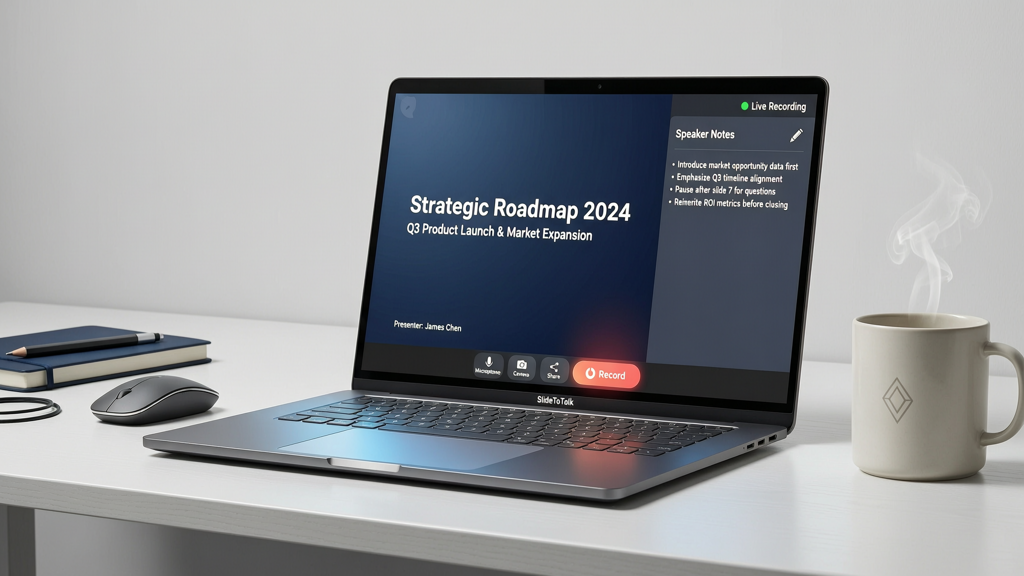
Before hitting record, invest time in preparation—not scripting every word rigidly, but distilling clarity and intent into concise speaker notes. These aren’t meant for reading aloud verbatim; they’re anchors for delivery.
- Open your PowerPoint (or Google Slides) and navigate to the Notes pane below each slide.
- Write brief, conversational prompts: key phrases, transitions (“Now let’s look at the implications…”), data highlights (“This 37% increase reflects a consistent trend since Q3”), and rhetorical questions (“What does this mean for your team?”).
- Avoid dense paragraphs. Use bullet points or short sentences—something you can glance at and expand naturally.
- Mark natural pause points with brackets: [pause], [breathe], [smile]. These cues help maintain rhythm during recording.
- Rehearse aloud once—not to memorize, but to identify awkward phrasing or tongue-twisters you can simplify.
💡 Pro Tip: Keep your microphone within arm’s reach while writing notes. Say each note out loud as you type it. If it feels clunky spoken, revise it. Authentic delivery starts long before you press record.
Step 2: Record Per-Slide—With Full Control & Flexibility
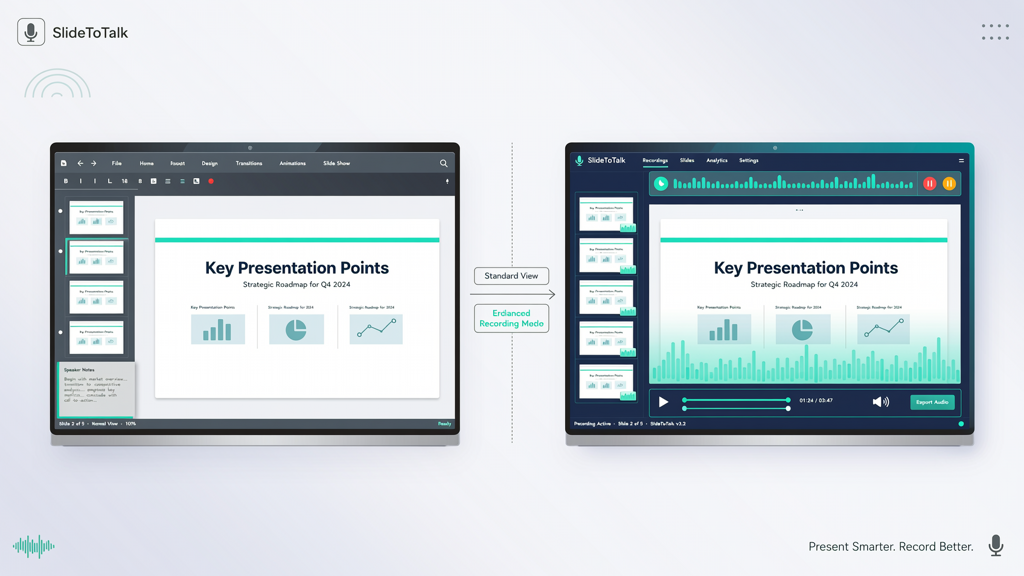
Modern presentation tools often force linear, one-take recording—leaving you to redo entire decks if you stumble on slide 12. That’s inefficient and discouraging. The smarter approach? Narrate slides individually. SlideToTalk’s free recording mode makes this seamless.
Here’s how it works:
- Upload your PowerPoint (.pptx) or Google Slides file directly to SlideToTalk.
- Select “Record” (not “Auto-narrate” or “AI Voice”). This activates the free, built-in microphone recorder.
- Click the microphone icon on any slide—you’ll see a live audio waveform and real-time level meter.
- Speak naturally using your speaker notes. No rush. No pressure. The recording stops automatically when you pause for >2 seconds—or manually with the stop button.
- Your audio is saved only to that slide. Nothing else is touched.
This per-slide model eliminates the need for perfect takes. If you misstate a figure on slide 5, simply re-record only slide 5—no scrubbing timelines, no trimming clips, no syncing headaches.
✅ Key advantage: SlideToTalk preserves your original slide design, fonts, animations, and transitions. Unlike some converters that flatten or reflow content, your visual integrity remains intact—because you’re recording over your slides, not replacing them.
Step 3: Refine & Re-Record Individual Slides Effortlessly
Even seasoned presenters flub lines. That’s normal—and SlideToTalk treats it as expected, not exceptional. There’s no penalty for iteration. You can refine your record narration over slides with surgical precision.
To edit:
- Hover over any slide thumbnail in the editor sidebar.
- Click the audio waveform icon (or the “Edit Audio” button) to play back your current narration.
- Click the microphone icon again to overwrite—no delete-and-restart steps, no file management.
- Listen after each re-take. Compare tone, pace, and clarity—not perfection, but resonance.
💡 Pro Tip: Try the “3-Take Rule.” Record a slide three times—once cold, once after reviewing notes, once after listening to take two. Often, take three carries the best energy and timing. Because each take is isolated, experimenting costs nothing in time or effort.
You’re not building a broadcast-quality podcast—you’re creating a clear, confident, human-led explanation. Slight vocal imperfections (a gentle breath, a thoughtful pause) don’t distract; they reinforce authenticity.
Step 4: Sync Audio to Slides & Export Your Narrated Video
Once all slides are narrated, SlideToTalk handles synchronization automatically—no manual timeline alignment needed. Each audio clip begins precisely when its corresponding slide appears. Transitions (like fade or push) respect your original timing, and audio plays seamlessly across slides without gaps or overlaps.
Before exporting, preview your full presentation:
- Click “Play All” to experience it end-to-end.
- Check for unintended silences between slides—adjust speaker notes or re-record if needed.
- Verify that animations (e.g., bullet reveals, chart builds) align with verbal emphasis. If a point lands better *after* an animation completes, shorten the preceding audio or add a half-second pause.
When ready, export with confidence:
- Choose MP4 video—the universal format compatible with LMS platforms, email attachments, and learning portals.
- Select resolution (1080p recommended for clarity; 720p for faster upload or bandwidth-sensitive contexts).
- Download directly. No watermarks. No usage limits. No paywall.
Your final file is a self-contained, narrated video where every visual element supports—and is supported by—your voice. No external audio files to manage. No sync drift. No version confusion.
🎯 Why this matters: When stakeholders, students, or clients watch your presentation, they receive a unified experience—visual logic reinforced by vocal intention. That cohesion builds understanding far more effectively than disjointed slides + separate audio files ever could.
Summary: Human Voice, Zero Friction, Full Fidelity
Recording your own narration over slides isn’t a technical hurdle—it’s an intentional act of communication. You don’t need a studio. You don’t need a budget. You don’t need AI intermediaries.
With SlideToTalk’s free recording mode, you can:
- Prepare smartly using speaker notes—not scripts—as expressive guides;
- Record per-slide, eliminating pressure and enabling focused, repeatable takes;
- Re-record individual slides instantly—no timeline wrestling, no file juggling;
- Sync audio automatically, preserving your slide design, animations, and pacing;
- Export a polished MP4—ready to share, embed, or upload—without watermarks or restrictions.
This workflow delivers something TTS cannot: voice inflection that signals importance, pauses that invite reflection, and vocal warmth that fosters connection. It keeps your slides faithful—not adapted, not simplified, not restyled to suit an algorithm. It keeps you central.
So whether you’re explaining quarterly results to leadership, onboarding new hires, or submitting a course module, remember: the most powerful voice over presentation is yours. And with SlideToTalk, record narration over slides has never been simpler, more accessible, or more authentically you.
Try SlideToTalk free
Upload your PPT, PDF, or images. Add narration with text-to-speech or your own voice, and export a narrated video in one click.
Start for free →