How to Add Voiceover to Google Slides (Step by Step)
Why Google Slides Doesn’t Export Video (and What to Do Instead)
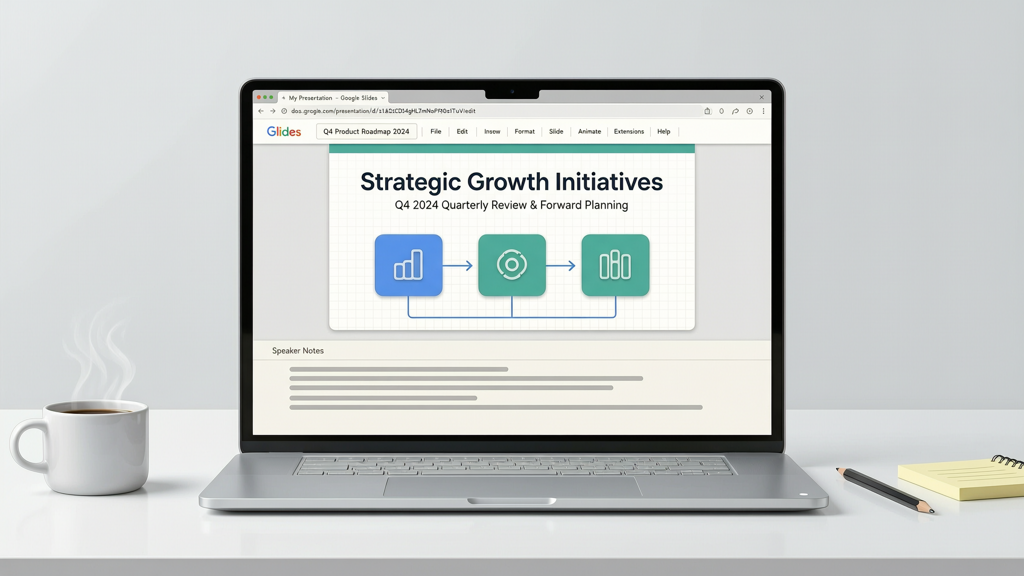
Google Slides is a powerful, cloud-based presentation tool — but it does not include native video export functionality. Unlike some desktop presentation apps, you cannot click "File > Download > MP4" and get a narrated, timed video file directly from the interface. This limitation is intentional: Google Slides prioritizes collaboration, real-time editing, and lightweight web performance over media rendering.
That said, adding voiceover to Google Slides is not only possible — it’s straightforward once you understand the practical workflow. The key insight is this: you don’t add narration inside Google Slides itself. Instead, you export your slides (as PDF, PNG, or PPTX), then use an external tool to layer voice, synchronize timing, and export a final MP4. This approach preserves your design integrity, respects slide transitions, and gives you full control over pacing and tone.
Whether you’re preparing training materials, asynchronous sales pitches, or accessible learning content, this method delivers professional results — no downloads, subscriptions, or complex software required.
Step 1: Prepare and Export Your Google Slides Deck

Before importing into a narration tool, ensure your slides are ready:
- Review slide order and content: Remove placeholder text, finalize visuals, and confirm all animations or transitions are intentionally minimal (since most narration tools don’t replicate complex Google Slides animations).
- Set consistent timing: While Google Slides doesn’t auto-time narration, decide roughly how long each slide should display — 15–30 seconds is typical for standard content. Jot down timings if helpful.
- Export your deck using one of these methods:
Option A: Export as PDF (Recommended for layout fidelity)
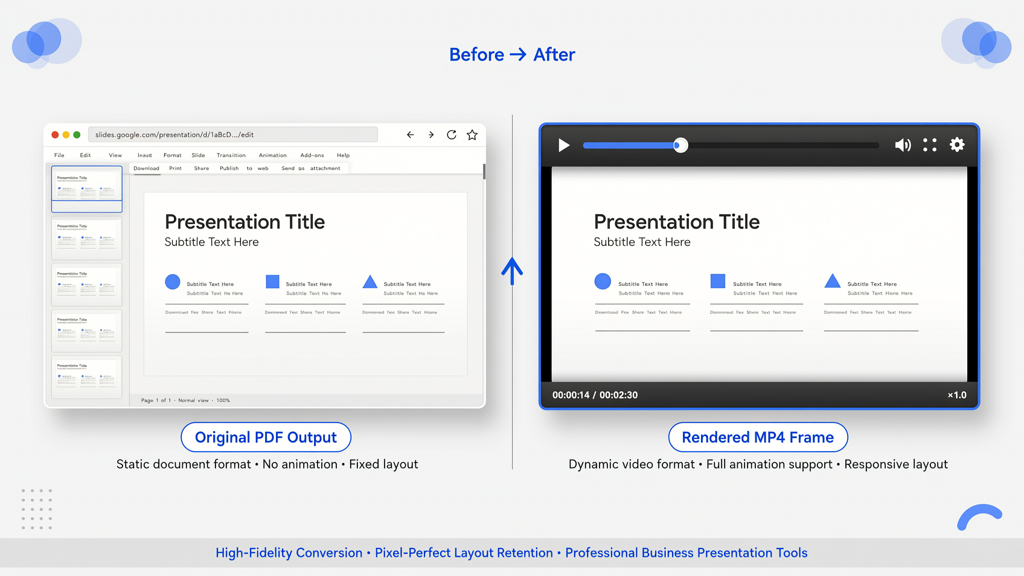
Go to File > Download > PDF Document (.pdf). This preserves fonts, colors, and positioning exactly as seen in your browser — ideal for tools that render slides pixel-perfectly.
Option B: Export as PowerPoint (.pptx)
Choose File > Download > Microsoft PowerPoint (.pptx). Use this only if you plan to edit in PowerPoint first or need compatibility with legacy systems. Note: Some custom fonts or embedded objects may shift slightly.
Option C: Share via link (for cloud-based tools)
Some tools accept a live Google Slides URL (with appropriate sharing permissions set to “Anyone with the link can view”). This avoids downloading altogether — but requires internet connectivity and may not support all formatting.
Pro tip: Always test one slide first. Export a single-slide PDF and run it through your chosen narration tool before processing the full deck.
Step 2: Choose Your Narration Method — TTS or Your Own Voice?
You have two reliable, free options for adding voiceover to Google Slides — both produce high-quality audio without cost or installation:
Text-to-Speech (TTS) Narration
TTS converts written speaker notes or slide text into natural-sounding speech. It’s ideal when:
- You need consistency across multiple presentations
- You’re short on time or uncomfortable recording
- You require multilingual output (e.g., Spanish, French, Japanese narration)
- You want precise timing control and repeatability
Modern TTS engines offer human-like intonation, adjustable speed, and gender options. For best results, write concise speaker notes in Google Slides (View > Show speaker notes) — then copy them into your narration tool. Avoid dense paragraphs; break ideas into short sentences.
Record Your Own Voice
Recording adds authenticity, warmth, and emphasis — especially valuable for leadership updates, client-facing decks, or educational content. To record effectively:
- Use wired headphones with a built-in mic (or a USB condenser mic for studio quality)
- Record in a quiet, carpeted room — avoid echo-prone spaces like bathrooms or bare-walled offices
- Read slowly and pause for 1–2 seconds between slides
- Keep a glass of water nearby to prevent vocal fatigue or dry-mouth clicks
You do not need audio-editing software. Most narration tools let you re-record individual slides without restarting the entire project.
Step 3: Generate Your Final Video (MP4)
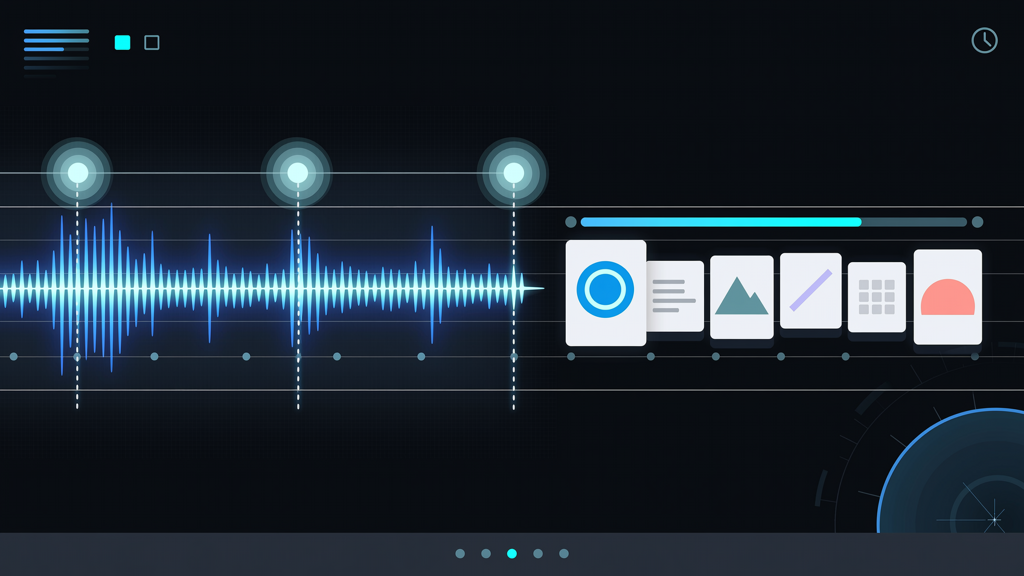
Once your slides are exported and narration selected, the next step is generating a polished MP4. Here’s how it works — and why SlideToTalk stands out for Google Slides users:
How SlideToTalk handles Google Slides narration:
- Upload your exported PDF or PPTX (or paste your Google Slides URL)
- Auto-detects speaker notes — or lets you type or paste custom narration per slide
- Offers both high-fidelity TTS voices and one-click voice recording (no app install needed)
- Preserves every visual element: fonts, colors, images, charts, and layout alignment — no cropping, scaling, or reformatting
- Exports a downloadable MP4 with synchronized audio, slide transitions, and optional background music
Unlike generic screen recorders or basic converters, SlideToTalk is built specifically for slide-to-video conversion. It renders each slide at full resolution, honors aspect ratios (16:9, 4:3, or custom), and maintains sharp text — critical for accessibility and professionalism.
Other tools exist, but many compress images, flatten layers, or force rigid templates. If your Google Slides narration depends on precise branding (e.g., logo placement, color-coded sections, or data visualizations), slide fidelity isn’t optional — it’s foundational.
Pro Tips for Clear, Effective Google Slides Narration
Even the best tool won’t compensate for unclear delivery or mismatched pacing. Apply these evidence-backed practices:
✔ Write for the Ear, Not the Eye
Speaker notes in Google Slides often contain bullet points meant for quick scanning — but spoken language needs rhythm and connection. Convert lists into full sentences:
❌ "Benefits: Cost savings, scalability, integration."
✅ "This solution reduces operational costs by up to 30%, scales seamlessly as your team grows, and integrates directly with your existing CRM."
✔ Match Audio Timing to Visual Flow
Don’t rush past complex diagrams or data charts. Pause 1–2 seconds after introducing a graph, then describe key takeaways. In SlideToTalk, you can manually adjust slide duration per slide — giving you frame-level control over pacing.
✔ Use Consistent Audio Levels
If recording your own voice, speak at a steady volume and distance from the mic. Avoid sudden “um”s or filler words — most tools let you trim silences or re-record single slides. For TTS, select a voice with natural cadence (avoid robotic monotone) and test playback with headphones.
✔ Optimize for Accessibility
A well-narrated Google Slides presentation supports screen readers, neurodiverse learners, and non-native speakers. Include brief verbal context for images (“Chart shows Q3 revenue growth, up 18% year-over-year”) and avoid saying “as you can see here” — instead, name the visual element directly.
✔ Test Across Devices
Play your final MP4 on mobile, laptop, and projector. Check that:
- Text remains legible at 75% zoom
- Audio balances clearly against background music (if used)
- Transitions don’t cut off narration mid-sentence
Fix any issues by adjusting slide duration or re-recording specific segments — no need to restart from scratch.
Summary: Your Reliable Path to Professional Google Slides Narration
Adding voiceover to Google Slides is simpler than it appears — once you shift focus from what Google Slides doesn’t do to what the ecosystem does enable. There’s no need for workarounds, browser extensions, or unstable screen captures. The proven path is threefold:
- Export thoughtfully: Use PDF for maximum layout accuracy; include speaker notes where helpful.
- Choose narration wisely: Use TTS for speed, consistency, and multilingual reach — or record your own voice for authenticity and emotional resonance.
- Generate with fidelity: Select a tool like SlideToTalk that treats your Google Slides presentation as a design artifact — not just a sequence of images — so fonts stay crisp, colors stay true, and your message stays intact.
This workflow delivers more than convenience. It ensures your voiceover Google Slides presentation communicates with clarity, confidence, and brand integrity — whether shared with executives, students, or global stakeholders. And because it relies on stable, widely supported formats (PDF, MP4, standard web audio), it remains effective, maintainable, and evergreen.
Start with one slide. Export it. Narrate it. Export the MP4. You’ll immediately see how achievable — and impactful — a voiceover Google Slides presentation can be.
Try SlideToTalk free
Upload your PPT, PDF, or images. Add narration with text-to-speech or your own voice, and export a narrated video in one click.
Start for free →