How to Convert PowerPoint to Video with Narration
Creating engaging, professional presentations doesn’t end when the slides are finalized—it begins when you bring them to life. Converting PowerPoint to video with narration transforms static content into dynamic, shareable assets ideal for training, marketing, remote learning, and stakeholder communication. Unlike basic exports that produce silent videos or static image sequences, a narrated video adds clarity, personality, and accessibility—helping viewers absorb information more effectively.
Why Add Narration to Slides?
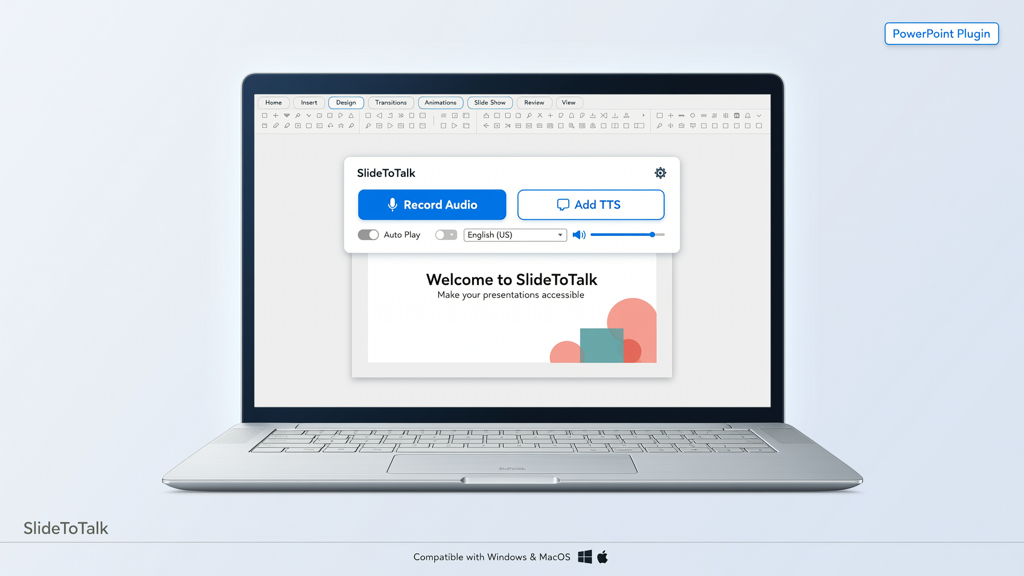
Narration bridges the gap between visual design and audience understanding. When you add narration to slides, you’re not just reading text aloud—you’re guiding attention, emphasizing key points, explaining complex visuals, and establishing tone and credibility. Research consistently shows that multimodal delivery (visual + auditory) improves retention, comprehension, and engagement—especially for remote or asynchronous audiences.
Moreover, narrated videos eliminate ambiguity: viewers know exactly what to focus on and why. This is especially valuable when distributing content across teams, clients, or learners who may not have access to live presenter support.
What Does SlideToTalk Offer?
SlideToTalk (https://slidetotalk.com) is a dedicated tool designed specifically for converting PowerPoint to video with narration—without requiring advanced editing skills or expensive software. It prioritizes slide fidelity, meaning your original formatting, animations, transitions, fonts, and layout remain intact in the final video output.
Key features include:
- Slide-faithful conversion: Preserves all native PowerPoint elements—including custom fonts, embedded media, slide transitions, and object-level animations.
- Flexible narration options: Supports both Text-to-Speech (TTS) voices and recorded audio. You can type script text for automated narration—or record your own voice directly in-browser.
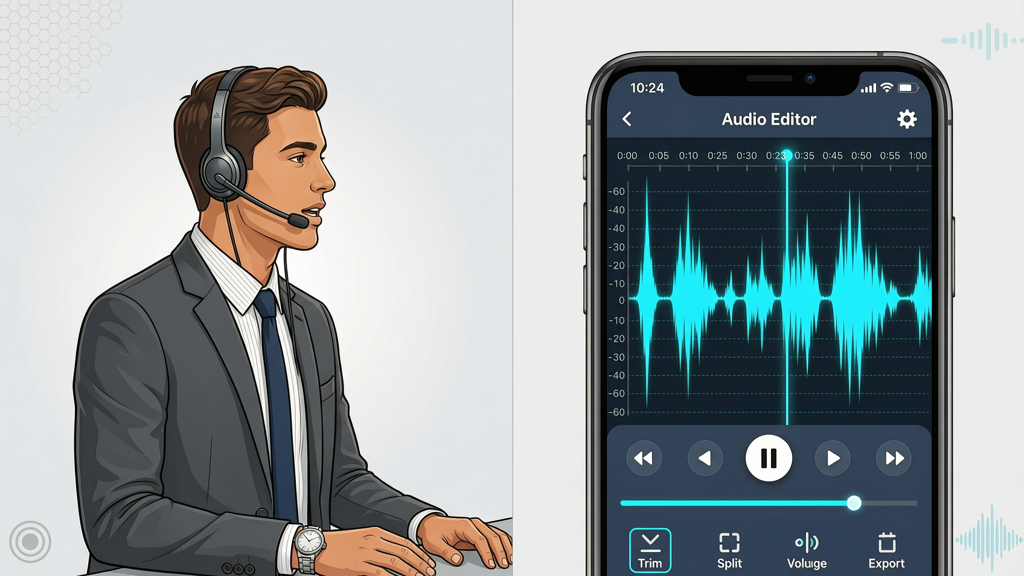
- Free built-in recording: No external microphone setup or audio editing needed. SlideToTalk provides an intuitive in-app recorder with playback and re-record functionality per slide.
- Watermark on free tier: The free version applies a subtle, non-obtrusive watermark in the bottom-right corner of exported videos. This allows full testing of quality and workflow before upgrading.
- Account requirement: A quick signup is required to save projects, access cloud storage, and download completed videos. No credit card is needed for the free plan.
Importantly, SlideToTalk does not alter slide timing automatically—each slide’s duration is fully controllable by you, whether you’re syncing to recorded speech, setting fixed durations, or letting narration length drive pacing.
Step-by-Step: How to Convert PowerPoint to Video with Narration Using SlideToTalk
Follow this practical, no-fluff workflow to go from .pptx file to polished narrated video in under 15 minutes.
Step 1: Prepare Your PowerPoint File
Before uploading, optimize your deck for narration:
- Review slide order and flow: Ensure logical progression. Remove placeholder slides or redundant content.
- Simplify text-heavy slides: Narration replaces dense bullet points—use concise headlines and supporting visuals instead of paragraphs.
- Check fonts and media: Embed fonts if possible (or use common system fonts). Confirm all images and charts render correctly in preview mode.
- Note narration cues: Jot down brief talking points per slide—not full scripts—to keep delivery natural.
Step 2: Sign Up and Upload
Go to https://slidetotalk.com and create a free account using email or Google. Once logged in:
- Click "Create New Project".
- Select "Upload PowerPoint" and choose your .pptx file.
- Wait for processing (typically under 30 seconds for decks under 50 slides).
- Confirm slide thumbnails load correctly—scroll through to verify layout integrity.
Tip: If animations or transitions appear misaligned in preview, double-check that your PowerPoint file uses standard Microsoft Office animation types—not third-party add-ins or unsupported effects.
Step 3: Add Narration to Slides
This is where your presentation gains voice and intention. SlideToTalk gives you two reliable paths:
Option A: Use Text-to-Speech (TTS)
- Click any slide thumbnail → select "Add TTS".
- Type or paste your script for that slide. Keep sentences short and punctuate clearly for natural pauses.
- Choose a voice (e.g., “US English – Professional Female”, “UK English – Calm Male”) from the dropdown.
- Adjust speed (0.8x–1.4x) and pitch if needed. Preview before moving on.
- Repeat per slide—or apply the same script and voice settings across multiple slides using batch actions.
Option B: Record Your Own Voice
- Select a slide → click "Record Audio".
- Grant microphone permission when prompted.
- Click the red record button, speak clearly at a steady pace (120–150 words per minute is ideal), then click stop.
- Immediately play back your recording. If unsatisfied, click "Re-record"—no file management required.
- Use the "Trim" slider to remove silence at the beginning or end.
- Repeat for each slide where personalized delivery matters most (e.g., introductions, conclusions, data interpretations).
Practical tip: For consistency, record all voiceovers in one quiet session using the same microphone and distance. Avoid background noise, HVAC hum, or echo—most laptops have surprisingly usable built-in mics when used in a carpeted room.
Step 4: Refine Timing and Export Settings
After adding narration, fine-tune pacing:
- Auto-sync timing: SlideToTalk can automatically adjust slide duration to match recorded audio length—ideal for organic delivery. Toggle this on per slide or globally.
- Manual timing override: Set fixed durations (e.g., 8 seconds per slide) if you need strict control—useful for branded templates or social media clips.
- Transition duration: Adjust fade or push transitions between slides (0.3s–1.2s recommended for professionalism).
- Video settings: Choose resolution (720p default; 1080p available on paid plans), aspect ratio (16:9 standard; 9:16 for vertical platforms), and frame rate (30 fps).
Preview your full video using the play button at the top. Watch it end-to-end—check for audio sync, awkward pauses, clipped narration, or unintended silences. Edit individual slides as needed.
Step 5: Export and Download
When satisfied:
- Click "Export Video" in the top-right corner.
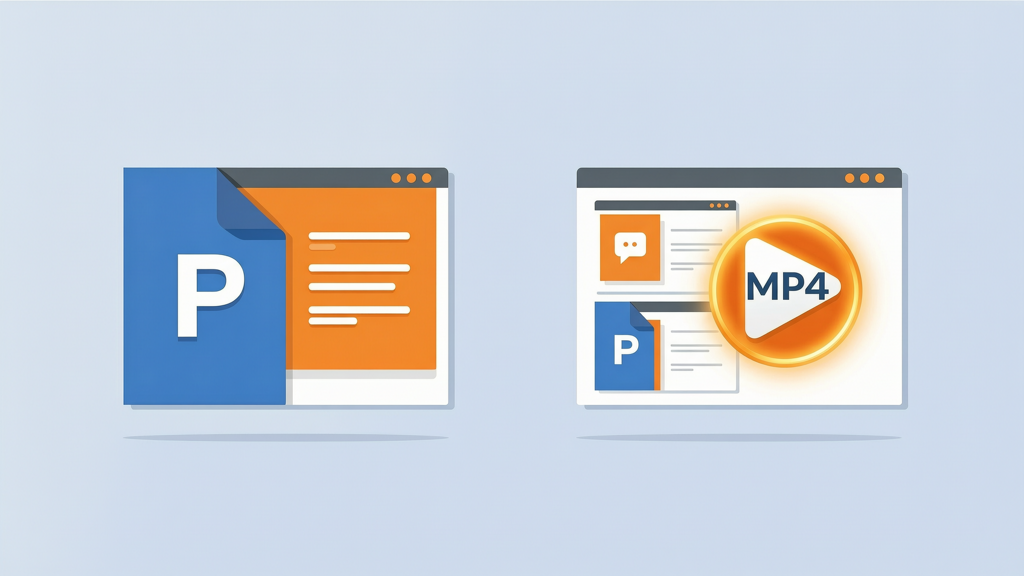
- Select format (MP4 only—universally compatible and optimized for web/streaming).
- Wait for rendering (typically 1–3 minutes depending on deck length and media).
- Download your file. On the free tier, a discreet watermark appears in the bottom-right corner—fully removable with a subscription.
Your exported MP4 plays reliably in PowerPoint, Zoom, Teams, LMS platforms (like Moodle or Canvas), YouTube, and email attachments.
Pro Tips for Best Results
Even with powerful tools like SlideToTalk, small refinements make a big difference in perceived professionalism and viewer retention:
- Script lightly, not rigidly: Write narration as spoken language—not written prose. Use contractions (“you’ll”, “we’re”), rhetorical questions, and emphasis markers (e.g., “This isn’t just a cost—it’s an investment.”).
- Pause intentionally: Insert 0.5–1 second of silence before key statements or after data reveals. Silence directs attention as powerfully as sound.
- Match voice tone to purpose: A calm, measured voice works for compliance training; energetic pacing suits product launches. Let your TTS or recording reflect context.
- Test on multiple devices: Play your exported video on laptop, tablet, and smartphone. Verify font legibility, contrast, and audio balance—especially if viewers will watch without headphones.
- Repurpose strategically: Export one master 1080p video, then use free tools (like DaVinci Resolve or CapCut) to crop, add subtitles, or extract 60-second highlights for social media—without re-rendering from PowerPoint.
Troubleshooting Common Issues
Encountering hiccups? Here’s how to resolve frequent challenges:
- Audio out of sync: Usually caused by mismatched slide timing. Re-enable auto-sync or manually extend slide duration to match full narration length.
- Missing fonts or layout shifts: Confirm your PowerPoint uses embedded fonts (File > Options > Save > “Embed fonts in the file”) or standard fonts (Arial, Calibri, Segoe UI). Avoid web fonts or heavy custom type.
- Low audio volume: Speak closer to the mic during recording—or increase gain in SlideToTalk’s audio editor (available per slide after recording).
- Long export times: Large embedded videos or high-res PNGs slow rendering. Compress images beforehand (PowerPoint > Picture Format > Compress Pictures) and replace embedded videos with links where appropriate.
- Watermark visibility concerns: The free-tier watermark is minimal and positioned to avoid covering critical content. For client-facing or public use, upgrade to remove it—no reprocessing needed.
Final Thoughts
Knowing how to convert PowerPoint to video with narration unlocks new dimensions of impact for your content—whether you’re onboarding staff, pitching ideas, teaching remotely, or documenting processes. The goal isn’t automation for its own sake, but clarity, consistency, and connection.
SlideToTalk streamlines this process without compromise: it preserves your design integrity while offering flexible, accessible ways to add narration to slides. Its browser-based interface removes software barriers; its dual narration paths (TTS and recording) accommodate diverse needs and comfort levels; and its slide-faithful engine ensures your work looks exactly as intended—no surprises, no rework.
You don’t need a studio, a producer, or months of learning. With thoughtful preparation, intentional narration, and a tool built for the task, you can turn any well-crafted PowerPoint into a compelling, self-contained video story—in minutes, not days.
Start simple: pick one 5-slide deck, record your voice for two slides, use TTS for the rest, and export. Then watch it back—not as a creator, but as your audience. That moment of recognition—that’s when your presentation stops being slides… and starts being communication.
Try SlideToTalk free
Upload your PPT, PDF, or images. Add narration with text-to-speech or your own voice, and export a narrated video in one click.
Start for free →