How to Choose the Right Aspect Ratio for Your Slide Video
Why Aspect Ratio Matters More Than You Think
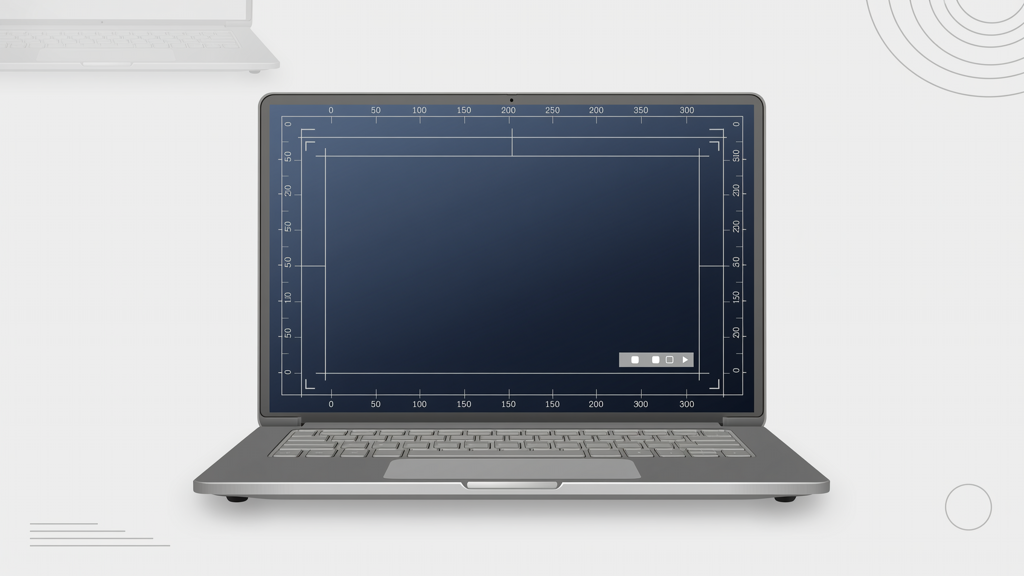
Your slide video’s aspect ratio isn’t just a technical detail—it’s your first impression. It determines whether your content fills the screen or appears cropped, letterboxed, or awkwardly scaled. Unlike live presentations where you control the display environment, slide videos travel across devices and platforms with wildly different screen shapes. A mismatched ratio can cut off critical text, shrink visuals beyond readability, or trigger automatic center-cropping that hides key data points. Worse, no AI tool can reliably reinterpret your slide layout on the fly—what you see in your original deck is what must survive the conversion. That’s why choosing the right ratio upfront—not after export—is essential for clarity, credibility, and engagement.
Three Core Aspect Ratios—and When to Use Each
Only three aspect ratios are meaningfully supported across modern presentation-to-video workflows. Each serves a distinct purpose, and none universally ‘reformats’ your slides. They preserve your original slide geometry—but only if you align your source design with the target output. Here’s how to match them correctly:
16:9 — The Standard for Professional Presentations
The 16:9 aspect ratio remains the universal standard for:
- Live virtual meetings (Zoom, Teams, Google Meet)
- Embedded videos on corporate websites and learning management systems (LMS)
- Conference recordings and webinar replays
- Internal training modules viewed on desktops and conference room displays
Design tip: Build your slides at 16:9 from the start. Avoid placing critical elements near the top or bottom 10% of the canvas—these areas risk being obscured by platform UI overlays (e.g., meeting controls or player chrome). Use safe zones: keep titles within the central 80% height and body content within the central 75% width.
When exporting a PowerPoint video for social media, remember: 16:9 works well on LinkedIn feed posts and Facebook desktop views—but it will appear with black bars (pillarboxing) on mobile-first platforms like Instagram Reels or YouTube Shorts. That’s not a flaw—it’s an expected behavior. If your goal is maximum reach on those vertical channels, 16:9 alone won’t suffice.
9:16 — The Vertical Standard for Mobile-First Platforms
The 9:16 (portrait) ratio is optimized for full-screen mobile viewing on:
- Instagram Reels and Stories
- YouTube Shorts
- TikTok
- LinkedIn Feed (mobile view)
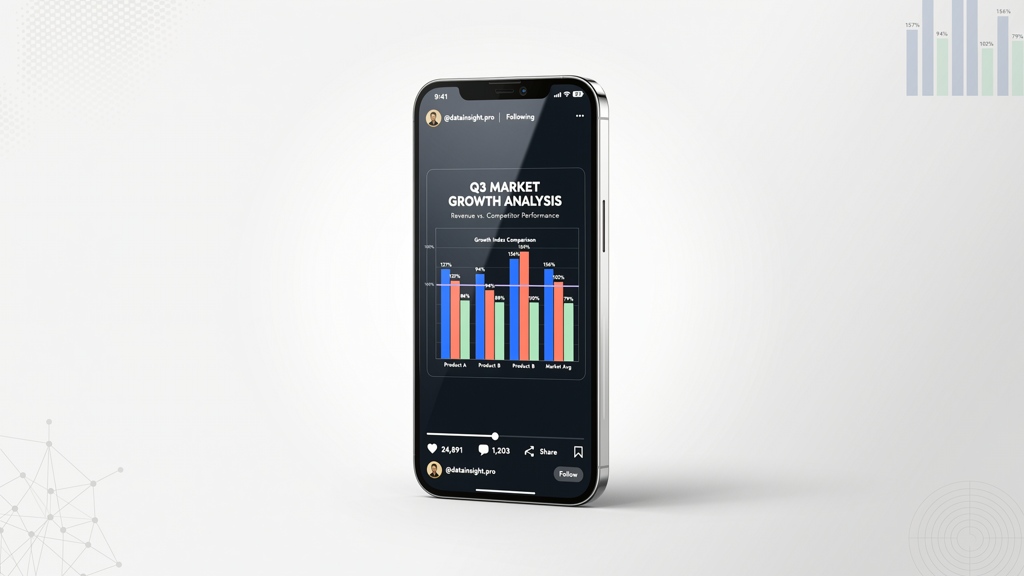
This ratio demands intentional slide adaptation—not automatic transformation. Because your original 16:9 slides were designed horizontally, converting them to 9:16 requires slide-faithful cropping: selecting the most important vertical slice of each slide and repositioning key elements to remain centered and legible. No AI tool preserves animations, transitions, or layered builds when switching to 9:16; those features are disabled or flattened during export. What remains is static visual hierarchy—so prioritize clarity over complexity.
Practical workflow:
- Export your original deck as high-resolution PNGs (one per slide).
- In your video editor—or tools like SlideToTalk—import each image and manually set the crop region to focus on headlines, charts, or speaker notes.
- Add subtle zoom or pan (Ken Burns effect) only if it enhances emphasis—not as a substitute for thoughtful composition.
- Never rely on auto-crop suggestions: they often center on slide titles but ignore supporting visuals or data labels.
Avoid stretching or distorting slides to fit 9:16. This degrades text sharpness and misrepresents proportions—especially damaging for graphs, infographics, or product mockups.
Square (1:1) — For Balanced Feed Visibility
The 1:1 (square) ratio sits between landscape and portrait. It’s ideal for:
- Instagram Feed posts
- Facebook Page posts (especially on mobile)
- LinkedIn Article headers and carousel previews
- Embedded thumbnails in email newsletters
Square delivers consistent visibility without pillarboxing or letterboxing on most feed-based interfaces. However, it sacrifices horizontal real estate—so wide tables, multi-column layouts, or side-by-side comparisons may require reformatting. Like 9:16, square output relies on manual cropping decisions. There is no intelligent reflow: bullet points don’t wrap automatically, and charts don’t rescale intelligently.
Pro tip: Design dual-purpose slides. Create a master 16:9 version, then duplicate and adapt key slides into square-safe variants—moving subtitles lower, simplifying charts to highlight one metric, or replacing paragraphs with concise callouts. This takes time upfront but eliminates last-minute panic before publishing.
What Doesn’t Work—And Why
Despite advances in AI tools, certain expectations remain technically unsupported and functionally unreliable. Understanding these limits prevents wasted effort:
- No auto-reflow of slide content: AI cannot reconstruct your slide layout for a new aspect ratio. It cannot move bullet points, resize fonts proportionally, or rearrange columns to fit vertical space. Any claim otherwise misrepresents current capabilities.
- No animation preservation across ratios: Transitions, morph effects, object builds, and timed entrances are lost when switching from 16:9 to 9:16 or 1:1. These features depend on fixed canvas coordinates—change the ratio, and the animation path breaks.
- No true 'smart crop' for meaning: Algorithms detect edges and faces—not rhetorical emphasis. A tool might center on a person’s head in a testimonial slide, but ignore the quote overlay that conveys the core message. Human judgment is irreplaceable here.
- No cross-platform ratio translation: Exporting once as 16:9 and expecting it to ‘adapt’ for Reels is unrealistic. Each platform renders video natively—no intermediary AI layer overrides native player behavior.
If your workflow depends on retaining animations or dynamically adjusting layouts, stick to a single aspect ratio and optimize all content for that context. Trying to serve multiple formats from one source file inevitably compromises quality.
How to Prepare Your Slides—Before You Export
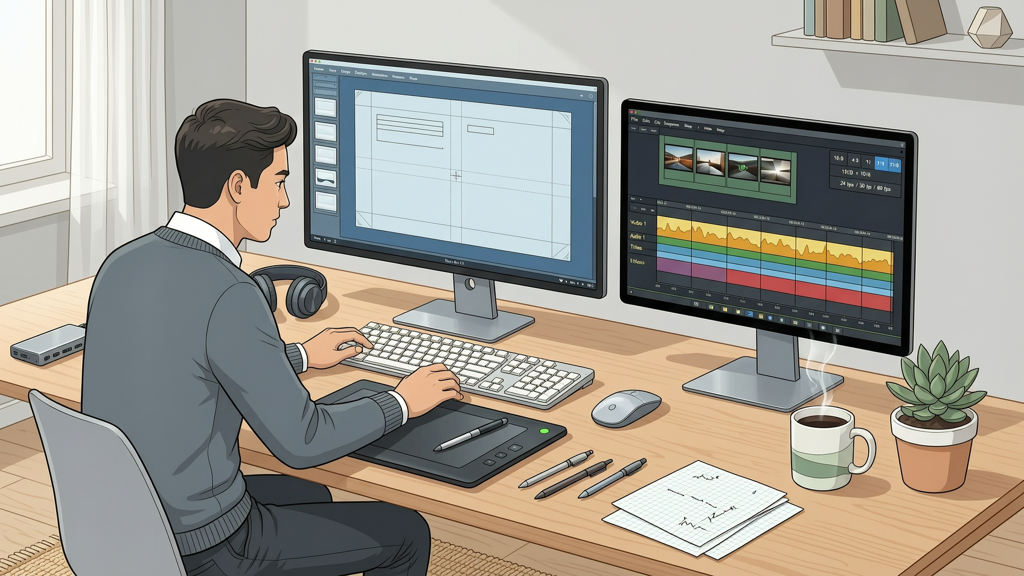
Preparation happens long before hitting “Export.” Follow these actionable steps to ensure clean, platform-ready outputs:
- Define your primary distribution channel first. Are you targeting executives watching on laptops (16:9), or Gen Z professionals scrolling Reels (9:16)? Let audience behavior—not convenience—drive the ratio choice.
- Use non-destructive slide duplication. In PowerPoint or Google Slides, duplicate your deck and rename copies (e.g., “Deck_16x9”, “Deck_9x16”). Adapt each—don’t try to toggle settings on one file.
- Test typography early. At 9:16, 24-pt title text may read clearly; at 16:9, the same font size may feel small on large displays. Adjust type scale per ratio—not per slide.
- Embed fonts or export as outlines. Avoid missing glyphs or substitution errors, especially when sharing files across operating systems.
- Export assets separately. Save charts, icons, and photos as high-res PNGs (not embedded JPEGs) to retain clarity during cropping and scaling.
Tools like SlideToTalk streamline this process by letting you assign aspect ratios per export batch, preview crops before rendering, and maintain consistent voiceover timing—even when switching between 16:9 and 9:16 versions of the same presentation. It does not invent new layouts, but it does help you execute intentional, repeatable adaptations.
Final Checklist: Choosing Confidently
Before finalizing your slide video, run through this quick validation:
- ✅ Is the primary viewing context defined? (e.g., “This video is for YouTube Shorts” → choose 9:16)
- ✅ Are critical visual elements positioned within the safe zone for that ratio? (No vital text or data near extreme edges)
- ✅ Have animations and builds been intentionally removed or replaced with static emphasis (e.g., bold highlights, step-by-step reveals via separate slides)?
- ✅ Has typography been tested at the target resolution? (Zoom in to 200% in preview mode—can you read every label and footnote?)
- ✅ Are exported assets (images, audio, captions) sourced from the adapted deck—not the original?
Remember: aspect ratio selection is a strategic decision—not a technical afterthought. It reflects how seriously you take audience context, platform norms, and visual integrity. There’s no universal ‘best’ ratio. There’s only the right ratio for your goal, your audience, and your content’s intent.
Whether you’re creating a board update for desktop viewers or a product teaser for Reels, grounding your choices in these fundamentals ensures your message arrives intact—without distortion, distraction, or dilution. Start with the ratio, design for it, and export with intention.
Try SlideToTalk free
Upload your PPT, PDF, or images. Add narration with text-to-speech or your own voice, and export a narrated video in one click.
Start for free →