How to Use a Script or Speaker Notes as Your Video Narration
Why Start With What You Already Have
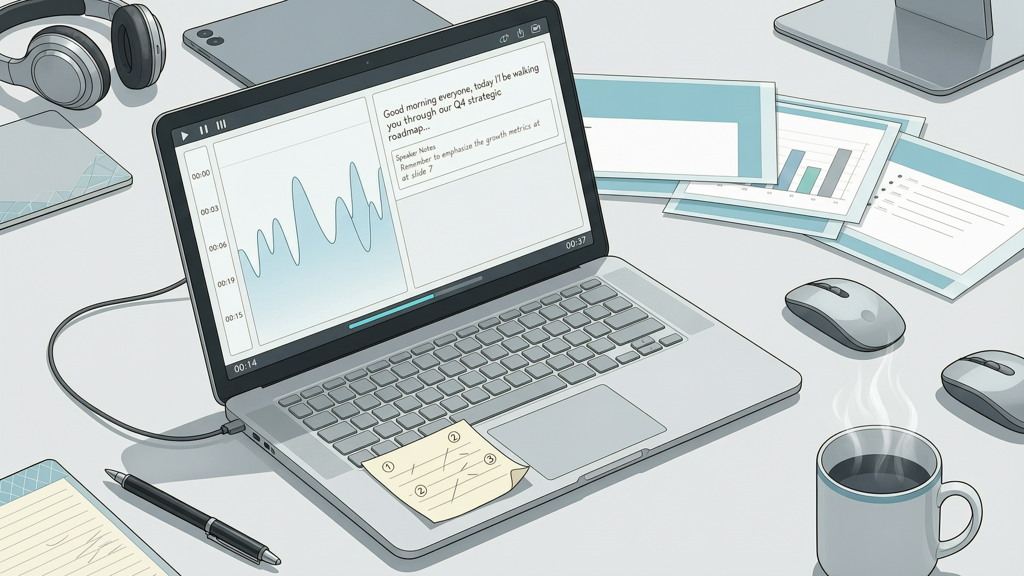
Most presenters already write speaker notes—or even full scripts—before delivering a talk. These notes contain your authentic voice, precise messaging, and intentional pacing. Rather than discarding them or rewriting them for AI, the most efficient, trustworthy approach is to use them directly as your video narration. This preserves accuracy, maintains brand voice consistency, and eliminates time spent on speculative AI rewrites that may distort meaning or nuance.
Modern tools now support this straightforward workflow: paste your existing text, then choose whether to generate natural-sounding speech (text-to-speech) or read it aloud using an integrated teleprompter. There’s no need for AI to reinterpret your intent—your words are ready. Your only job is to decide how they’ll be delivered.
The Two-Path Workflow: TTS or Teleprompter
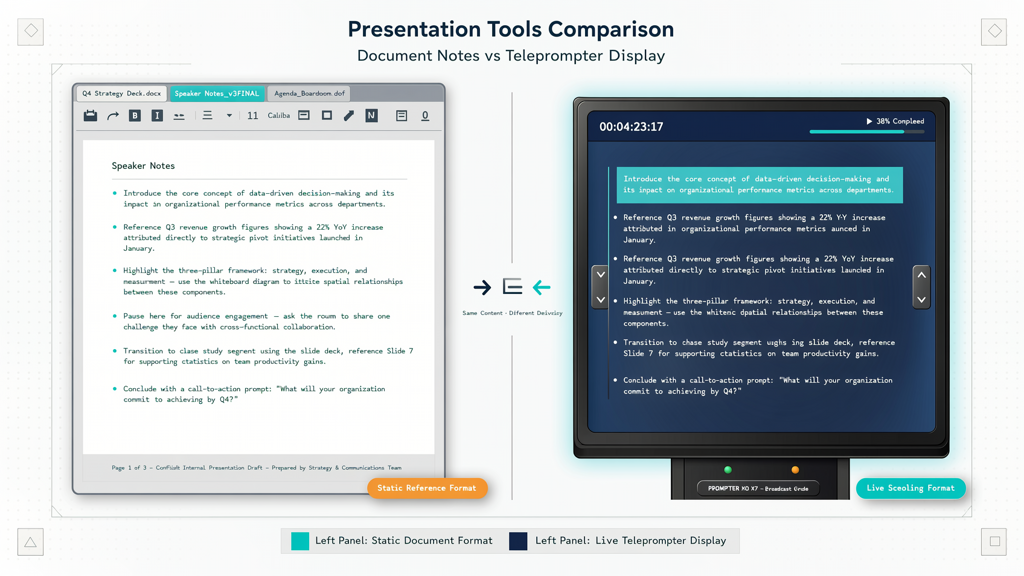
There are two equally valid ways to transform your script or speaker notes into narration—and both begin with the same first step: importing your text. Neither path requires rewriting, summarizing, or paraphrasing. Your original wording stays intact.
Path 1: Text-to-Speech (TTS) Voiceover
When you choose TTS, your speaker notes become spoken audio—synchronized automatically with your slides. This method is ideal when:
- You need consistent, professional narration without recording yourself
- You’re creating training or onboarding content where repeatability matters
- You want to maintain strict timing across multiple versions or translations
- You’re short on time but unwilling to sacrifice clarity or fidelity
How it works:
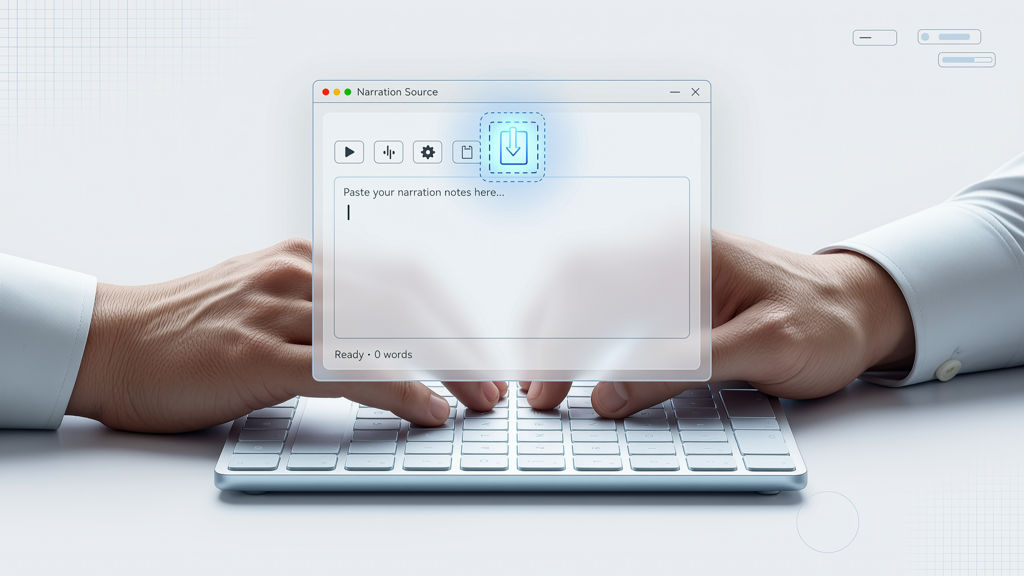
- Paste or import your speaker notes directly into the narration field
- Select a natural-sounding voice (with adjustable speed, pause duration, and emphasis)
- Preview the audio while viewing each slide—no manual syncing needed
- Export the final video with embedded narration
No AI “enhancement” is applied. The system reads exactly what you provide—word for word, punctuation for pause, line break for breath. If your notes say “Wait here—let that sink in.”, the TTS engine respects that pause. If you write “Not ‘maybe’—‘yes.’”, the emphasis remains yours.
Path 2: Teleprompter-Assisted Recording
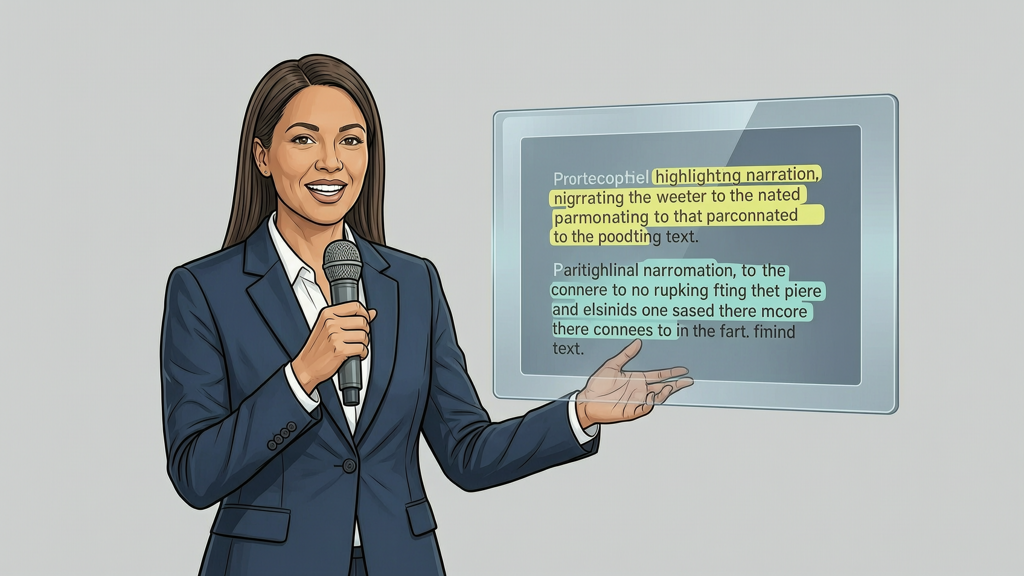
For presenters who prefer their own voice—or need to convey tone, authority, or authenticity—a built-in teleprompter makes recording fast and polished. This method is ideal when:
- You’re comfortable speaking on camera or via voice-only
- Your message benefits from vocal inflection, pauses, or emphasis only you can deliver
- You want full control over pacing, energy, and delivery rhythm
- You’re producing client-facing or leadership communications
How it works:
- Paste your speaker notes into the narration editor
- Enable recording mode—the teleprompter scrolls smoothly at your preferred speed
- Record directly into your browser or external mic; slides advance in sync with your reading
- Review, trim, and re-record individual segments without restarting
Because your script is already structured per slide (or you’ve added slide markers like [SLIDE 3]), the teleprompter knows precisely when to advance—so your narration and visuals stay aligned, every time.
Practical Tips for Preparing Your Notes
Even though no AI rewriting is involved, small formatting choices make a measurable difference in narration quality. Here’s how to optimize your existing materials:
- Use line breaks intentionally: Each new line can signal a slight pause or shift in focus—not just for readability, but for natural-sounding TTS or breathing room during recording.
- Add simple pronunciation cues if needed: For technical terms or names, use parentheses—for example: “API (A-P-I)” or “Xero (ZEE-ro)”. Most TTS engines honor these hints.
- Mark slide transitions clearly: Insert bracketed cues like
[Next Slide]or[Slide 5]to help the tool align narration with visual changes—even if your slides aren’t yet imported. - Trim filler phrases before pasting: Remove “um,” “like,” or “you know” manually—but keep rhetorical questions, repetitions for emphasis, or intentional fragments. Your voice, your rules.
- Test one slide first: Paste just the first 30 seconds of notes, generate TTS or record a snippet, and listen back. Adjust speed, pauses, or wording before scaling up.
Remember: this isn’t about adapting your content to fit the tool. It’s about letting the tool serve your content—exactly as written.
What to Avoid (and Why)
Some tools promise to “optimize,” “enhance,” or “AI-revise” your speaker notes before turning them into narration. While well-intentioned, those features introduce risk:
- Loss of domain-specific precision: A medical educator’s note saying “Stage IIIB NSCLC, not IV” must remain unchanged—no AI should substitute synonyms or simplify terminology.
- Tone misalignment: Humor, irony, or understatement rarely survive automated rewriting. If your note says “This looks simple. It absolutely isn’t.”, keep it verbatim.
- Timing disruption: Rewriting changes word count and rhythm—throwing off carefully timed animations or demo sequences.
- Compliance exposure: In regulated industries (finance, healthcare, legal), unreviewed AI edits may violate documentation standards or audit requirements.
The mature, responsible approach is to retain full authorial control. Your notes are your source of truth—not a draft for AI to reinterpret.
Putting It Into Practice With SlideToTalk
SlideToTalk exemplifies this evergreen, no-compromise workflow. It accepts speaker notes from PowerPoint, Google Slides, or plain text—and treats them as final narration copy. There are no hidden “rewrite” buttons, no forced AI summaries, and no prompts asking you to “let us improve your script.” Instead, you get:
- A clean interface where pasting your notes is the first and only content step
- High-fidelity TTS voices with granular control over rate, pitch, and silence duration
- A responsive teleprompter that adapts to your speaking pace—not the other way around
- One-click synchronization: narration starts when the slide appears, pauses when you do, and resumes cleanly
- Export options that preserve your original slide design while embedding studio-quality audio
Whether you’re repurposing internal training decks, converting conference talks into evergreen assets, or building self-paced sales demos, SlideToTalk lets you move from notes to narration in under five minutes—without altering a single sentence you wrote.
Importantly, SlideToTalk doesn’t assume your notes need fixing. It assumes you wrote them for a reason—and its job is to help those words land, clearly and consistently, in video form.
In Summary: Trust Your Words, Not the Rewrite
Turning speaker notes into narration shouldn’t require translation, interpretation, or compromise. Your script is already shaped by your expertise, audience awareness, and communication goals. The most effective tools recognize that—and build workflows around fidelity, not transformation.
By choosing a solution that supports both high-quality text-to-speech and intuitive teleprompter recording—and skipping unnecessary AI rewriting layers—you gain efficiency without sacrificing control. You preserve nuance without adding complexity. And you convert presentation notes to audio in a way that feels human, intentional, and true.
So before you open another AI writing assistant, try this instead: copy your latest speaker notes, paste them into a purpose-built narration tool, and let your own words speak for themselves—exactly as you meant them to.
That’s how you turn speaker notes into narration. That’s how you convert script to voiceover for slides. That’s how you transform presentation notes to audio—simply, reliably, and respectfully.
Try SlideToTalk free
Upload your PPT, PDF, or images. Add narration with text-to-speech or your own voice, and export a narrated video in one click.
Start for free →