How to Insert Pauses Between Slides in a Narrated Video
Why Pausing Between Slides Matters
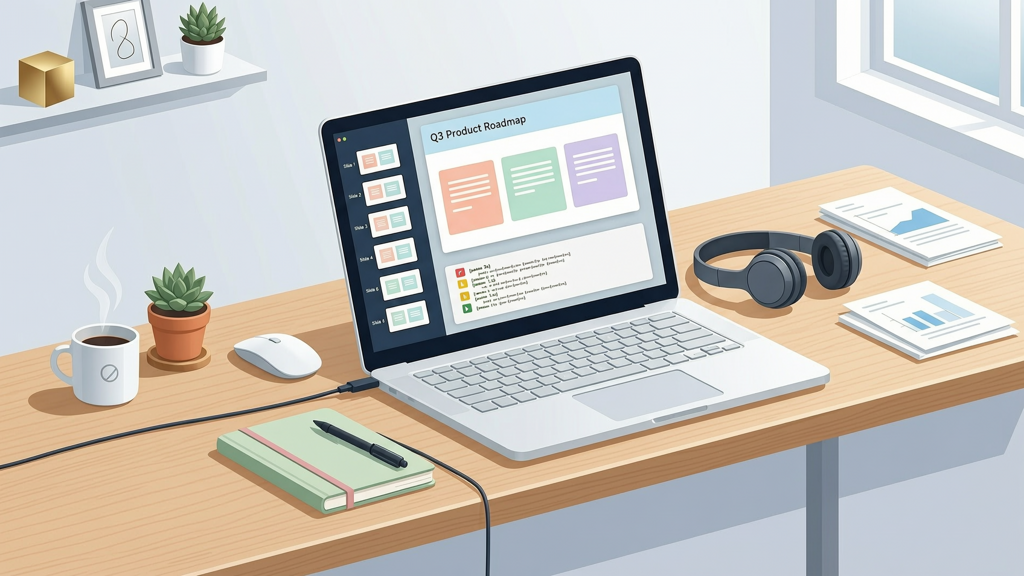
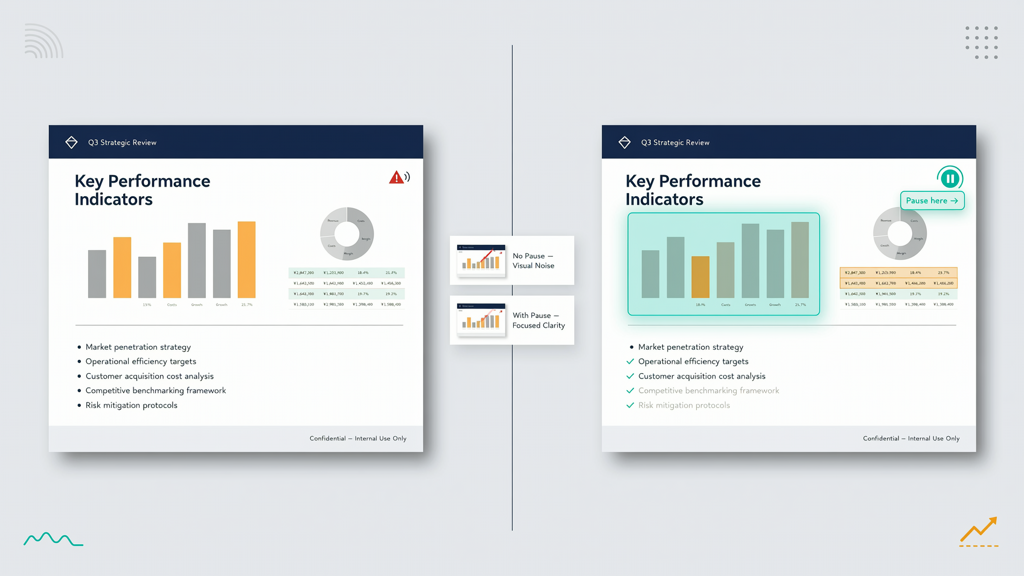
When viewers watch a narrated video, their attention splits between listening, reading, and processing visual information. Dense slides—those with bullet points, data tables, or technical diagrams—require extra time for comprehension. Without intentional breaks, narration can rush past critical content, leaving audiences disengaged or confused. A well-placed pause gives learners space to absorb, reflect, and connect ideas before the next slide appears.
This isn’t about slowing down for the sake of it—it’s about strategic pacing. Research in multimedia learning consistently shows that aligning audio narration with visual on-screen time improves retention and reduces cognitive load. That alignment hinges on precise timing control slide video—not automatic algorithms, but deliberate human judgment translated into actionable cues.
Importantly, this capability is built into professional presentation-to-video tools—not as an experimental AI feature, but as a mature, reliable function. It reflects decades of refinement in instructional design and digital media production. You don’t need AI to guess when to pause; you decide—and implement it directly.
What Is a Pause Tag—and How Does It Work?
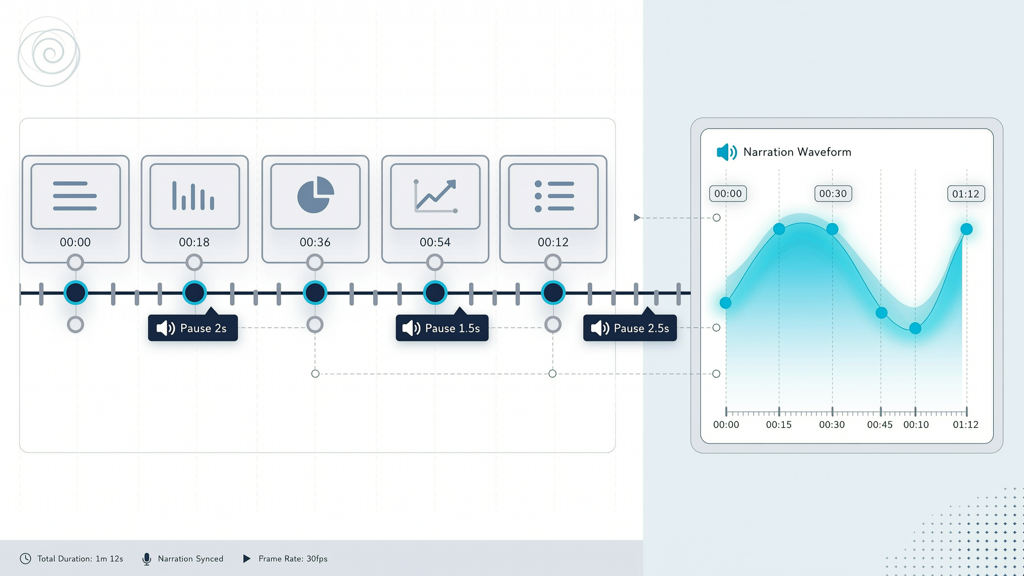
A pause tag narration is a simple, non-audio marker inserted into your script or timeline that tells the video engine: “Hold the current slide for X seconds before advancing.” Unlike voice-activated auto-pacing (which often misjudges complexity), pause tags are explicit, editable, and fully deterministic.
Here’s how it functions at the core level:
- Placement: You insert the tag directly after a spoken sentence or phrase—typically right before a new slide would appear.
- Syntax: Most tools use a lightweight notation like
[pause:3],\pause{2.5}, or a dedicated icon in a visual editor. The number represents seconds (e.g.,[pause:4]= hold for 4 seconds). - Behavior: During export or playback, the system freezes the current slide frame, silences narration, and waits the specified duration—then transitions smoothly to the next slide.
Crucially, pause tags operate independently of speech timing. Even if your narration ends early—or runs long—the pause duration remains fixed. This ensures consistent pacing across all viewing contexts, whether someone watches at 1x speed or rewinds to re-read a chart.
Pause tags also support layered timing. For example, you might combine a 2-second pause after stating a key statistic (“Conversion rose by 37%…” [pause:2]) with a 1.5-second transition fade—giving the viewer both cognitive breathing room and visual continuity.
Step-by-Step: How to Add Pause Between Slides Video
Implementing pauses is straightforward—but only if your tool supports direct, script-level timing control. Below is a universal workflow applicable to any platform with pause tag narration functionality (including SlideToTalk).
Step 1: Review Your Script and Slide Sequence
Before inserting tags, read through your narration while previewing slides one by one. Flag moments where:
- A slide contains more than 2–3 lines of body text
- You introduce a graph, formula, or multi-step process
- The next slide represents a conceptual shift (e.g., from problem → solution)
- You say something like “Let’s look at the data…” or “Here’s how it works…”
Step 2: Insert Pause Tags at Natural Break Points
Place each [pause:X] immediately after the relevant narration line—never inside it. Examples:
Slide 3 — Market Trends (2020–2023)
Narration: "Annual growth averaged 8.2% over this period. [pause:3] Now let’s compare regional performance."
Notice: The pause comes after “period.” and before “Now let’s…”—ensuring the market trends slide stays visible while the viewer processes the number.
Pro tips for effective placement:
- Start conservative: Use 2–3 seconds for most dense slides. Adjust upward only if testing reveals confusion.
- Avoid stacking: Don’t insert multiple pauses back-to-back (e.g.,
[pause:2][pause:1]). Combine them into one tag:[pause:3]. - Test readability: If a slide has a complex diagram, ask a colleague to view it silently for 3 seconds—can they identify the main takeaway? If not, extend the pause.
Step 3: Preview, Refine, and Export
Use your tool’s real-time preview mode to check timing. Play the sequence and observe:
- Does the pause feel natural—or jarring?
- Is there enough time to scan headings, labels, and key numbers?
- Does the transition to the next slide coincide with the start of its related narration?
Refine iteratively. A single second added or removed can significantly affect flow. Once satisfied, export the final narrated video. The pause tags will be baked into the timeline—no post-production editing required.
Timing Control Slide Video: Beyond Basic Pauses

While pause tags solve the fundamental need to hold a slide, advanced timing control slide video includes complementary techniques that enhance clarity and professionalism:
Slide-Level Duration Overrides
Some tools let you set a minimum display time per slide—regardless of narration length. This prevents slides from flashing by if narration is unusually brief. It works alongside pause tags: the longer of the two durations (narration + pause vs. minimum slide time) takes precedence.
Visual Emphasis Cues
Pair pauses with subtle on-screen cues to guide attention:
- Highlight a chart element just before the pause begins
- Add a gentle zoom-in on a key metric during the hold
- Display a translucent overlay arrow pointing to a process step
These cues reinforce *why* the pause exists—and what the viewer should focus on during it.
Narration Gap Alignment
For maximum impact, align pauses with natural speech gaps—like commas, periods, or ellipses. Your brain processes written punctuation as micro-pauses. Mirroring that rhythm in video timing feels intuitive, not mechanical. Example:
"This model integrates three components: data ingestion… [pause:1.5] real-time validation… [pause:1.5] and adaptive output formatting. [pause:2]"
Each ellipsis signals a conceptual break—and the pause tag honors that structure visually.
Why SlideToTalk Excels at Pause Tag Narration
Among presentation-to-video platforms, SlideToTalk offers one of the most intuitive and precise implementations of pause tag narration. Its editor surfaces timing controls without requiring code or timeline scrubbing—making pause insertion accessible to subject-matter experts, not just video editors.
With SlideToTalk, you write or paste your script directly beneath each slide. Pause tags appear as clean, editable buttons (⏸️ Add Pause) beside each sentence. Clicking opens a slider to choose duration from 0.5 to 10 seconds—or type manually. No syntax memorization. No hidden panels.
What sets SlideToTalk apart is its fidelity to author intent:
- No AI reinterpretation: It never alters your pause tags to “optimize” pacing. What you specify is what renders.
- Slide-specific scope: Pauses apply only to the slide they’re attached to—no global defaults overriding local decisions.
- Export consistency: Whether generating MP4, MOV, or embedded web video, timing remains pixel-perfect across devices and players.
Because SlideToTalk treats narration timing as part of the content—not an afterthought—it empowers presenters to build pedagogically sound videos from the first draft. That reliability makes it ideal for training modules, investor decks, academic lectures, and compliance documentation—where accuracy and clarity are non-negotiable.
Best Practices for Long-Term Timing Control Slide Video Success
Maintaining strong pacing across dozens of slides requires discipline—not just technique. Adopt these habits:
- Create a pause style guide: Define standard durations per slide type (e.g., 2s for title slides, 3s for data visuals, 4s for comparison matrices). Share it with your team to ensure consistency.
- Record narration first—then refine timing: Speak naturally, then insert pauses where breaths or emphasis naturally occur. Avoid scripting pauses before recording—you’ll miss organic rhythm cues.
- Validate with silent playback: Watch your exported video with sound off. Can you understand the message from visuals and timing alone? If not, add pauses—or simplify the slide.
- Document pause logic: In your script file, add comments like
. This helps future editors (or you, six months later) preserve intent during updates.
Remember: the goal isn’t uniformity—it’s intentionality. A 1-second pause after a provocative question serves a different purpose than a 5-second pause after revealing a cost-benefit analysis. Let the content drive the timing—not arbitrary rules or algorithmic assumptions.
Summary: Master Pacing With Purposeful Pauses
Inserting pauses between slides in a narrated video is a foundational skill for clear, effective communication. It transforms passive watching into active learning—giving viewers the time they need to read, interpret, and internalize complex information. By using pause tag narration, you retain full control over timing control slide video, avoiding unpredictable AI-driven pacing in favor of deliberate, tested, human-centered design.
To add pause between slides video:
- Identify dense or conceptually heavy slides during script review
- Insert
[pause:X]tags after relevant narration—never mid-sentence - Preview and refine based on real viewer cognition, not theoretical speed
- Leverage tools like SlideToTalk for intuitive, reliable, no-compromise implementation
Every pause you add is a quiet invitation: Take this moment. Look closely. Think deeply. That invitation builds trust, reinforces understanding, and ultimately makes your message unforgettable.
Try SlideToTalk free
Upload your PPT, PDF, or images. Add narration with text-to-speech or your own voice, and export a narrated video in one click.
Start for free →