How to Convert Canva Slides into a Narrated Video
Why This Method Works — And Why It’s Still the Most Reliable
Canva excels at designing clean, professional presentations — but it does not natively generate narrated, exportable videos with synchronized voiceover. While some third-party integrations promise one-click conversion, they often compromise visual fidelity, introduce unwanted animations, or rely on AI avatars that distract from your message. The most dependable, evergreen path remains a two-step process: export your Canva deck faithfully, then add narration in a dedicated, slide-accurate environment. This ensures pixel-perfect rendering of every element — fonts, icons, layout, and branding — without distortion, timing drift, or unintended motion.
This approach is platform-agnostic, browser-based, and requires no installation. It works equally well for internal training decks, investor pitches, educational materials, or client-facing summaries — all while preserving your original design intent.
Step 1: Export Your Canva Deck Faithfully (No Loss, No Surprises)
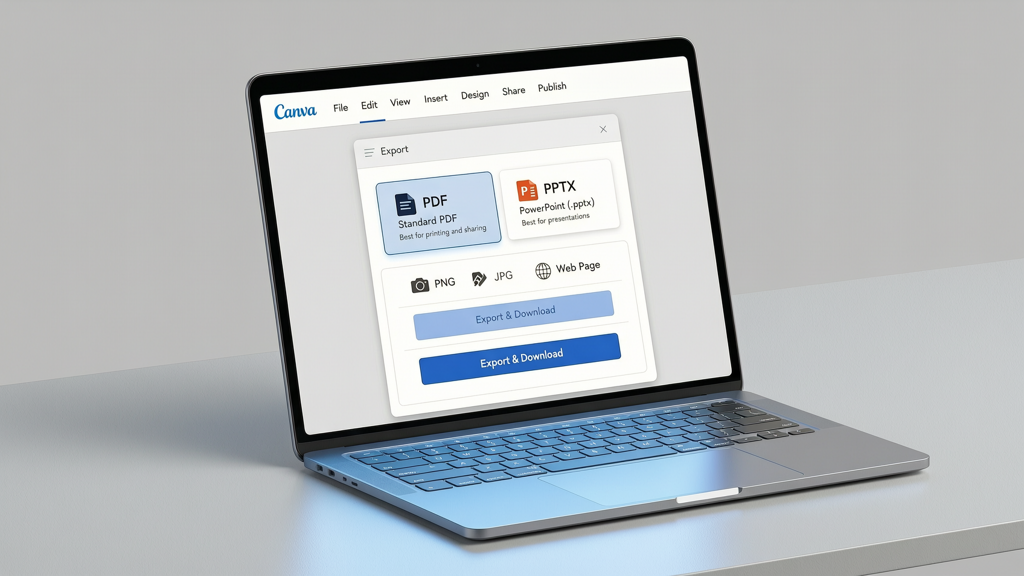
The foundation of a high-quality narrated video is a precise, static representation of your slides. Canva offers two export formats ideal for this purpose: PDF and PowerPoint (.PPTX). Both retain layout, typography, image resolution, and vector graphics exactly as designed — unlike screen-recorded exports, which risk blurriness, inconsistent frame rates, or UI interference.
Exporting as PDF (Recommended for Simplicity & Fidelity)
- Open your Canva presentation.
- Click Share → Download.
- Select Presentation PDF (with all pages) — not 'PDF Print' or 'PDF Standard'. This preserves slide dimensions and avoids cropping.
- Ensure "Include presenter notes" is unchecked unless you’ve added script cues you want embedded (note: these won’t auto-narrate — they’re for reference only).
- Click Download. Save the file locally.
Exporting as PowerPoint (.PPTX) (Best for Timing Control)
- In the same Download menu, choose PowerPoint (.PPTX).
- This format retains editable text boxes and grouped objects, making it compatible with tools that require native slide structure.
- Important: Canva exports PPTX without transitions or animations — which is ideal. You want static frames, not motion, for voiceover synchronization.
- Open the file in Microsoft PowerPoint or LibreOffice Impress to verify all elements render correctly before proceeding.
Pro Tip: Before exporting, double-check slide order and delete any unused or draft slides. A clean source file prevents misalignment later. Also, avoid using Canva’s built-in ‘Animate’ effects — they won’t translate and may cause confusion during import.
Step 2: Add Voiceover Using Trusted, Slide-Faithful Tools
Once you have your exported PDF or PPTX, the next step is adding narration — without altering the visual integrity of your slides. Two proven approaches exist: text-to-speech (TTS) automation and human voice recording. Both work best when applied in a tool that treats each slide as a fixed frame and respects exact duration and pacing.
Option A: Text-to-Speech (TTS) — Fast, Consistent, Professional
TTS eliminates recording setup, background noise, and vocal fatigue — especially useful for long decks or multilingual outputs. But quality hinges on two things: natural prosody (pauses, emphasis, tone) and precise slide timing. Not all TTS tools meet both criteria.
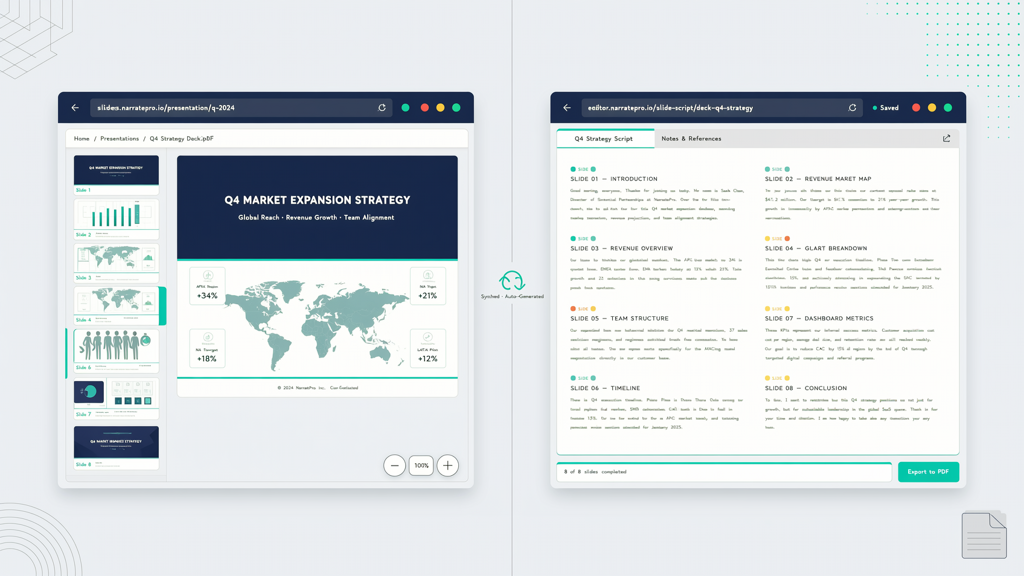
- Use speaker notes or a script document: Paste your narration text into a plain-text file (e.g., .TXT or Google Doc), organized by slide number. This helps map speech to visuals accurately.
- Avoid reading slides verbatim: Your voiceover should explain, contextualize, or emphasize — not repeat bullet points. Write for the ear, not the eye.
- Adjust pause length between slides: Allow 0.5–1 second of silence after narration ends before the next slide appears. This gives viewers time to absorb visuals.
Option B: Human Voice Recording — Warm, Authoritative, Trust-Building
For high-stakes presentations — like sales proposals or leadership updates — a real human voice adds authenticity and emotional resonance.
- Record in a quiet space using wired headphones with a built-in mic (USB mics offer even better clarity).
- Read slowly — 130–150 words per minute is optimal for comprehension.
- Record each slide’s narration as a separate audio file (e.g.,
slide_01.mp3,slide_02.mp3) to simplify syncing. - Use free tools like Audacity or Chrome’s built-in voice recorder to trim silences and normalize volume.
Key Reminder: Neither TTS nor recording changes your slide visuals — they simply add an audio layer. That’s why starting with a faithful PDF or PPTX is non-negotiable.
Step 3: Assemble Narration + Slides Into a Static, Synchronized Video
Now you combine your exported slides and voice files into a single, polished MP4. Avoid tools that auto-add zooms, pans, or transitions — those break slide fidelity. Instead, use platforms built specifically for static slide + voiceover workflows.
Why SlideToTalk Fits Perfectly
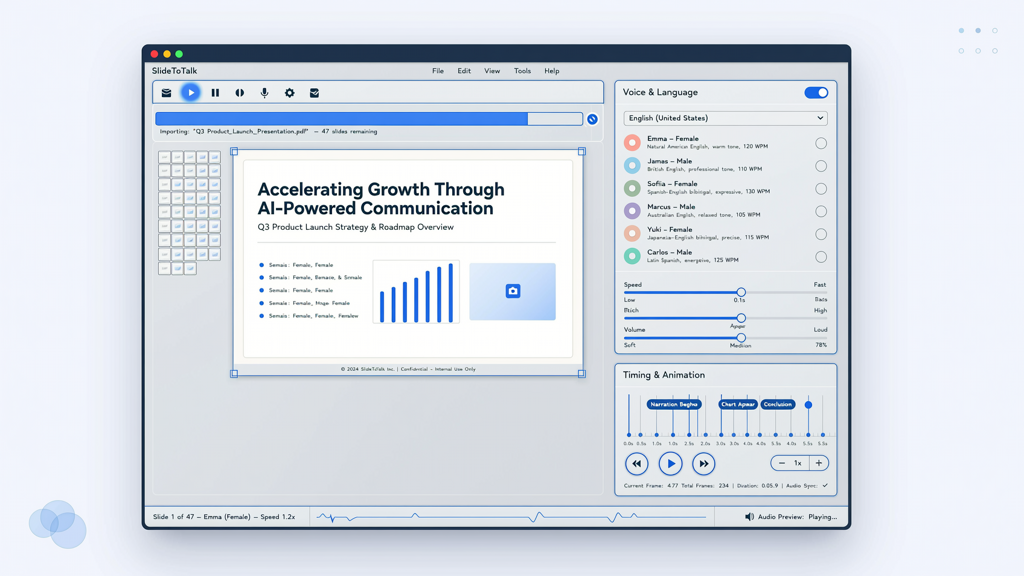
SlideToTalk is purpose-built for this exact use case: converting PDF or PPTX presentations into narrated videos — without modifying a single pixel of your design. It imports your exported file, lets you paste narration text per slide (or upload pre-recorded audio), and renders frame-accurate video where each slide displays for the exact duration of its narration — plus optional pause time.
- No avatars, no lip-syncing, no AI-generated gestures — just your original Canva slides and your voice (or TTS).
- Supports both PDF and PPTX imports with full font and image retention.
- Offers natural-sounding, multilingual TTS voices — including adjustable speed, pitch, and pauses.
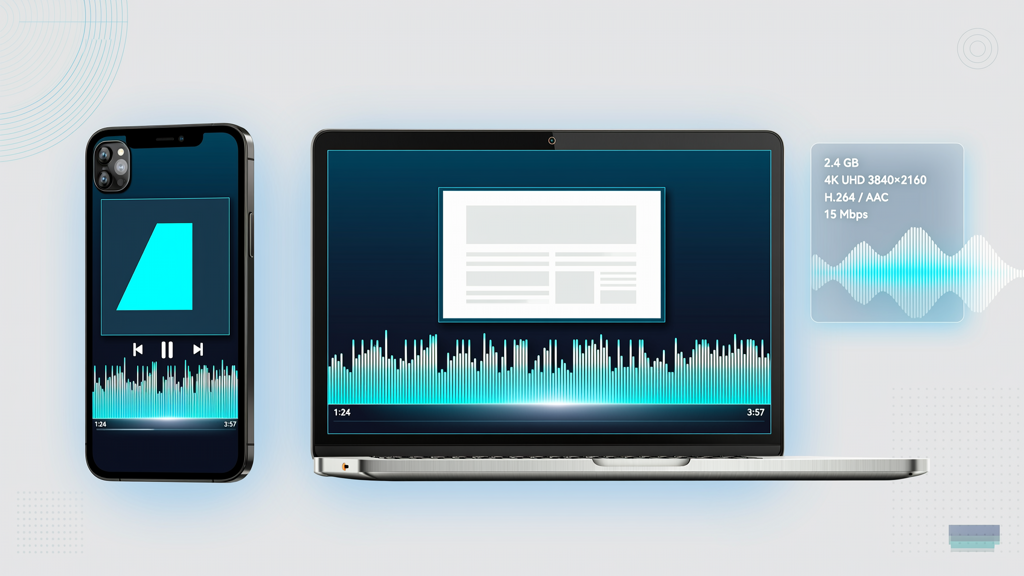
- Exports downloadable MP4 (H.264) at 1080p resolution, ready for LMS upload, email sharing, or website embedding.
Other Valid (But Less Streamlined) Options
- PowerPoint + Export: Re-import your Canva-exported PPTX into PowerPoint, add narration via Slide Show > Record Slide Show, then export as MP4. Requires desktop software and manual timing calibration.
- Google Slides + Screen Recording: Upload PDF to Google Slides (via File > Import Slides), then use Chrome’s screen recorder with system audio enabled. Risky: timing drift, inconsistent resolution, and ambient noise leakage.
- DaVinci Resolve or CapCut (Free Tier): Import slides as PNG sequence + audio tracks. Precise but overkill for simple narration — demands timeline editing skill.
What to Avoid: Any service advertising "AI presenter" or "virtual avatar" features. These inject synthetic characters, alter slide timing, and rarely match your brand voice. They also frequently compress images or downgrade typography — undermining the design work you did in Canva.
Pro Tips for Polished Results Every Time
Follow these practical checks before final export — they prevent common pitfalls and elevate professionalism:
- Verify audio sync in preview mode: Play through once with video paused at each slide transition. Does the narration end cleanly before the next slide appears? Adjust pause duration if needed.
- Check font rendering: If your Canva deck uses custom fonts (e.g., Montserrat, Inter, or brand fonts), confirm they appear identical in the final MP4. PDF export guarantees this; PPTX may substitute fonts if not embedded — so prefer PDF unless you need PPTX-specific features.
- Test playback on multiple devices: View the exported MP4 on mobile, tablet, and desktop. Ensure text remains legible at smaller sizes and background colors don’t wash out.
- Add subtle background music (optional): Only if appropriate for context. Use royalty-free tracks at ≤10% volume, panned center, and fade in/out. Never let music compete with narration.
- Include a title slide and end slide: Even if minimal — e.g., "[Your Name] | [Topic]" and "Thank You" with contact info. Gives structure and reinforces credibility.
Remember: the goal isn’t flashy motion — it’s clarity, consistency, and confidence. Your audience should focus on your message, not how the slides move.
Summary: A Repeatable, Evergreen Workflow
Converting a Canva presentation to video with voiceover doesn’t require complex software, expensive subscriptions, or AI gimmicks. It requires intentionality and the right sequence:
- Export your Canva deck as PDF (preferred) or PPTX — preserving every visual detail, untouched.
- Prepare narration either via natural-sounding TTS or clean human recording — written for listening, not reading.
- Assemble in a slide-faithful tool like SlideToTalk, where each slide displays statically for the exact duration of its narration.
- Review, refine, and export as MP4 — ready for any channel, any audience, any time.
This method is timeless because it relies on stable, widely supported standards: PDF, PPTX, MP3, and MP4. It sidesteps dependency on proprietary AI features that evolve or disappear. Whether you're creating a 3-slide product summary or a 45-slide training module, this workflow delivers consistent, branded, accessible results — without surprises.
So next time you finish a Canva presentation and think, “Now I need a video version,” skip the feature-laden converters. Go back to fundamentals: export cleanly, narrate thoughtfully, assemble faithfully. That’s how professionals turn great slides into compelling narrated videos — every time.
Try SlideToTalk free
Upload your PPT, PDF, or images. Add narration with text-to-speech or your own voice, and export a narrated video in one click.
Start for free →