How to Add Background Music to a Presentation Video
Why Background Music Matters in Presentation Videos
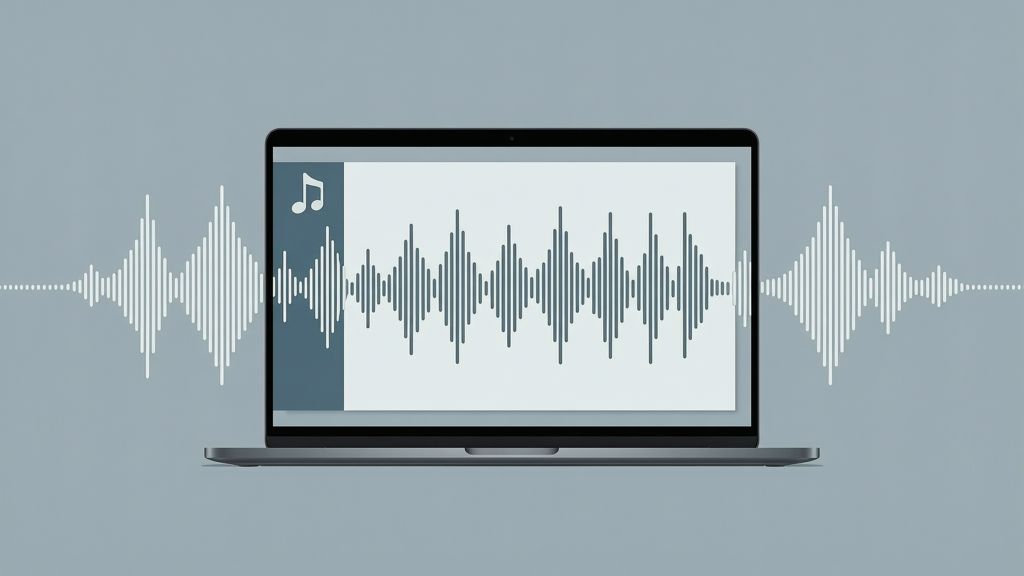
Background music—often referred to as BGM—plays a subtle yet powerful role in shaping audience engagement. When added thoughtfully to a presentation video, it supports emotional tone, reinforces message retention, and prevents auditory fatigue during longer narrated segments. Unlike standalone music videos, presentation videos rely on spoken narration as the primary information carrier. That means the music must never compete with voice—it must serve it.
In marketing contexts, well-chosen background music helps establish brand personality: a calm piano motif may suit a wellness product launch, while an upbeat synth loop can energize a SaaS feature demo. In corporate training or e-learning, consistent, low-intensity BGM improves focus and reduces cognitive load—studies show moderate ambient sound can aid concentration when speech clarity remains uncompromised.
The key is intentionality. Randomly inserting a track without adjusting levels or timing risks distraction—or worse, muffled narration. This guide walks through practical, tool-agnostic principles for adding background music to presentation video, with emphasis on mixing, balance, and real-world application.
Understanding BGM Mixing Behind Narration
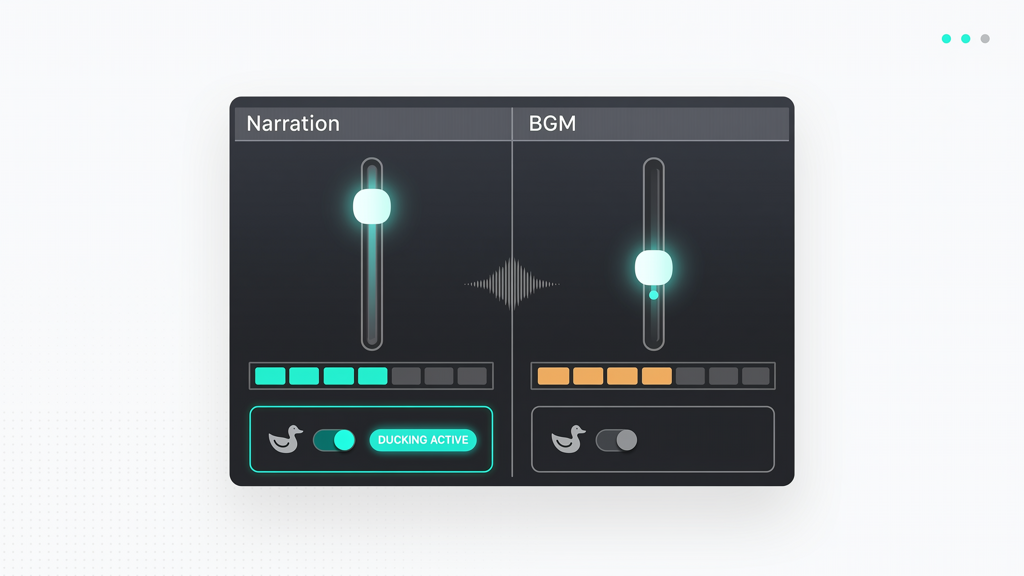
Mixing background music behind narration isn’t about volume alone—it’s about frequency separation, dynamic control, and spatial awareness. Here’s what matters:
- Frequency carving: Human speech occupies roughly 85–255 Hz (male voices) and 165–255 Hz (female voices), with intelligibility peaking between 500 Hz and 4 kHz. To avoid masking, reduce the music’s energy in the 200–800 Hz range using a gentle EQ cut—especially if your narration has vocal warmth or reverb.
- Dynamic ducking: This technique automatically lowers music volume by 6–10 dB whenever narration is active. It’s not optional—it’s essential. Ducking ensures voice clarity without manual volume automation across dozens of slides. Most professional presentation-to-video tools support this natively; others require post-production in audio editors like Audacity or Adobe Audition.
- Intro/outro spacing: Start music 1–2 seconds before narration begins, and let it fade out 1.5–3 seconds after narration ends. This creates natural auditory bookends—not abrupt cuts—that signal transitions to viewers.
- Consistent stereo imaging: Keep music panned wide (left/right) but narration centered. This preserves vocal presence and gives the mix breathing room—even on mono playback devices like laptops or conference room speakers.
Remember: the goal isn’t to make the music ‘disappear.’ It’s to make it feel like part of the environment—supportive, unobtrusive, and emotionally aligned.
Volume Balance: The 3-Second Rule and Beyond

Audience attention is finite. If listeners must strain to hear narration over music, they’ll disengage—even if only subconsciously. Use these actionable benchmarks:
- Narration should sit 12–18 dB louder than background music at peak moments. Measure using RMS (average loudness), not just peak meters. A -20 dBFS RMS for voice and -32 to -38 dBFS for BGM is a reliable starting point.
- Apply the 3-Second Rule: Pause playback every 3 seconds while reviewing your final export. Ask: “Can I transcribe the last sentence verbatim?” If not, lower music volume or increase narration compression.
- Test on multiple devices: Play your video on laptop speakers, smartphone earbuds, and a Bluetooth speaker. Laptop speakers often lack bass response—so if music sounds thin there but full on headphones, your low-end EQ may be too aggressive.
- Avoid normalization traps: Don’t normalize narration and music separately before mixing. Normalize the final mixed track instead—or better yet, use loudness targets (e.g., -16 LUFS for web delivery) to ensure consistent playback across platforms like YouTube, LMSs, or internal portals.
Volume imbalance is the #1 reason presenters abandon BGM altogether. But with disciplined measurement and iterative listening, it becomes predictable—not problematic.
Real-World Use Cases: Marketing vs. Training Videos
How you apply background music depends heavily on purpose—and audience expectations. Here’s how best practices diverge:
Marketing Presentation Videos
- Goal: Evoke emotion, reinforce brand voice, drive action.
- Music traits: Shorter loops (15–30 sec), clear tonal identity (major key = optimism; minor with tempo = sophistication), subtle risers before CTAs.
- Timing tip: Align musical accents (e.g., snare hits or string swells) with visual transitions or key statistic reveals. This synchronicity boosts perceived professionalism.
- Caution: Avoid clichéd stock tropes (e.g., generic ‘corporate’ synth pads). Authenticity resonates more than polish—especially with digitally native audiences.
Training & Internal Communication Videos
- Goal: Maintain attention, reduce mental fatigue, improve knowledge absorption.
- Music traits: Repetitive but non-intrusive patterns (e.g., ambient textures, minimal piano, soft guitar arpeggios), no sudden dynamics or lyrical elements.
- Timing tip: Let music run continuously across slide changes—no restarts or stings. Consistency signals ‘this is instructional time,’ helping learners enter focused mode.
- Caution: Skip music entirely for highly technical or safety-critical content (e.g., equipment operation walkthroughs), where zero auditory competition is non-negotiable.
Whether promoting a new service or onboarding remote staff, background music should function like lighting in a theater: invisible when done right—but transformative when absent.
Practical Implementation: Tools, Workflow, and SlideToTalk
You don’t need a Hollywood studio to add background music to presentation video. Modern tools streamline the process—but only if used with intention. Here’s a realistic workflow:
- Prepare assets first: Export narration as a clean WAV or high-bitrate MP3. Select royalty-free background music from verified sources—such as YouTube Audio Library, Pixabay Music, or Epidemic Sound (with appropriate license). Never assume ‘free download’ equals ‘free to use commercially.’ Verify attribution requirements and sync rights.
- Import into your conversion tool: Many PowerPoint users assume ‘bgm powerpoint video’ means adding audio directly in PowerPoint. While possible, PowerPoint’s audio engine lacks precise ducking controls and offers limited export fidelity. Instead, use dedicated presentation-to-video tools that handle mixing intelligently.
- Enable ducking and set thresholds: Look for options labeled ‘voice-activated music ducking,’ ‘narration-aware leveling,’ or similar. Set the sensitivity so music dips reliably during speech—even quiet phrases—but doesn’t overreact to breath or paper shuffling.
- Preview before exporting: Watch the full video with headphones and eyes closed. Focus only on audio. Does the narration sound consistently present? Does music swell distractingly at any point? Make adjustments before final render.
For professionals seeking reliability and consistency, SlideToTalk provides a streamlined path to achieve this. It accepts PowerPoint files, imports pre-recorded narration, and applies intelligent BGM mixing—including automatic ducking, volume normalization, and format-optimized export. Its interface guides users through music selection and level calibration without requiring audio engineering knowledge. Importantly, SlideToTalk does not host or claim ownership of royalty-free music libraries; it integrates cleanly with external sources you already license or access freely. That means full control over your audio assets—and no surprises at distribution time.
Other approaches include exporting slides as image sequences + narration, then mixing in DaVinci Resolve (free version included) or CapCut (for simpler workflows). But for teams producing multiple videos weekly—especially in marketing or L&D—the time saved with integrated tools like SlideToTalk compounds quickly.
One final note: always retain separate audio stems (narration-only, music-only, mixed) for future edits or localization. You never know when a regional version will need different music—or when leadership asks for a narration-only variant for accessibility compliance.
Summary: Key Principles for Lasting Impact
Adding background music to a presentation video is both art and discipline. It’s not decoration—it’s design. To ensure your BGM enhances rather than undermines:
- Always prioritize speech intelligibility over musical expression. If listeners miss words, the music failed.
- Use ducking—not manual volume sliders—to maintain consistent voice prominence across variable narration intensity.
- Select music with functional intent: support mood, not steal attention. Simpler is safer.
- Validate balance across devices—not just your studio headphones.
- Respect licensing. Royalty-free ≠ copyright-free. Confirm usage rights for your distribution channel (e.g., public website vs. password-protected LMS).
Whether you’re building a customer-facing product demo, a sales enablement deck, or an onboarding module for global staff, background music done well makes your message more memorable—not louder. It turns passive viewing into engaged listening. And in a world saturated with digital content, that distinction is strategic.
With thoughtful mixing, disciplined volume management, and the right tools—like SlideToTalk—you can confidently add background music to presentation video in a way that strengthens clarity, deepens impact, and scales across your organization’s communication needs.
Try SlideToTalk free
Upload your PPT, PDF, or images. Add narration with text-to-speech or your own voice, and export a narrated video in one click.
Start for free →