How to Turn a Keynote Presentation into a Narrated Video
Why Slide-Faithful Conversion Matters
When you need to share a Keynote presentation beyond live delivery—whether for asynchronous learning, stakeholder review, or archival purposes—a narrated video offers clarity and accessibility. But it’s critical to understand what “narrated video” means in this context: a slide-faithful output where each Keynote slide appears as a clean, static image—no transitions, no build animations, no motion effects. This fidelity ensures consistency across devices and platforms while keeping the focus on your message, not visual distractions.
Keynote’s native video export does preserve some animations—but only when exported directly to video (e.g., as MP4). However, that method locks in timing, lacks editable narration, and often produces oversized files with inconsistent audio sync. For professional control, reliability, and accessibility, the robust path is not direct export—but a deliberate two-stage workflow: first, export slides as static assets; second, layer narration thoughtfully.
This approach delivers predictable results, supports multiple language options via text-to-speech, allows precise editing of spoken content, and ensures compatibility with LMS platforms, email attachments, and cloud storage systems—all without requiring paid subscriptions or specialized hardware.
Step 1: Export Your Keynote Slides Faithfully
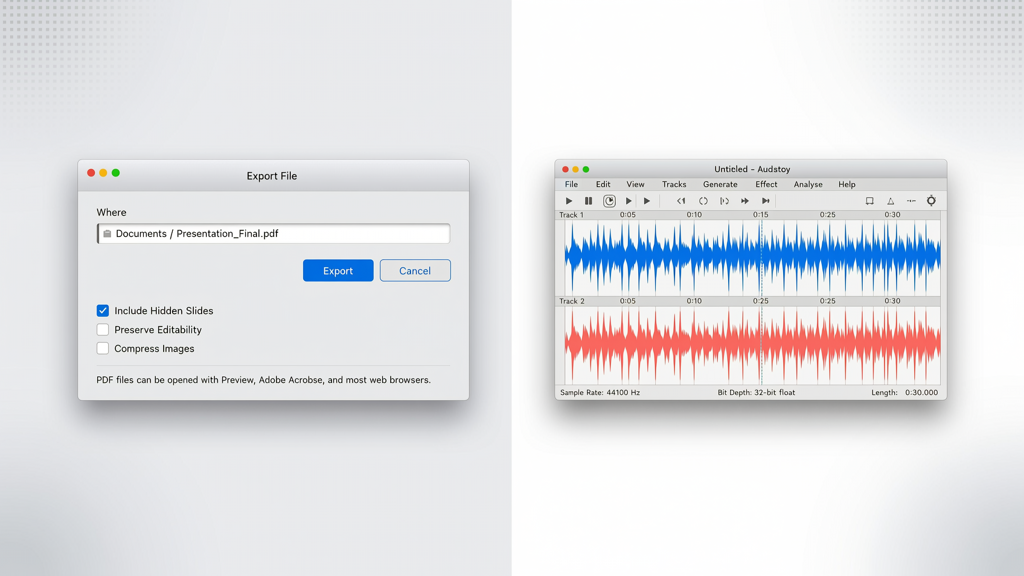
The foundation of a high-quality narrated video is accurate, consistent slide representation. Since Keynote animations are intentionally not preserved in this workflow, your goal is to capture each slide exactly as it appears at its final rendered state—no builds, no reveals, no timed elements.
Do this:
- Review all slides and manually advance through any animated sequences until each slide displays its complete, final layout.
- Export as PDF: Go to File → Export To → PDF. Under Advanced Options, select Best for Printing (not “Best for Viewing”) to ensure sharp vector rendering and avoid compression artifacts.
- Alternative: Export to PowerPoint (.pptx): Choose File → Export To → PowerPoint. This preserves fonts and layout integrity better than image-based exports—and gives you flexibility if you later use third-party tools that accept PPTX input.
Avoid these:
- Exporting directly to MP4 from Keynote (this embeds timing, limits narration edits, and may misrender complex gradients or transparency).
- Using screenshot tools or dragging slides into image editors—this introduces resolution inconsistency and manual alignment errors.
- Assuming font substitution won’t occur: Always embed fonts in PDF or verify fallback fonts match your design intent in PowerPoint.
Pro tip: Before exporting, simplify slide content where possible. Remove placeholder notes, hidden layers, or off-canvas objects—these won’t appear in the final video but can affect file size or cause unexpected cropping during conversion.
Step 2: Add Narration—Two Reliable Methods
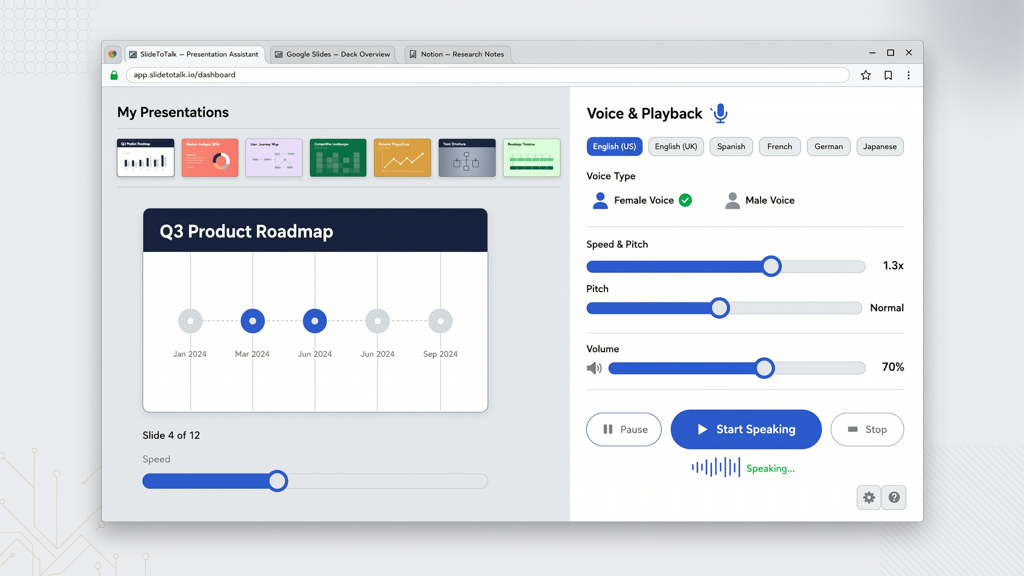
With your slides now as static assets (PDF or PPTX), you’re ready to add voice. There are two equally valid, accessible paths—choose based on your needs for control, tone, and scalability.
Option A: Free Text-to-Speech (TTS) Narration
Google Text-to-Speech (via Google Docs or free web TTS tools) provides natural-sounding, multilingual narration without recording equipment or editing time. It’s ideal for internal documentation, training refreshers, or drafts needing rapid turnaround.
How to do it:
- Copy speaker notes from your Keynote file (or write concise narration scripts per slide) into a plain-text document.
- Paste into a trusted free TTS service (e.g., Google Docs’ built-in Tools → Voice typing → Read aloud extension, or browser-based TTS tools supporting MP3 download).
- Download each narration segment as an individual MP3 file, named clearly (e.g.,
slide_01_narration.mp3). - Match audio duration to slide display time: Aim for 15–30 seconds per slide—adjust pacing to match complexity, not word count.
Best practices for TTS:
- Use punctuation deliberately—commas and periods guide pause length; em-dashes and ellipses help simulate natural breath points.
- Test pronunciation of technical terms or proper nouns by adding phonetic hints (e.g., “SQL → ‘sequel’” in parentheses).
- Normalize volume across clips using free tools like Audacity (Effect → Loudness Normalization) before syncing.
Option B: Self-Recorded Narration
For brand-aligned tone, emphasis, and authenticity—especially in client-facing or leadership communications—recording your own voice adds trust and nuance.
What you’ll need:
- A quiet room (closet with clothes works surprisingly well),
- A USB microphone (even entry-level models like the Audio-Technica ATR2100x deliver broadcast-ready clarity),
- Free software: Audacity (desktop) or GarageBand (macOS),
- A printed script with slide thumbnails beside each paragraph for visual reference.
Recording tips:
- Speak slightly slower than normal conversation—about 130 words per minute—to improve comprehension and reduce edit-heavy retakes.
- Pause 1.5 seconds after each slide’s key point—this creates natural space for visual absorption before advancing.
- Record one slide’s narration per take, then label and export each as a separate WAV or MP3 file.
Step 3: Assemble Slides + Narration into Final MP4
Now you combine static visuals and synchronized audio. You don’t need expensive video editors—free, open-source, or widely available tools handle this cleanly and reliably.
Using FFmpeg (Command-Line, Free & Precise)
If you’re comfortable with terminal commands, FFmpeg delivers pixel-perfect timing and minimal file bloat. It reads your PDF or image sequence and overlays narration with frame-accurate control.
Example command for a PDF with embedded narration:
ffmpeg -y -f lavfi -i color=white:s=1920x1080:r=1/5 -i "narration.mp3" -vf "fps=1/5,format=yuv420p" -c:v libx264 -c:a aac -shortest output.mp4But unless you regularly use CLI tools, a guided interface saves time and reduces error risk.
Using PowerPoint (Mac or Windows)
PowerPoint remains one of the most dependable, cross-platform options for assembling narrated slide videos—even when your source is originally Keynote.
Steps:
- Open your exported .pptx file (or insert PDF slides via Insert → Object → Create from File).
- Go to Slide Show → Record Slide Show. Choose Start Recording from Beginning.
- Select Don’t record slide timings—you’ll set durations manually.
- For each slide, click Record, play your pre-recorded MP3 (in another app), and click Next when done. PowerPoint captures audio *and* sets slide duration automatically.
- After recording all slides, go to File → Export → Create a Video. Select Use Recorded Timings and Narrations, choose Full HD (1080p), and export as MP4.
Why this works: PowerPoint honors slide dimensions, renders fonts correctly, and outputs compact, universally playable MP4 files—no codec surprises.
Using SlideToTalk for Streamlined Automation
For teams converting multiple presentations weekly—or those seeking zero-install, browser-based simplicity—SlideToTalk automates the entire process. Upload your Keynote-exported PDF or PPTX, paste or import narration text per slide, choose a natural TTS voice (including industry-specific accents), and generate a fully synced MP4 in under two minutes.
SlideToTalk respects slide-faithful rendering: no animations, no transitions, no assumptions about your design logic. It treats each slide as a still frame—exactly as intended—and layers narration with millisecond precision. Outputs are optimized for web streaming and LMS ingestion, with optional subtitle generation for accessibility compliance (WCAG 2.1 AA).
No account is required to try it. Simply drag and drop, adjust timing sliders if needed, and download your keynote presentation to MP4 file—ready for sharing, embedding, or archiving.
Troubleshooting Common Pitfalls
Even with careful preparation, small issues can derail quality. Here’s how to resolve them fast:
- Audio desync: Caused by mismatched slide duration and narration length. Fix by trimming silence in Audacity (Selection → Silence) or adjusting slide timing in PowerPoint’s Transitions pane (set Advance Slide After to match narration duration).
- Fuzzy or pixelated slides: Usually due to low-resolution image exports or PDF rasterization. Re-export your Keynote as PDF using Best for Printing, or increase PPTX slide size to 1920×1080 before export.
- Missing fonts in final video: Embed fonts in Keynote (Keynote → Preferences → Advanced → Embed fonts in documents) before exporting. If using PowerPoint, replace unsupported fonts with system equivalents *before* narration recording.
- Uneven volume between slides: Normalize all audio files together in Audacity using Effect → Loudness Normalization (target LUFS: -16), then reassemble.
Remember: Because this workflow intentionally omits animation preservation, any expectation of dynamic builds or interactive elements should be addressed separately—such as linking to a live Keynote link or providing an annotated PDF companion.
Summary: A Reliable, Evergreen Workflow
Turning a Keynote presentation into a narrated video doesn’t require cutting-edge AI or subscription-only platforms. It requires clarity of purpose and disciplined execution. By following this three-part method—export static slides, add intentional narration, and assemble into MP4—you guarantee consistency, accessibility, and professional polish.
You now know how to:
- Convert Keynote to video with narration without relying on Keynote’s built-in video export,
- Preserve exact slide appearance—no animations, no surprises,
- Choose between self-recorded voice or scalable TTS narration,
- Assemble a final keynote presentation to MP4 using free, widely supported tools,
- And optionally accelerate the process with SlideToTalk—a dedicated, browser-based solution built for this exact task.
This workflow is platform-agnostic, version-agnostic, and future-proof. Whether you're preparing investor updates, onboarding decks, or regulatory briefings, you’ll produce narrated videos that communicate clearly, load quickly, and reflect your expertise—not your toolchain.
So next time you’re asked to “make this Keynote into a video,” skip the trial-and-error. Start with fidelity. Layer narration with intention. Export with confidence. That’s how you truly convert keynote to video—the right way.
Try SlideToTalk free
Upload your PPT, PDF, or images. Add narration with text-to-speech or your own voice, and export a narrated video in one click.
Start for free →