How to Convert a PDF to Video with Voiceover
Why Convert a PDF to Video with Voiceover?
Not every document needs animation or motion graphics—but many benefit significantly from narration layered over clear, static visuals. When your PDF is already well-structured—such as a slide-deck export, an executive summary, a compliance report, or a product one-pager—it’s often more efficient and effective to transform it into a pdf to narrated video rather than rebuilding content from scratch.
A narrated video preserves the visual hierarchy, branding, and data integrity of your original PDF while adding accessibility, engagement, and retention value. Learners absorb information better when audio reinforces on-screen text. Stakeholders in time-constrained environments—like sales teams sending follow-ups or HR departments deploying onboarding materials—can quickly consume key points without scrolling or parsing dense text.
Crucially, this approach works best when the source PDF follows a slide-style layout: one idea per page, minimal clutter, readable fonts, and high-contrast visuals. If your PDF resembles a multi-column brochure or a scanned manuscript, conversion may yield suboptimal results. But for clean, purpose-built documents—yes, turning your PDF into video makes strategic sense.
What Happens During Conversion: Static Pages + Narration
It’s important to be transparent: tools that convert PDF to video do not animate text, transition between elements, or add dynamic effects unless explicitly built for that purpose. Instead, most reliable solutions—including SlideToTalk—render each PDF page as a static image frame, then synchronize narration to match the timing and emphasis of each slide.
This method delivers predictable, professional output because:
- Page fidelity is preserved—fonts, colors, charts, and logos appear exactly as designed;
- Audio sync remains stable across devices and playback speeds;
- File sizes stay manageable (no redundant rendering of moving elements);
- Accessibility improves: screen readers can interpret the original PDF, and narration provides auditory reinforcement.
Think of it as a modern slide presentation—like a recorded webinar or instructor-led demo—but generated automatically from your existing assets. There’s no need to reformat content into storyboards or script scenes. Your work lives on, enhanced—not replaced.
Step-by-Step: How to Convert PDF to Video with Voiceover
Converting a PDF to video with voiceover is intentionally streamlined. Here’s how it works—with clarity about what each step accomplishes:
1. Prepare Your PDF
- Export cleanly: If originating from PowerPoint, Google Slides, or Keynote, use “Export as PDF” (not print-to-PDF) to retain vector quality and proper text encoding.
- Optimize readability: Ensure font size is ≥24 pt for body text and ≥36 pt for headlines. Avoid background images that compete with text.
- Limit complexity: Charts and tables should be legible at 720p resolution. Remove password protection or encryption—these block automated processing.
- Order matters: Rearrange pages in your PDF editor if needed—the sequence becomes the video timeline.
2. Upload & Select Narration Method
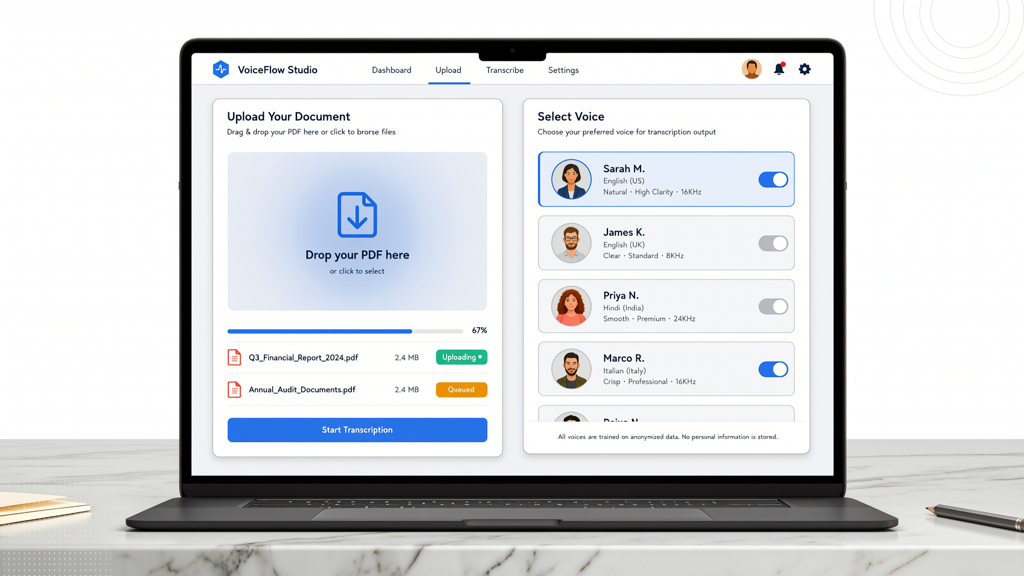
Once uploaded to a tool like SlideToTalk, you’ll choose how narration is added:
- Text-to-Speech (TTS): Paste speaker notes or write concise narration scripts per slide. Choose from natural-sounding voices (male/female, multiple languages, adjustable speed and pitch). Ideal for internal training, quick updates, or multilingual distribution.
- Recorded Audio: Upload pre-recorded voice files (MP3 or WAV), one per slide—or a single continuous track timed to match page duration. Best for brand-aligned tone, subject-matter expert delivery, or regulatory compliance where voice authenticity matters.
Pro tip: For TTS, write narration as spoken language—not written prose. Replace abbreviations (“e.g.” → “for example”), simplify clauses, and add brief pauses (use ellipses or commas) to guide pacing.
3. Review Timing & Generate
Before finalizing, preview how long each slide appears on screen. Most tools let you adjust:
- Display duration per slide (typically 5–15 seconds, depending on narration length);
- Transition style (fade-in only—no slide animations, since pages are static);
- Audio alignment (trim silence, adjust start offset if needed).
When satisfied, click “Generate MP4.” Processing time depends on PDF length and audio complexity—but typically takes under two minutes for a 10-page deck. You’ll receive a downloadable MP4 file, ready for upload or sharing.
Real-World Use Cases for PDF to Narrated Video
Turning your PDF into video isn’t just a technical exercise—it solves specific communication challenges. Here’s where it delivers measurable value:
Educational & Learning Management Systems (LMS)
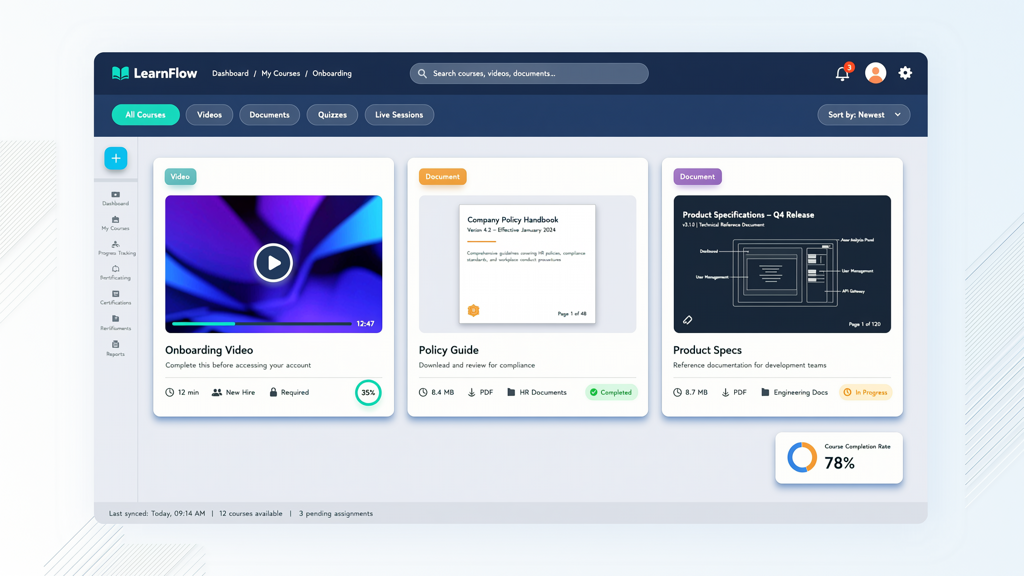
- Onboarding modules: Convert policy handbooks or safety checklists into narrated walkthroughs—learners absorb faster and complete courses at higher rates.
- Compliance training: Turn audit-ready PDF reports into standardized, timestamped video assets—simplifying tracking and verification.
- Instructor support: Faculty share lecture supplements without recording live sessions—reducing production overhead while maintaining consistency.
Marketing & Customer Communication
- Email campaigns: Embed a 60-second narrated one-pager instead of linking to a static PDF—boosting click-through and dwell time.
- Partner portals: Distribute updated product specs or integration guides as auto-play videos—improving partner enablement and reducing support queries.
- Sales enablement: Reps send personalized, voice-narrated proposal summaries—adding warmth and clarity without scheduling demos.
Internal Operations & Documentation
- Change announcements: HR shares organizational updates via narrated slides—ensuring tone and emphasis land consistently across regions.
- Process documentation: IT teams convert SOP PDFs into searchable, narrated videos—making troubleshooting faster and less error-prone.
- Executive briefings: Leaders distribute strategy decks with their own voiceover—maintaining authority and nuance without requiring live presentations.
Best Practices for High-Quality Output
Even with powerful tools, thoughtful preparation determines impact. Follow these practical tips:
- Script first, design second: Write narration before finalizing slides. This ensures visuals support the message—not the reverse.
- Test audio on mobile: Over 60% of video consumption happens on phones. Play back your MP4 on a smartphone to verify voice clarity and text legibility.
- Add captions: While not auto-generated by all tools, you can import SRT files post-export. Captions improve accessibility and SEO for hosted videos.
- Keep file size lean: For email or LMS uploads, target MP4s under 100 MB. SlideToTalk optimizes compression without sacrificing resolution—ideal for 720p delivery.
- Reuse intelligently: Update one slide? Re-upload only the revised PDF page(s)—many tools let you regenerate just affected segments.
Avoid common pitfalls: overcrowded slides, mismatched audio pacing (too fast/slow), inconsistent branding across pages, or skipping speaker notes entirely (which forces generic TTS reads).
Final Thoughts: Clarity, Consistency, and Control
Converting a PDF to video with voiceover bridges the gap between documentation and dialogue. It transforms passive reading into active listening—without demanding new design skills, animation expertise, or large production budgets. The result is a pdf to narrated video that retains your original intent, honors your brand, and meets audiences where they are: watching, learning, and deciding.
Tools like SlideToTalk make this possible by focusing on what works: clean slide inputs, flexible narration options, and reliable MP4 output. Pages render as static images—deliberately. That constraint is also its strength: stability, fidelity, and speed. Whether you’re supporting learners, engaging customers, or streamlining operations, turning your PDF into video is a scalable, evergreen communication tactic—one that grows more valuable as attention spans narrow and expectations for clarity rise.
Start with one high-impact PDF—a sales one-pager, a quarterly update, or a training checklist—and convert it. Measure engagement, gather feedback, and iterate. You’ll quickly see why convert pdf to video isn’t just convenient—it’s strategic.
Try SlideToTalk free
Upload your PPT, PDF, or images. Add narration with text-to-speech or your own voice, and export a narrated video in one click.
Start for free →