How to Re-Record a Single Slide Without Redoing the Whole Video
Why Per-Slide Re-Recording Is a Game-Changer
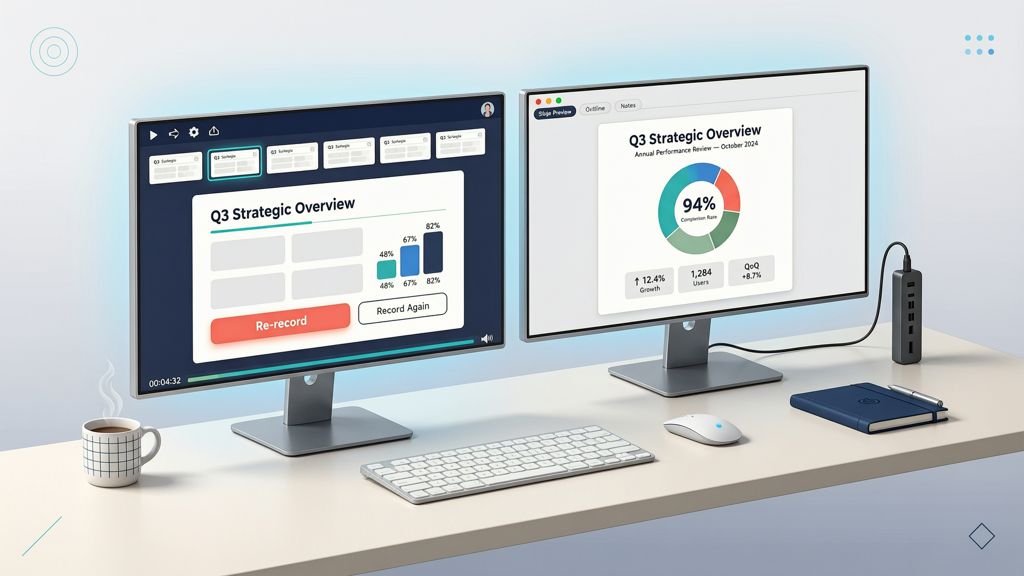
Creating a polished video presentation often involves refining content after the first draft—whether it’s correcting a mispronounced term, adjusting pacing, clarifying a technical point, or updating data. Traditionally, this meant re-recording the entire voiceover from start to finish: tedious, time-consuming, and prone to inconsistency in tone or energy across slides. But modern AI-powered presentation tools now support true per-slide re-recording—meaning you can isolate, re-record, and replace narration for just one slide while preserving everything else exactly as it was.
This capability isn’t about patching together fragments—it’s about precision control. You retain your original timing, transitions, animations, background music, and visual flow. Only the audio layer for the targeted slide changes. No re-exporting. No syncing headaches. No risk of mismatched pauses or abrupt cuts. It’s efficient, intentional, and fully non-destructive.
How Per-Slide Re-Recording Actually Works
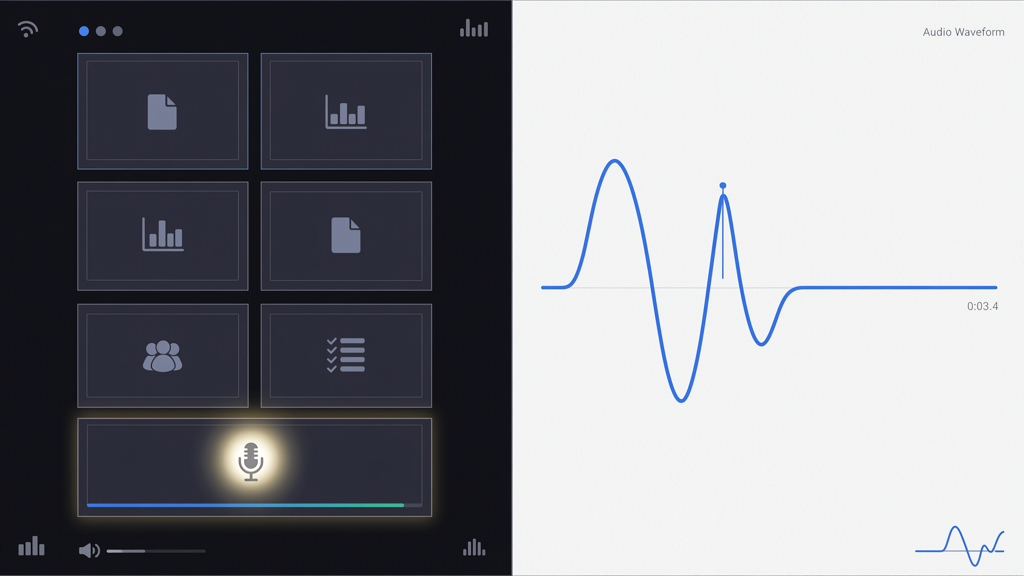
Per-slide re-recording relies on a modular architecture: each slide is treated as an independent audio unit, decoupled from the rest of the timeline. When you select a slide for re-recording, the system isolates its current narration track, mutes it temporarily, and prepares a clean audio capture environment—without affecting adjacent slides’ audio, visuals, or timing.
Here’s what happens behind the scenes:
- Slide-level audio segmentation: Narration is generated or recorded per slide—not as one continuous file, but as discrete, timestamped audio segments tied directly to slide boundaries.
- Non-linear editing interface: You navigate your deck like a timeline, clicking any slide to access its dedicated audio controls—record, delete, mute, or replace.
- Zero-character-cost free recording mode: Many platforms—including SlideToTalk—offer unlimited, high-fidelity microphone recording for individual slides at no additional cost. No token limits. No character caps. Just clean, real-time capture.
- Auto-sync preservation: Once recorded, the new narration automatically aligns to the slide’s duration and respects existing visual cues (e.g., animation triggers, build-ins, or embedded media).
This workflow eliminates guesswork. There’s no need to manually trim silence, adjust waveform alignment, or export intermediate files. The tool handles synchronization natively—so your revised narration lands cleanly, every time.
A Step-by-Step Workflow: Re-Record One Slide Narration
Follow this practical, repeatable sequence to replace audio on one slide—whether you’re fixing a flubbed line, adding emphasis, or updating content.
- Open your presentation in a compatible tool (e.g., SlideToTalk) and load the exported or saved project containing your full video.
- Navigate to the target slide—the one needing updated narration. Use the thumbnail sidebar or slide number input for quick access.
- Select the slide’s audio control panel. Look for a microphone icon, “Re-record,” or “Replace narration” button—usually located near the preview window or slide toolbar.
- Click to begin free recording. A brief countdown ensures mic readiness. Speak clearly at natural pace—no need to rush or over-enunciate. The system captures full fidelity with ambient noise suppression.
- Review instantly. Playback the slide solo to confirm tone, clarity, and timing. If needed, re-record immediately—no penalty, no delay.
- Save and continue. Your updated narration replaces the prior version seamlessly. All other slides remain untouched—timing, transitions, music, and visuals stay perfectly intact.
Pro tips for best results:
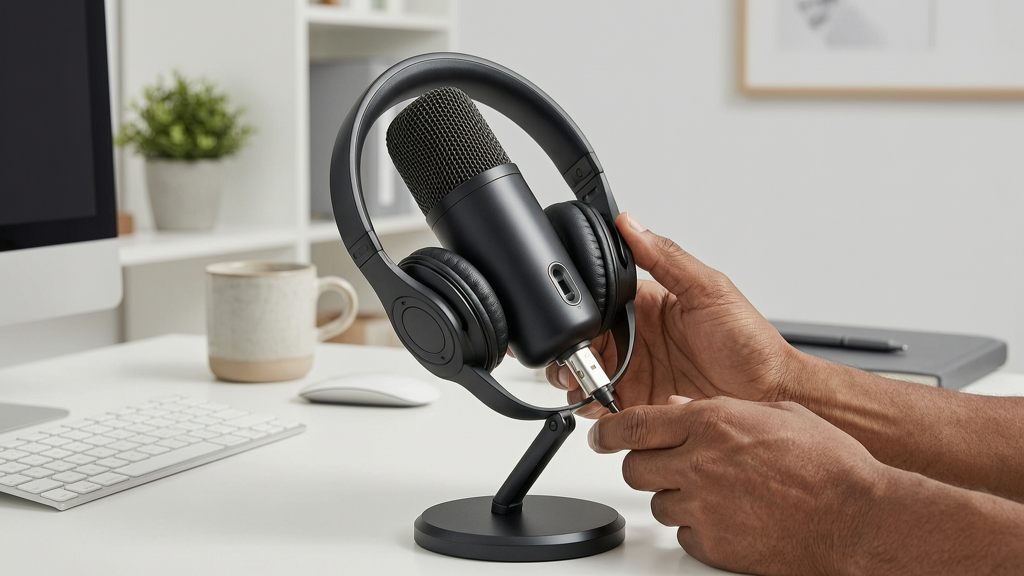
- Use headphones with a built-in mic or external condenser mic to minimize echo and improve vocal consistency with your original takes.
- Pause briefly before speaking—even half a second—to give the system time to detect speech onset and avoid clipping the first syllable.
- Match your original energy level—if earlier slides used a calm, explanatory tone, keep the revised one aligned. Consistency builds credibility.
- Don’t over-edit small stumbles. Minor filler words (“um,” “so”) are less distracting than jarring tonal shifts between slides.
What This Is NOT: Clearing Up Common Misconceptions
Because AI tools have matured, some users assume advanced capabilities exist that don’t—or misinterpret what “editing” means in this context. Let’s clarify what per-slide re-recording does not involve:
- No AI-powered in-place voice editing—you won’t find tools that let you highlight a phrase in a completed narration track and magically rewrite or re-speak it while keeping surrounding audio intact. That kind of granular, text-driven audio surgery doesn’t exist in production-ready presentation tools.
- No forced AI voice substitution—re-recording one slide narration doesn’t require switching to synthetic speech. You retain full control: use your own voice via microphone, import a pre-recorded WAV/MP3, or choose a human-like AI voice—but only for that slide, if desired.
- No timeline-based waveform manipulation—you won’t see a traditional audio editor with zoomable waveforms, cut/copy/paste, or spectral editing. The interface stays slide-centric, not track-centric.
- No dependency on cloud transcription or AI rewriting—this process doesn’t transcribe your old narration, suggest edits, or auto-generate new scripts. It’s purely audio replacement—clean, direct, and human-led.
In short: this is real per-page control, not speculative AI magic. It’s grounded in reliable, tested functionality—not beta features or experimental interfaces. Tools like SlideToTalk implement it precisely because users demand accuracy, speed, and predictability—not novelty for novelty’s sake.
Time Savings and Professional Impact
Consider the cumulative impact of avoiding full re-dos:
- For a 15-slide deck: Full re-recording may take 8–12 minutes (setup, playback, retakes, syncing). Re-recording one slide? Typically under 90 seconds—including review.
- For iterative updates: Clients or stakeholders often request minor wording changes late in the process. With per-slide control, you implement feedback in real time—no delays, no version confusion.
- For multilingual versions: Need to localize only Slide 7 into Spanish? Record just that slide—no need to reprocess the entire deck or manage separate audio files.
- For accessibility compliance: Adding extended descriptions to a complex chart on Slide 12? Insert them cleanly—without disrupting narration rhythm elsewhere.
Beyond efficiency, this approach supports higher-quality output. When you’re not fatigued by repeating the same opening lines five times, your delivery on the final, critical slide stays sharp and confident. And because your visual storytelling remains unchanged, viewers experience continuity—not disjointed edits that break immersion.
Tools like SlideToTalk exemplify this philosophy: built around the presenter, not the algorithm. Its interface prioritizes clarity over clutter, offering intuitive per-slide narration controls without hidden menus or layered abstractions. Whether you’re a subject-matter expert presenting quarterly results or an educator sharing lesson materials, SlideToTalk lets you focus on meaning—not mechanics.
Summary: Precision Editing, Zero Compromise
Re-recording one slide narration isn’t a workaround—it’s a deliberate, professional-grade capability. It gives you the freedom to refine, correct, and enhance without sacrificing consistency, timing, or effort. By replacing audio on one slide—or editing single page narration—you preserve narrative flow, maintain visual integrity, and respect your audience’s attention span.
The workflow is simple: locate the slide, trigger free recording, speak naturally, review, and save. No character limits. No AI hallucinations. No destructive edits. Just reliable, evergreen control over your presentation’s spoken layer.
Whether your goal is to edit single page narration for accuracy, re-record one slide narration for clarity, or replace audio on one slide for impact—you now hold a practical, scalable method that scales with your needs, not against them. Invest your time where it matters most: in your message—not in redundant repetition.
Try SlideToTalk free
Upload your PPT, PDF, or images. Add narration with text-to-speech or your own voice, and export a narrated video in one click.
Start for free →