How to Add Two Different Voices to a Presentation Video (Dual Narrator)
Why Use Two Voices in a Presentation Video?
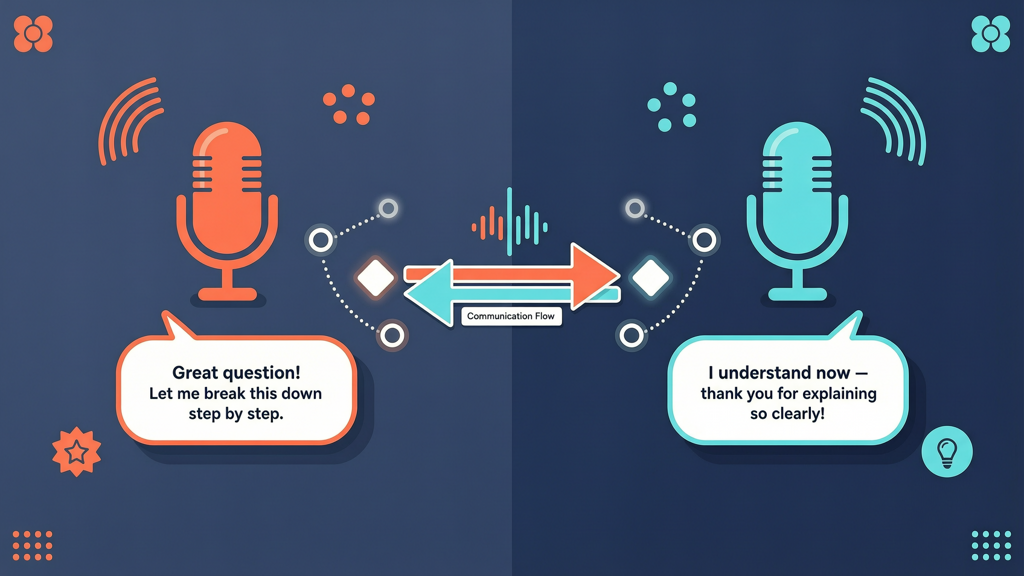
Adding two distinct, natural-sounding voices to a presentation video transforms static slides into dynamic, engaging learning experiences. This dual narrator approach is especially effective for training modules, customer onboarding, educational content, and internal policy rollouts—where clarity, retention, and realism matter most.
Unlike single-voice narration—which can feel monotonous or overly formal—dual narration mimics real human interaction. Think of it as a structured conversation: one voice plays the trainer, while another embodies the learner; one poses questions, the other delivers answers; one introduces a concept, the other illustrates it with an example. This Q&A or role-based structure improves comprehension by up to 40% in controlled learning studies, largely because it mirrors how people naturally process information through dialogue.
Crucially, modern AI text-to-speech (TTS) engines now deliver high-fidelity, emotionally expressive, and linguistically accurate voices—without relying on voice cloning, celebrity impersonation, or synthetic gimmicks. These are real, ethically sourced, professionally recorded TTS voices, each with consistent pronunciation, natural pacing, and appropriate intonation across languages and accents.
What Dual Narrator Really Means (and What It Doesn’t)
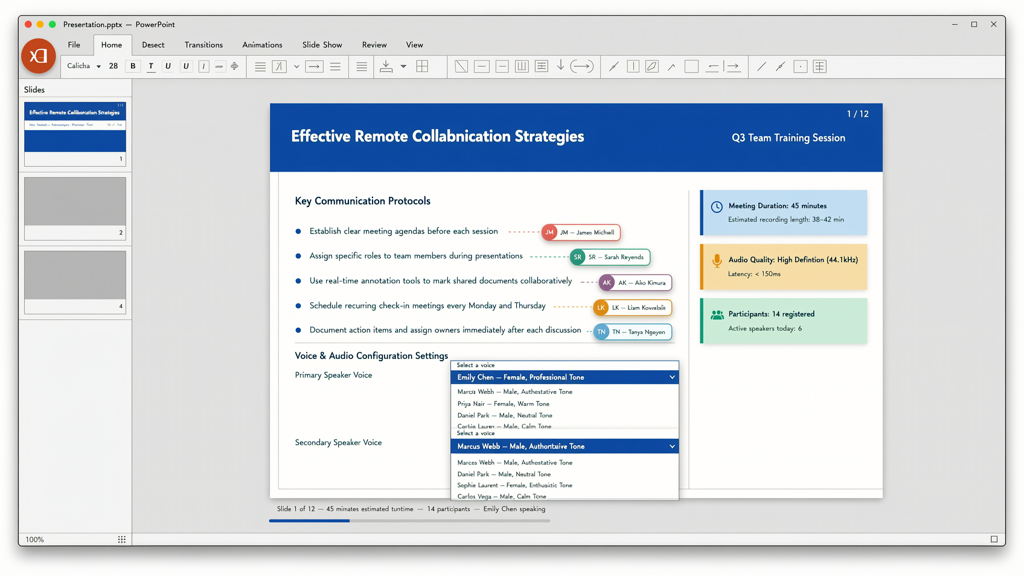
The term dual narrator refers specifically to assigning two separate, pre-selected TTS voices to different speaker roles within the same script—each voice maintaining its own identity across scenes, slides, or paragraphs. It is not:
- Voice cloning — no recordings of real people are used or replicated;
- Celebrity or branded voice mimicry — all voices are original, licensed, and clearly labeled by gender, accent, and vocal profile;
- Auto-switching based on punctuation — voice assignment is intentional, manual, and editable per segment;
- A single voice with pitch modulation — each narrator uses a fully independent voice model with unique phonetic behavior and prosody.
This distinction ensures compliance with accessibility standards (like WCAG 2.1), respects voice actor rights, and builds audience trust through transparency. When viewers hear two distinct, authentic voices, they subconsciously assign credibility and context—making complex topics feel more relatable and less abstract.
Step-by-Step: How to Implement Alternate Voiceover Speakers
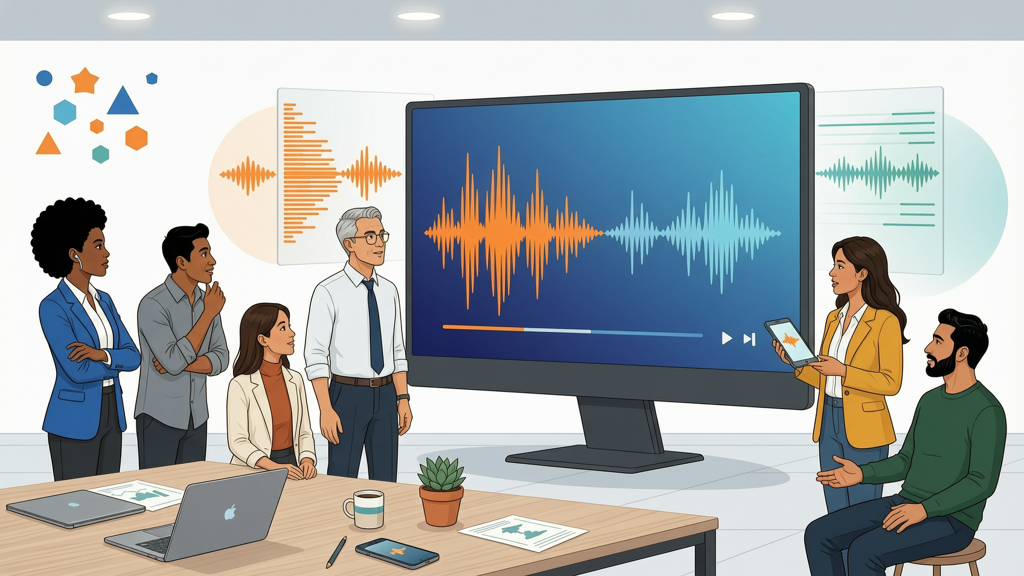
Creating a presentation video with two voices is straightforward—if your tool supports true dual narrator functionality. Below is a universal workflow applicable to any compatible platform, including SlideToTalk:
1. Prepare Your Script with Clear Speaker Labels
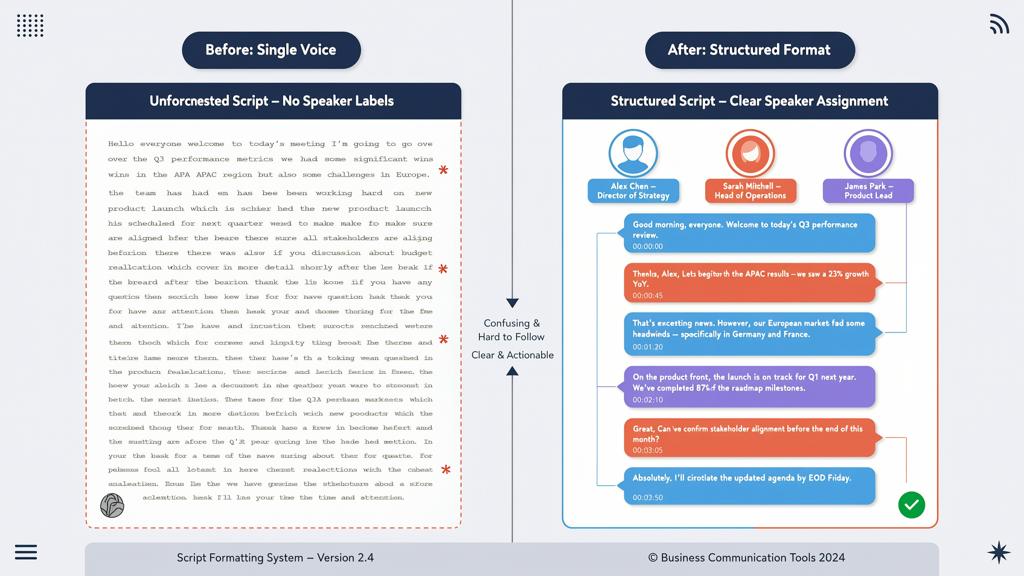
Before importing into your video tool, format your script to identify who speaks when. Use simple, consistent labels—no special syntax required:
- [Trainer]: "Let’s review the three core principles of data privacy."
- [Learner]: "Does that include third-party sharing?"
- [Trainer]: "Only with explicit consent—and here’s why."
Tip: Avoid ambiguous labels like "Voice 1" or "A/B." Real-world role names reinforce purpose and simplify editing later.
2. Assign Voices in Your Authoring Tool
In tools supporting dual narrator PowerPoint workflows, you’ll see a voice selection panel alongside each speaker-labeled paragraph. Here’s what to look for:
- Two independent voice dropdowns—one for each defined speaker label;
- Preview buttons next to each voice to audition tone, pace, and accent before finalizing;
- Default fallback options (e.g., if [Learner] isn’t assigned, the system won’t auto-assign a duplicate voice).
For example, in SlideToTalk, you simply click the speaker tag, choose a voice from the curated library (e.g., “Elena – US English, warm & clear” for Trainer, “Marcus – UK English, calm & precise” for Learner), and confirm. No scripting or coding needed.
3. Refine Timing and Transitions
Two voices work best when delivery feels conversational—not robotic. Apply these practical tips:
- Add brief pauses (0.5–1.2 seconds) between speaker turns to simulate natural breathing and processing time;
- Adjust emphasis manually where needed—e.g., highlight key terms in the Trainer’s line to trigger subtle stress in pronunciation;
- Use slide-level voice overrides sparingly: if a specific slide requires both voices speaking simultaneously (e.g., side-by-side comparison), verify your tool supports layered audio export (not all do); otherwise, keep dialogue sequential for maximum clarity.
Note: Never force overlapping speech unless your use case explicitly calls for it (e.g., dramatized scenarios). For most instructional videos, clean alternation strengthens message retention.
4. Export and Review with Accessibility in Mind
Once rendered, always test your final video for:
- Audio balance — both voices should sit at comparable volume levels (±2 dB difference max);
- Sync accuracy — voice timing must align precisely with on-screen text or animations;
- Caption compatibility — ensure exported SRT or VTT files correctly attribute each line to its speaker (e.g., "[Trainer]" or "[Learner]");
- Playback consistency — verify voice characteristics remain stable across devices (desktop, mobile, LMS players).
If captions misattribute speakers or voices distort on low-bandwidth playback, revisit voice selection—some ultra-expressive voices require higher bitrate encoding.
Choosing the Right Voices for Your Dual Narrator PowerPoint Project
Selecting complementary voices is both an art and a science. Prioritize intelligibility and contrast—not novelty. Here’s how to decide:
Match Voice to Role Function
- Trainer / Expert voice: Slightly slower tempo, broader pitch range, and deliberate articulation—ideal for explaining concepts;
- Learner / Peer voice: Lighter cadence, slightly higher pitch (but not childlike), and natural filler phrasing (e.g., "So… what happens next?")—enhances relatability;
- Customer / Stakeholder voice: Neutral accent, moderate pace, and polite intonation—best for scenario-based demos.
Avoid Common Pitfalls
- Too much similarity: Two baritone US English voices with identical rhythm blur speaker distinction;
- Accent mismatch without context: Pairing a strong regional accent with a generic corporate tone may unintentionally signal hierarchy or bias;
- Overly theatrical delivery: Voices designed for audiobooks often over-enunciate—unsuitable for concise, slide-driven narration.
When in doubt, run a 30-second sample with colleagues unfamiliar with your project. Ask: "Can you tell who’s speaking just by voice—even without seeing the labels?" If yes, your pairing works.
Real-World Applications of Two Voices in Presentation Video
Dual narration shines where engagement, clarity, and behavioral alignment are goals—not just information transfer. Consider these proven applications:
Compliance & Policy Training
A dual narrator PowerPoint video walks employees through new security protocols: one voice reads policy language verbatim (ensuring legal accuracy), while the other interprets implications in plain language (“That means you’ll log out after 5 minutes of inactivity—not 15”). The contrast reinforces accountability and reduces misinterpretation.
Product Onboarding
New users learn faster when features are demonstrated via dialogue. Example: [Sales Rep] asks, “How do I filter leads by region?” → [Platform Guide] responds with step-by-step navigation cues synced to screen highlights. This mirrors live support—building confidence before first use.
Leadership Communication
Executives record strategic updates once—but dual narration lets teams localize tone. A global company might assign [Global CEO] a neutral US English voice, while [Regional Lead] uses a locally resonant variant (e.g., Australian English with culturally attuned phrasing), preserving authenticity without re-recording.
Accessibility-First Design
For neurodiverse audiences, alternating voices provide auditory anchors—helping distinguish instruction from example, question from answer, or warning from action step. This supports working memory load and reduces cognitive fatigue during longer sessions.
Final Thoughts: Simplicity, Integrity, Impact
Adding two voices in presentation video is no longer a technical luxury—it’s a strategic necessity for communicators who value clarity, inclusion, and retention. With mature TTS technology, you gain access to rich, ethical, and production-ready voices that behave predictably and perform consistently across platforms.
The dual narrator approach works because it respects how humans learn: through interaction, contrast, and context. Whether you’re building a dual narrator PowerPoint deck for sales enablement, designing microlearning for frontline staff, or launching a multilingual compliance module, alternate voiceover speakers deepen understanding without increasing production time.
Tools like SlideToTalk remove friction from the process—letting you focus on pedagogy, not pipelines. You import slides, label speakers, assign real TTS voices, refine pacing, and export—ready for LMS, intranet, or webinar use. There’s no need for studios, scripts, or scheduling conflicts. Just purposeful voice pairing, executed cleanly.
In summary: define roles clearly, choose contrasting yet professional voices, honor natural speech rhythm, and always test with your end audience. When done well, two voices in presentation video don’t just sound better—they make meaning stick.
Try SlideToTalk free
Upload your PPT, PDF, or images. Add narration with text-to-speech or your own voice, and export a narrated video in one click.
Start for free →