How to Add Subtitles to a PowerPoint Video
Why Subtitles Matter in PowerPoint Videos
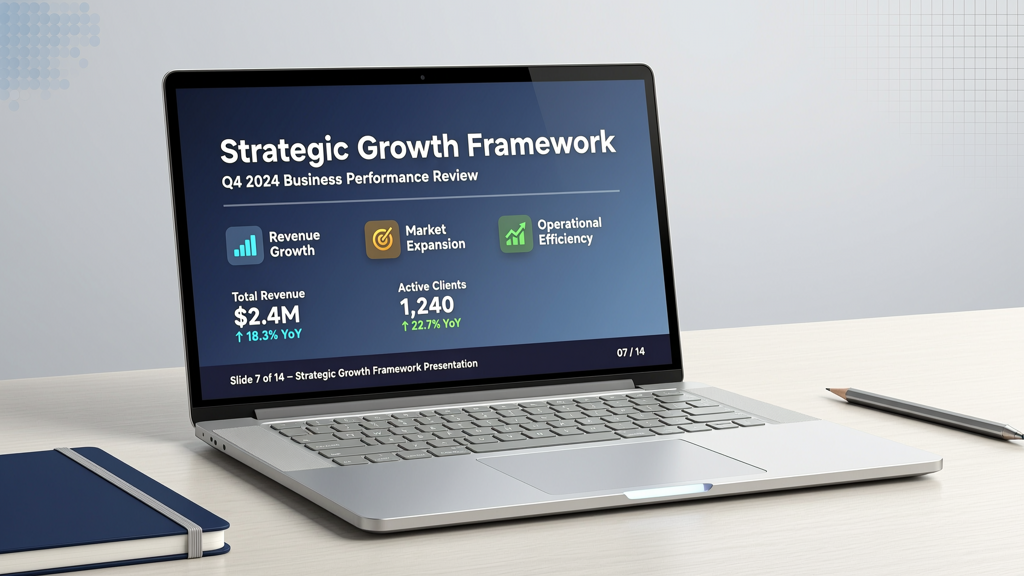
Subtitles transform static slide-based videos into inclusive, discoverable, and universally engaging content. When you add subtitles to PowerPoint video, you’re not just accommodating hearing-impaired viewers—you’re optimizing for real-world usage patterns: social media feeds where sound is often off, learning management systems (LMS) requiring WCAG compliance, and global audiences consuming content across devices and contexts.
Unlike traditional closed captions that rely on audio waveform analysis alone, modern PowerPoint video captions are most effective when synchronized with intentional narration—whether generated via text-to-speech (TTS) or recorded voiceover—over static slide images. This alignment ensures accuracy, timing fidelity, and contextual relevance. Crucially, subtitles also enable the subtitle toggle feature: a simple on/off switch viewers control themselves. This flexibility respects user preference while preserving your original narration integrity.
Accessibility isn’t a checkbox—it’s foundational. With subtitles enabled, your subtitle presentation video meets core standards for screen reader compatibility, keyboard navigation, and time-based media alternatives. And because many platforms—including LinkedIn, Canvas, Moodle, and internal corporate LMS—auto-play videos silently by default, visible subtitles become the primary vehicle for message retention.
How Subtitles Work with PowerPoint Video Output
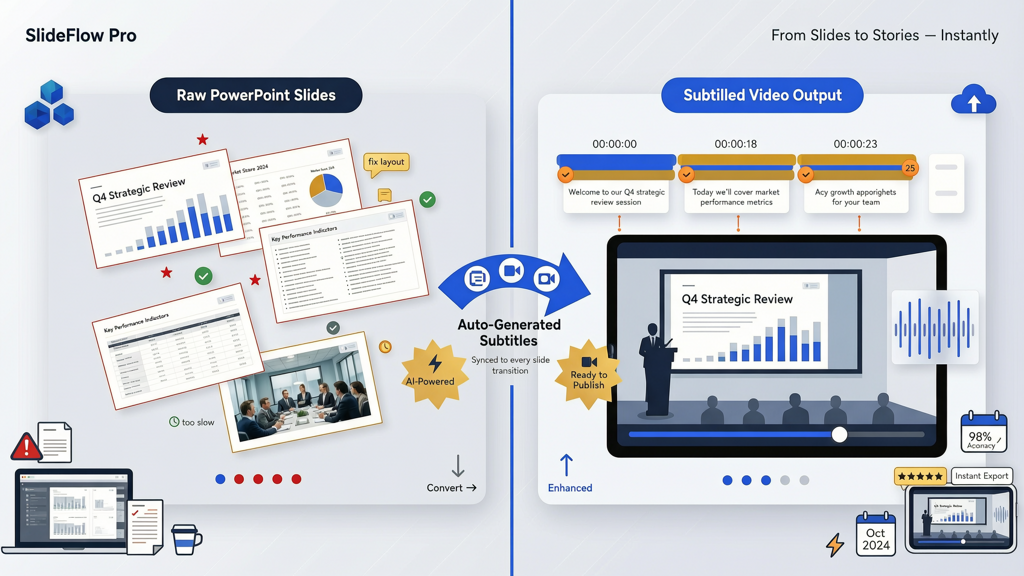
PowerPoint itself does not natively generate timed subtitles for exported videos (e.g., MP4). Its built-in "captions" feature applies only to live presentations—not exported video files. So to achieve true add subtitles to PowerPoint video functionality, you need a workflow that bridges three elements:
- Narration source: Either TTS-generated speech or a clean, studio-quality voice recording
- Slide timing: Precise duration per slide, aligned with spoken content
- Subtitle synchronization: Word-level timing, line breaks optimized for readability (max 2 lines, ~42 characters per line), and proper punctuation
This triad ensures your PowerPoint video captions appear at the right moment, stay legible, and support comprehension—not distraction.
One reliable approach is using AI-powered tools designed specifically for presentation media. For example, SlideToTalk converts PowerPoint (.pptx) files directly into narrated, subtitled videos—without requiring manual transcript uploads or third-party caption editors. It ingests your slide text, applies intelligent segmentation, generates natural-sounding TTS narration (in six supported languages), and renders perfectly synced subtitles as an integral part of the final MP4. No separate SRT file. No syncing headaches. Just one cohesive subtitle presentation video.
Step-by-Step: Adding Subtitles to Your PowerPoint Video

Follow this practical, tool-agnostic framework—applicable whether you use SlideToTalk, another AI presenter, or a manual editing pipeline.
1. Prepare Your Slides for Narration
- Write concise, spoken-language copy: Avoid dense paragraphs. Use short sentences, active voice, and natural phrasing—what you’d say aloud, not what you’d write in a report.
- Embed speaker notes: Paste your full narration script into PowerPoint’s Notes pane for each slide. These become the foundation for both TTS generation and subtitle text.
- Set consistent slide durations: If exporting manually, use "Rehearse Timings" to assign precise dwell times. For AI tools like SlideToTalk, timing is auto-optimized based on word count and speaking rate—but you can adjust per slide if needed.
2. Generate Narration (TTS or Recorded)
- For TTS: Choose a clear, neutral voice with appropriate pacing. Avoid robotic monotone—opt for voices with subtle prosody and pause handling. Tools like SlideToTalk offer multiple high-fidelity voices across six languages: English, Spanish, French, German, Italian, and Portuguese. (Note: Auto-translation beyond these six languages is not supported; always author in your target language first.)
- For recorded narration: Record in a quiet space using a USB microphone. Normalize audio levels and remove background noise. Export as WAV or high-bitrate MP3. Ensure your recording matches the slide sequence exactly.
3. Sync & Render Subtitles
This is where many creators stumble. Manual sync in Premiere Pro or CapCut requires frame-by-frame adjustment—and errors compound quickly. Instead, prioritize tools that automate subtitle generation from narration + script.
- Auto-sync engines analyze phonemes and pauses to align words with visual frames—yielding near-perfect timing for add subtitles to PowerPoint video workflows.
- Readability formatting is non-negotiable: subtitles should use a bold, sans-serif font (e.g., Arial or Calibri), high contrast (white text on semi-transparent black bar), and generous padding. Never overlay subtitles on key visuals like charts or faces.
- Toggle capability must be preserved in the final export. Some tools burn subtitles directly into the video ("hardcoded"); others embed them as selectable tracks ("soft subtitles"). For maximum flexibility—especially in LMS environments—choose soft subtitles when possible. SlideToTalk exports hardcoded subtitles for universal playback compatibility (no player dependency), while still enabling easy re-export if soft-subtitle formats (like MP4 with embedded WebVTT) are required later.
Key Benefits of Subtitled PowerPoint Videos
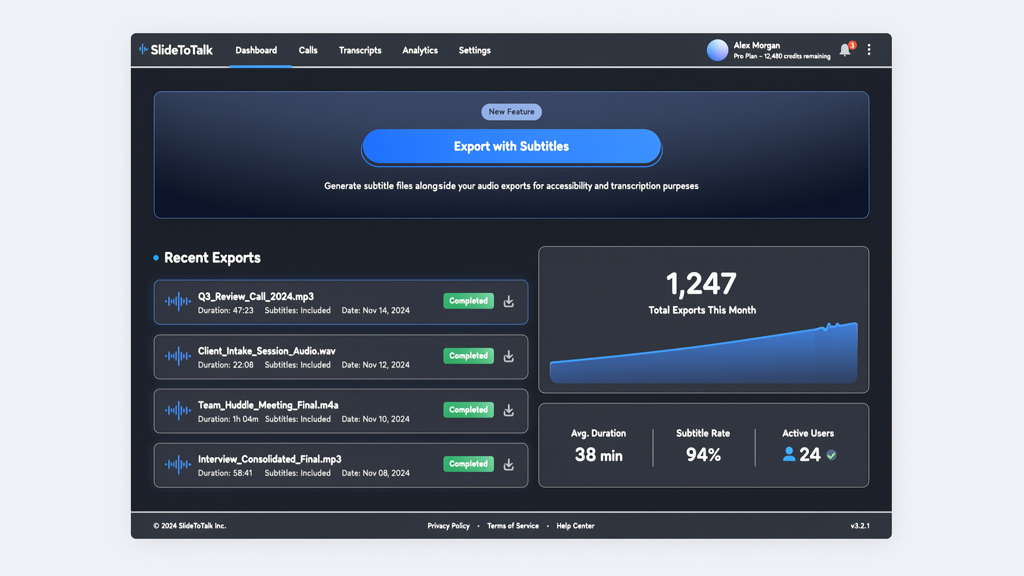
Understanding why you’re investing time in subtitles helps justify the workflow—and reveals ROI beyond compliance.
✅ Accessibility by Design
Subtitles meet WCAG 2.1 Level AA requirements for pre-recorded audio content (Success Criterion 1.2.2). They also assist neurodiverse learners, non-native speakers, and viewers in noisy or sound-sensitive environments (e.g., open-plan offices, public transport).
✅ Silent Autoplay Optimization
Over 85% of social media videos play without sound initially. Subtitles ensure your core message lands—even before users tap the volume icon. Likewise, many LMS platforms mute all embedded media by default. Without subtitles, your carefully crafted PowerPoint video captions vanish—and so does your impact.
✅ Engagement & Retention Boost
Studies consistently show that subtitled videos increase average view duration by 12–20%. Why? Because reading + listening creates dual-coding—a cognitive reinforcement loop that improves recall and understanding. Viewers aren’t just watching; they’re processing on two channels.
✅ Searchability & Discoverability
Search engines index text. While YouTube may extract some speech via ASR, accuracy is unreliable—especially with technical terms, names, or industry jargon. By embedding accurate, human-reviewed subtitles (or using AI tools with strong domain-aware models), you give search algorithms clear, structured text to crawl. That means better visibility for queries like "how to calculate ROI in Excel" or "project risk mitigation framework." Your subtitle presentation video becomes findable—not just watchable.
Practical Tips for High-Quality Subtitles
Not all subtitles are created equal. Apply these best practices every time you add subtitles to PowerPoint video:
- Limit lines to two, with no more than 42 characters per line—including spaces. Example:
“This model forecasts Q3 revenue
based on historical conversion rates.” - Break at natural linguistic pauses—not mid-clause. Avoid splitting articles (“the,” “a”), prepositions (“in,” “on”), or conjunctions (“and,” “but”).
- Use ellipses (…) for trailing thoughts, not hyphens or dashes. Reserve capitalization for proper nouns only—avoid ALL-CAPS for emphasis (it’s harder to read).
- Identify speakers clearly when dialogue or role-play appears: [Manager]: Next, we’ll review KPI thresholds.
- Describe essential non-speech sounds sparingly and objectively: [music swells], [chart animates]. Skip filler sounds (“um,” “ah”) unless they carry rhetorical weight.
- Test on multiple devices: Preview your final MP4 on mobile (iOS/Android), desktop (Chrome/Firefox), and inside your target LMS. Confirm timing holds, contrast is sufficient, and font size remains legible at 50% width.
Pro tip: If editing manually, use free tools like DownSub or Subtitle Edit to refine timing and style—but remember: starting with clean, well-structured narration saves hours downstream.
For teams producing multiple presentation videos weekly, automation pays dividends. SlideToTalk eliminates the manual steps above—converting your .pptx into a polished, narrated, and subtitled MP4 in under two minutes. You retain full control over script, voice, language, and styling—while skipping transcription, sync, rendering, and QA bottlenecks. It’s purpose-built for professionals who need reliable PowerPoint video captions without hiring a production team.
In Summary: Subtitles Are Strategic, Not Optional
Learning how to add subtitles to PowerPoint video is no longer about checking an accessibility box—it’s about unlocking broader reach, deeper engagement, and measurable learning outcomes. Whether your audience scrolls silently on Instagram, completes mandatory training in an LMS, or accesses content with assistive technology, subtitles serve as the universal interface between your ideas and their understanding.
Your subtitle presentation video gains value when subtitles are:
- Accurate: Match spoken narration precisely, with no omissions or paraphrasing
- Synchronized: Appear and disappear in time with speech—not slide transitions
- Readable: Formatted for clarity, contrast, and cognitive load
- Flexible: Enabled via a toggle—respecting viewer autonomy
- Evergreen: Built using stable, widely supported methods—not fleeting platform features
You don’t need coding skills, expensive software, or multilingual expertise to deliver this. With thoughtful preparation and the right tool—like SlideToTalk—you can produce professional PowerPoint video captions consistently, efficiently, and at scale. Start with one presentation. Apply the steps above. Measure the difference in completion rates, comments, and shares. Then scale confidently—knowing your content speaks clearly, inclusively, and effectively—every time.
Try SlideToTalk free
Upload your PPT, PDF, or images. Add narration with text-to-speech or your own voice, and export a narrated video in one click.
Start for free →