How to Reduce the File Size of a Narrated Slide Video
Why File Size Matters for Narrated Slide Videos
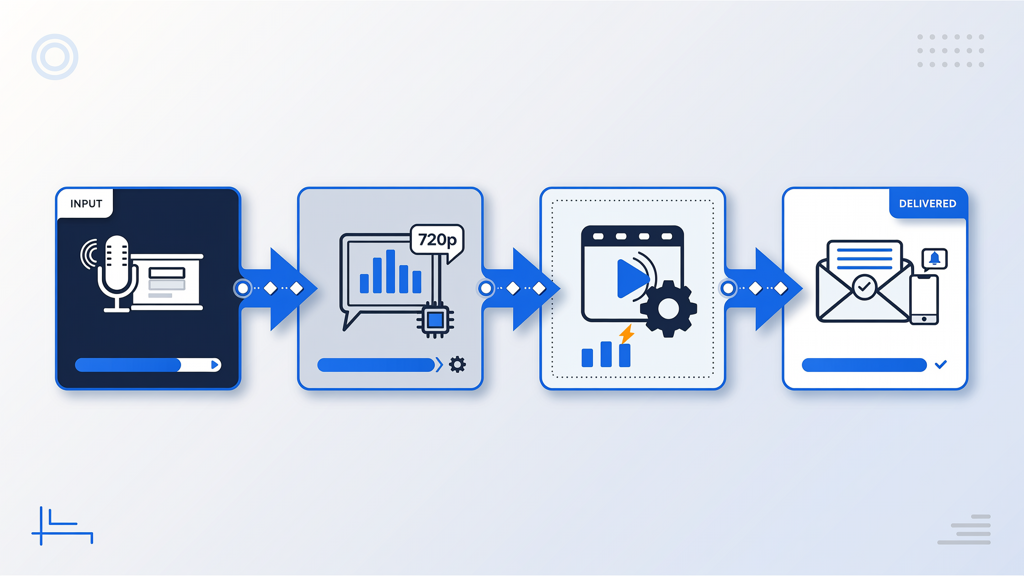
When you convert a narrated PowerPoint presentation into a video—whether for internal training, client handoffs, or stakeholder updates—the resulting file size can quickly become a bottleneck. Large files fail to attach to standard email clients (most cap at 25 MB), stall cloud uploads, delay LMS ingestion, and frustrate viewers on slower connections. Unlike static PDFs or image decks, narrated slide videos combine audio, visual transitions, embedded media, and timing data—all contributing to bulk. The goal isn’t just "smaller"—it’s smarter compression: preserving clarity and pacing while shedding unnecessary bytes. This guide delivers actionable, tool-agnostic strategies grounded in how video encoding actually works—not hype, not AI magic, but real levers you control.
Choose the Right Resolution: 720p Is Often Ideal
Resolution is the single most impactful setting for controlling final file size. Many creators default to 1080p (1920×1080) assuming it guarantees professionalism—but that assumption rarely holds for narrated slide content.
- Slides are inherently low-detail: Text, charts, and diagrams don’t benefit from ultra-high pixel density. At typical viewing distances (laptop or desktop screens), 720p (1280×720) delivers crisp legibility without excess data overhead.
- File size scales non-linearly: A 1080p video requires roughly four times more pixel data than 480p—and about twice as much as 720p—for the same duration and bitrate. That directly translates to larger files, longer export times, and higher bandwidth use.
- Real-world compatibility: Most corporate email gateways, learning management systems (LMS), and internal portals handle 720p reliably. Even modern video conferencing tools render shared screen recordings at sub-1080p resolutions by default.
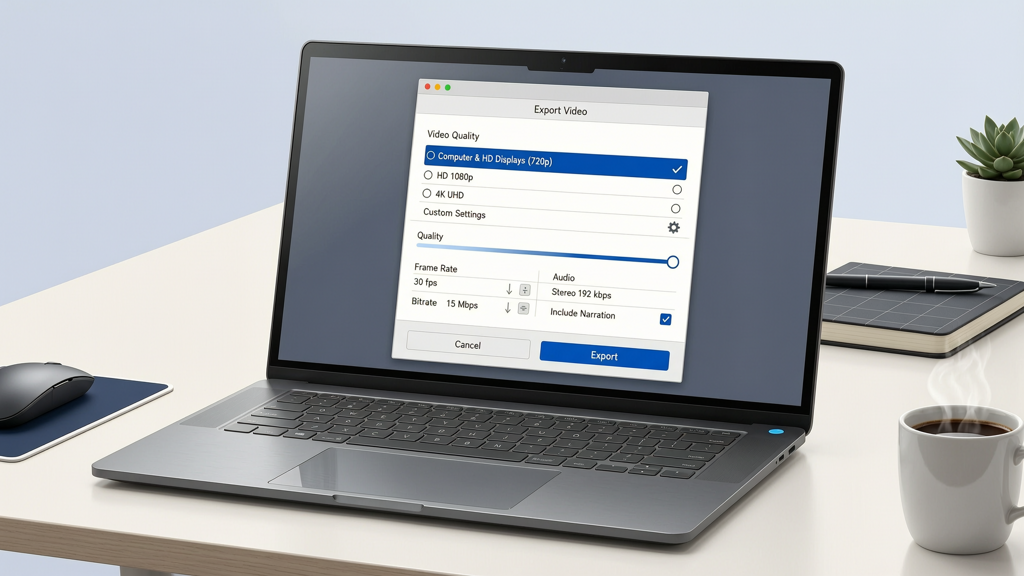
Practical tip: In PowerPoint’s Export > Create Video dialog, select "Computer & HD Displays (720p)"—not "Ultra HD (4K)" or even "HD (1080p)"—unless your audience specifically requires large-screen projection with extreme zoom capability. If using third-party tools like SlideToTalk (https://slidetotalk.com), confirm its export panel defaults to or allows manual selection of 720p output.
Optimize Narration and Timing
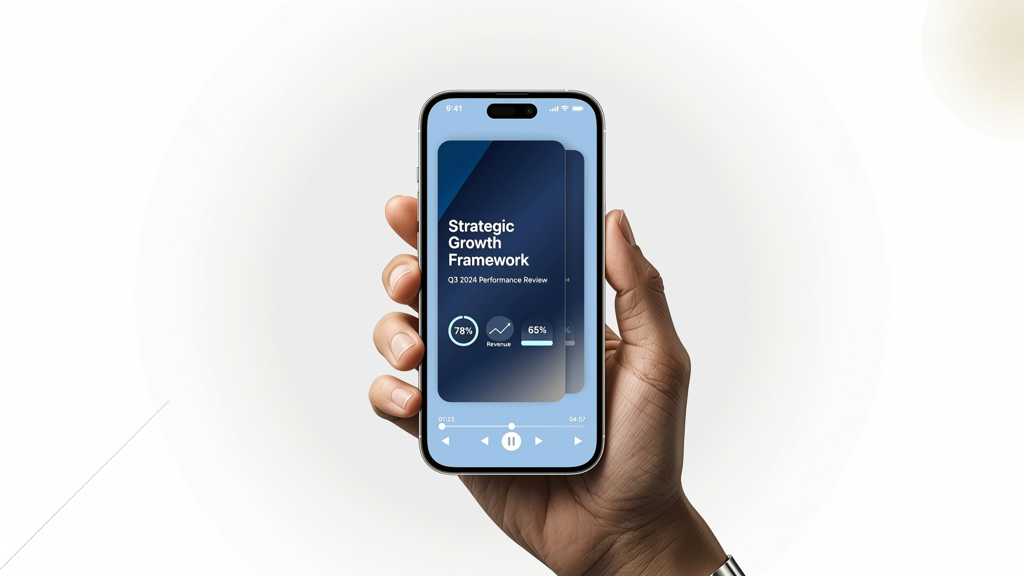
Audio contributes significantly to total file size—especially when recorded at high sample rates or left unedited. But more importantly, duration multiplies every other factor: longer video = more frames + more audio samples = larger file.
- Edit ruthlessly: Remove pauses longer than 1.5 seconds, filler words ("um," "so," "like"), and redundant explanations. Even trimming 15–30 seconds from a 5-minute video can cut 8–12% off the final size—without sacrificing message integrity.
- Use mono audio: Stereo recording doubles the audio data stream. Unless your narration includes intentional left/right panning (e.g., interview clips), export audio in mono. PowerPoint’s built-in recorder captures in mono by default; verify this if importing external voiceovers.
- Adjust narration speed thoughtfully: Slightly increasing playback speed (e.g., 1.05x instead of 1.0x) shortens runtime without sounding unnatural—and reduces both video and audio data volume. Avoid exceeding 1.15x, as intelligibility drops sharply beyond that point.
- Pause slides strategically: Instead of holding a complex slide for 10 seconds while speaking, break it into two simpler slides with shorter durations. Shorter individual slide timings improve encoder efficiency and reduce motion-based artifacts that inflate file size.
Remember: Every second saved compounds across resolution, bitrate, and audio encoding. Tight narration isn’t about rushing—it’s about precision.
Streamline Visual Assets Before Export
Your slides’ imagery often carries hidden bloat. High-resolution photos, uncompressed screenshots, and oversized vector exports silently inflate file size—even before video encoding begins.
- Resize images before inserting: Never drop a 4000×3000px photo into a slide and rely on PowerPoint to scale it visually. Resize externally (using free tools like Paint.NET, Preview on macOS, or batch-resize scripts) to match your target slide dimensions—ideally no wider than 1920px for 1080p output, or 1280px for 720p. Smaller source = smaller encoded video.
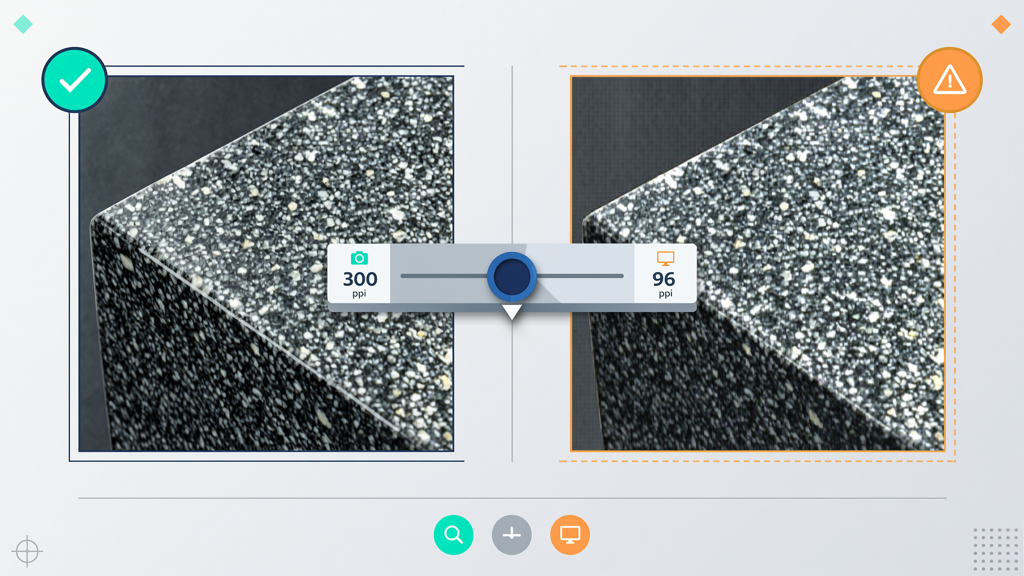
- Compress images inside PowerPoint: Right-click any inserted image → "Compress Pictures". Choose "Email (96 ppi)" for narrated presentations intended for digital distribution. This setting aggressively downsamples while retaining readability for text overlays and charts. Avoid "Print (220 ppi)" or "High fidelity" unless physical handouts are required.
- Avoid embedded videos or GIFs: These are decoded and re-encoded during PowerPoint video export—often at lower quality and higher size. Replace animated GIFs with static PNGs plus simple build animations; replace external video clips with still frames and verbal description.
- Minimize complex transitions: Morph, Zoom, and 3D transitions require heavy frame interpolation. Stick to basic transitions like Fade or Push—or better yet, use no transition between most slides. Static cuts encode far more efficiently and look clean and professional for informational content.
These steps happen before export—so they cost zero extra time during rendering and yield consistent gains across all output formats.
Master Export Settings—Not Just the Button
PowerPoint’s “Create Video” feature hides critical options behind seemingly simple dropdowns. Understanding what those options mean—and when to go beyond them—is essential to reduce PowerPoint video file size effectively.
- Don’t rely solely on preset quality: The "Presentation Quality" preset uses high bitrates and may retain unused color depth. For narrated slides, "Internet Quality" is usually sufficient—and cuts file size by 30–50% with no visible loss for typical content.
- Export frame rate matters: 30 fps is standard and efficient. Avoid 60 fps unless your slides contain rapid motion graphics (rare for narration). Higher frame rates increase file size linearly with no perceptible benefit for static or slowly changing slides.
- Consider external encoding (if needed): If PowerPoint’s export still yields a file too large for email (<25 MB), use a dedicated video compressor like HandBrake (free, open-source). Load the exported MP4, choose the "Fast 720p30" preset, enable Web Optimized, and set Constant Quality RF 22–24. This re-encodes intelligently—preserving speech clarity while discarding visual noise. Do not use generic "AI compressors" that promise 90% reduction; they often degrade audio intelligibility or introduce distracting artifacts.
- SlideToTalk offers built-in optimization: For users converting PowerPoint to narrated video without recording live, SlideToTalk (https://slidetotalk.com) provides granular export control—including explicit 720p/1080p toggles, adjustable narration speed, and auto-optimized audio encoding. Its workflow eliminates common PowerPoint export pitfalls (e.g., inconsistent timing, mismatched aspect ratios) and consistently produces smaller, email-ready files without requiring post-export compression.
One final note: Always test your compressed video on the target device and connection. Play it on a mobile phone over cellular data. Try attaching it to a Gmail draft. If it uploads smoothly and speech remains clear, you’ve succeeded.
Summary: Your Actionable Compression Checklist
Reducing the file size of a narrated slide video isn’t about compromise—it’s about alignment. Align resolution with delivery context. Align narration length with audience attention. Align image quality with legibility needs. Align export settings with technical constraints. Here’s what to do, in order:
- ✅ Set export resolution to 720p—not 1080p or higher—unless large-screen projection is mandatory.
- ✅ Edit narration to remove silence, repetition, and filler—aim for tight, focused delivery.
- ✅ Resize and compress all images before inserting them into slides; use PowerPoint’s Compress Pictures tool with Email (96 ppi) setting.
- ✅ Choose "Internet Quality" and 30 fps in PowerPoint’s export dialog—and avoid flashy transitions.
- ✅ For fully automated, optimized output, consider tools like SlideToTalk, which applies these principles by default and supports direct 720p export with clean audio encoding.
No single step will halve your file size—but combining them consistently yields reliable, predictable results. You’ll achieve smaller video file for email without sacrificing credibility, clarity, or accessibility. And because these techniques rely on fundamental video principles—not fleeting software features—they remain effective regardless of platform updates or new tools. Start with resolution and narration edits next time you prepare a narrated slide video. The difference will be immediate, measurable, and professional.
Try SlideToTalk free
Upload your PPT, PDF, or images. Add narration with text-to-speech or your own voice, and export a narrated video in one click.
Start for free →