How to Convert PowerPoint to Video with Narration
What Does "Convert PowerPoint to Video with Narration" Really Mean?
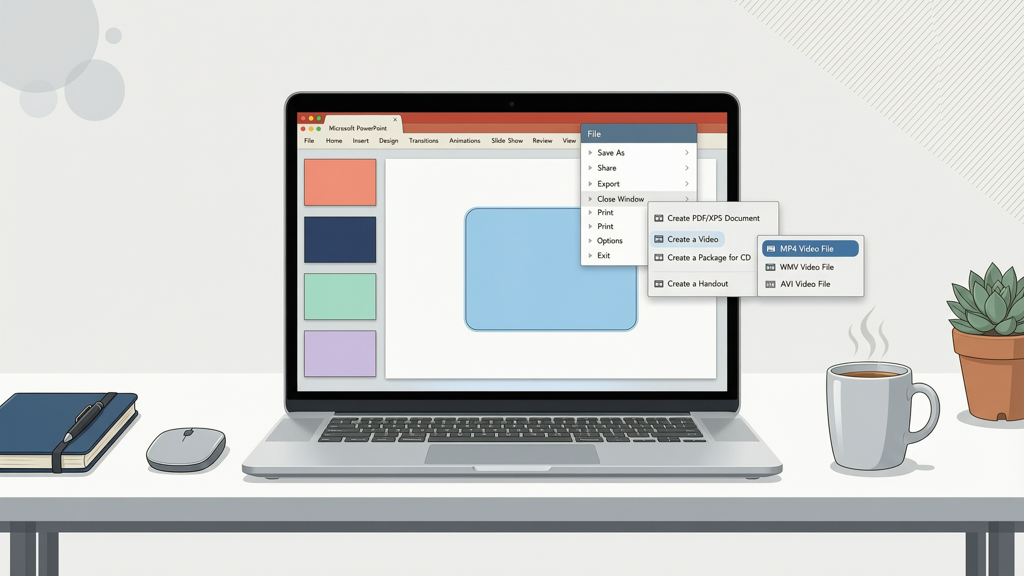
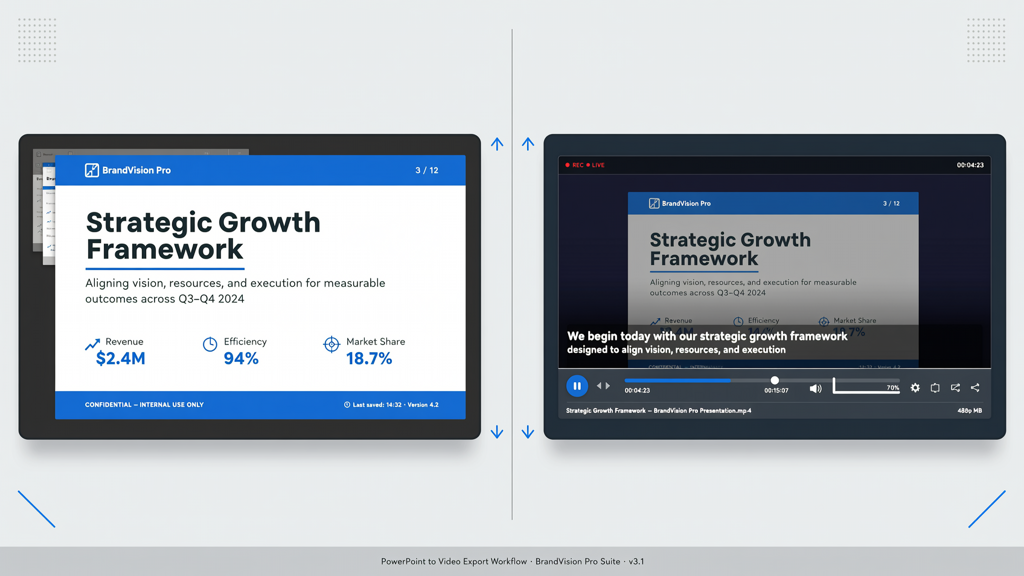
Converting a PowerPoint presentation to a video with narration means transforming your static slide deck into a playable MP4 (or similar) file that includes synchronized spoken audio—either synthesized text-to-speech (TTS) or your own recorded voice. Importantly, this process does not recreate animations, slide transitions, or interactive elements frame-by-frame. Instead, each slide is rendered as a still image for the duration it’s on screen, and narration plays over it. This preserves your original layout, fonts, colors, and visual hierarchy—exactly as you designed it—while adding accessibility, shareability, and engagement through voice.
This distinction matters: if your goal is pixel-perfect animation replication (e.g., morphing objects or layered builds), native PowerPoint export or specialized video editing software is required—and often involves significant rework. But for most use cases—training modules, sales pitches, remote onboarding, or asynchronous stakeholder updates—the static-slide + timed narration approach delivers maximum impact with minimal revision cost. Your slides stay intact; your message gains voice.
Method 1: Native PowerPoint Export — Fast, Built-In, No Extra Tools
Microsoft PowerPoint includes a built-in “Export to Video” feature. It’s ideal when you already have narration recorded directly in PowerPoint or want full control over timing without external dependencies.
How it works:
- Open your .pptx file in PowerPoint (desktop app required—web version lacks full export options).
- Go to File → Export → Create a Video.
- Select resolution (1080p recommended), timing options (use recorded timings & narrations, or set seconds per slide manually), and quality (presentation quality vs. internet quality).
- Click Create Video and choose MP4 as the format.
When to use it:
- You’ve already recorded voiceovers slide-by-slide inside PowerPoint (via Slide Show → Record Slide Show).
- You need a quick, offline-first output and trust your local PowerPoint environment.
- Your audience requires strict brand compliance and you want zero third-party processing of content.
Practical tips:
- Test timing first: Run a dry recording to check pacing—PowerPoint saves timings per slide, but doesn’t auto-adjust pauses between slides.
- Disable transitions: Since transitions aren’t preserved in video export anyway, simplify your deck by turning them off (Transitions → None) to avoid visual inconsistency.
- Embed fonts: Go to File → Options → Save → Embed fonts in the file to ensure text renders identically on all devices.
Method 2: Text-to-Speech (TTS) Tools — Consistent, Scalable, Script-Driven

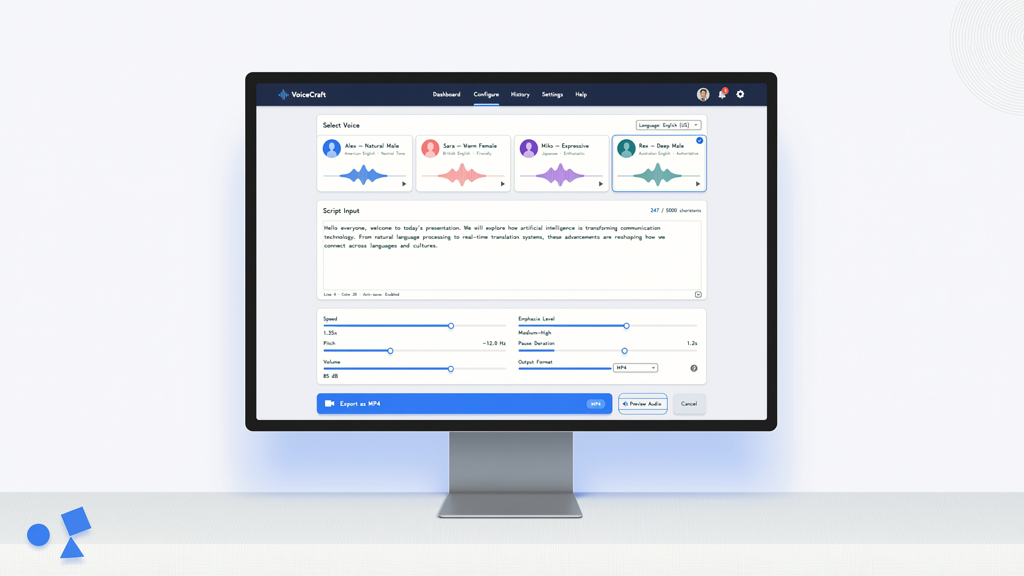
When you have a polished script but not time—or vocal bandwidth—to record yourself, TTS offers reliable, professional-grade narration. Modern TTS engines deliver natural cadence, adjustable speed, and multiple voice options—all without microphone setup or editing.
Key advantages include repeatability (re-generate instantly if wording changes), multilingual support, and zero character limits for internal use. However, tone nuance and emotional emphasis remain harder to replicate than human delivery—so reserve TTS for factual, procedural, or instructional content where clarity trumps charisma.
How it works:
- Prepare your narration script—ideally one paragraph per slide, aligned with visual cues.
- Import your PowerPoint file into a TTS-powered conversion tool.
- Assign your script to slides, select a voice (e.g., Google’s WaveNet voices), adjust speaking rate and pause duration.
- Render the final MP4 with optional subtitles, background music, and aspect ratio selection (16:9, 9:16, or 4:3).
When to use it:
- You’re producing multiple versions of the same deck (e.g., translated training modules).
- Your team lacks consistent recording hardware or quiet environments.
- You prioritize rapid iteration—updating narration means editing text, not re-recording audio.
A trusted option for this workflow is SlideToTalk. It accepts standard .pptx files and uses Google’s high-fidelity TTS engine to generate clear, natural-sounding narration directly from your script. Each slide renders as a static image—animations and transitions are not preserved, which keeps rendering fast and ensures your original design stays perfectly intact. You can also add subtitles, choose background music, and export in multiple aspect ratios (ideal for LMS uploads, social media, or email embedding). The free tier includes a subtle watermark and requires signup—but there’s no cost per character, no usage cap, and no hidden fees for voice generation.
Method 3: Record Your Own Voice — Authentic, Human, High-Engagement
Nothing replaces the warmth, credibility, and subtle inflection of your own voice—especially for leadership messages, client-facing demos, or emotionally resonant storytelling. Recording externally gives you full control over tone, pacing, and authenticity, and avoids robotic intonation altogether.
How it works:
- Write a concise, conversational script—read it aloud first to refine phrasing and timing.
- Use a quiet room, a USB condenser mic (or even modern smartphone mics work well), and free tools like Audacity or QuickTime for clean capture.
- Record one track per slide—or one continuous take, then split audio later using timestamps.
- Import both PPTX and audio files into a conversion tool that syncs voice to slides and exports MP4.
When to use it:
- You’re representing your brand personally (e.g., CEO update, product launch).
- The content relies on vocal emphasis—pauses, urgency, humor, or empathy.
- You already have high-quality recordings and want to repurpose them across formats.
Practical tips:
- Use a teleprompter app: Display your script on a second monitor or tablet to maintain eye contact with the camera—even if you’re only recording voice, posture and facial expression affect vocal energy.
- Leave 0.5–1 second of silence before and after each slide’s narration: This gives viewers breathing room and makes syncing easier.
- Normalize audio levels: In Audacity, use Effect → Loudness Normalization to ensure consistent volume across slides.
Again, SlideToTalk supports this route seamlessly: upload your .pptx, then either paste your script for TTS or drag-and-drop your pre-recorded audio files (MP3 or WAV). There’s no charge for voice recording—zero character cost, no time limits, no compression artifacts. Subtitles auto-generate from your uploaded audio (via speech-to-text), and you retain full control over styling, timing, and background music. Because SlideToTalk renders slides as static images—not animated sequences—it guarantees your carefully crafted layouts appear exactly as intended, with no unexpected cropping, font substitution, or layout drift.
Choosing the Right Method: A Decision Framework
Not every project needs the same approach. Use this quick reference to match your goals with the best path:
| Your Priority | Best Method | Why |
|---|---|---|
| Speed + zero setup | Native PowerPoint export | Leverages tools you already have; no learning curve or signups. |
| Consistency across dozens of decks | TTS-powered tool (e.g., SlideToTalk) | Script edits propagate instantly; identical voice tone every time. |
| Trust, personality, or brand voice | Your own voice recording | Human delivery builds connection—especially for sensitive or strategic messaging. |
| Low revision cost + design fidelity | All three—if you accept static-slide rendering | No method alters your original slide structure. What you build is what ships. |
Remember: none of these methods preserve PowerPoint animations or transitions. That’s not a limitation—it’s a design choice. By treating each slide as a deliberate visual frame, you reinforce message clarity, reduce cognitive load, and simplify future edits. If you change a statistic on Slide 7? Update the PPTX, re-export. No timeline scrubbing, no keyframe adjustments, no asset re-rendering.
In Summary: Keep It Simple, Keep It Yours
Converting PowerPoint to video with narration isn’t about replicating every motion—it’s about amplifying your message with voice while honoring your original design work. Whether you use PowerPoint’s native export, a TTS service like SlideToTalk, or your own recorded narration, the core principle remains the same: your slides stay unchanged, your effort stays low, and your impact stays high.
Native export suits occasional, self-contained needs. TTS tools like SlideToTalk deliver scalability and consistency—ideal for teams managing recurring content. And your own voice adds irreplaceable authenticity, especially when stakeholder trust is paramount. All three approaches treat your .pptx as the source of truth: no reformatting, no rebuilding, no guesswork.
Start with what you have. Refine based on feedback. Iterate without friction. Because the goal isn’t perfect animation—it’s clear communication, delivered reliably, every time.
Try SlideToTalk free
Upload your PPT, PDF, or images. Add narration with text-to-speech or your own voice, and export a narrated video in one click.
Start for free →