Creating Narrated Webinar Recap Videos from Your Slide Deck
Why a Narrated Webinar Recap Video Adds Strategic Value

Webinars are powerful engagement tools—but their impact is often limited to the live audience. A significant portion of your target audience may miss the session due to scheduling conflicts, time zones, or competing priorities. Rather than letting that opportunity fade, you can extend reach, reinforce messaging, and support sales enablement by transforming your existing slide deck into a narrated webinar recap video.
This isn’t about re-creating the live experience. It’s about delivering the core insights—faithfully, clearly, and accessibly—to those who couldn’t attend. A well-crafted webinar recap video from slides preserves the visual structure and flow of your original presentation while adding spoken context that improves comprehension, retention, and SEO visibility. Unlike raw recordings—which may include technical glitches, off-topic digressions, or uneven audio quality—a slide-faithful recap ensures consistency, professionalism, and brand alignment.
Moreover, search engines increasingly index video content, especially when paired with accurate subtitles and descriptive metadata. A post-webinar summary video becomes evergreen content: discoverable via search, embeddable in emails and landing pages, and reusable across quarters without degradation in relevance.
What ‘Slide-Faithful’ Really Means (And Why It Matters)
“Slide-faithful” means your webinar recap video from slides retains the exact sequence, layout, typography, branding, and visual hierarchy of your original deck—no cropping, no rearranging, no auto-generated animations that distract from your message. This fidelity is critical for three reasons:
- Brand integrity: Every font, color, logo placement, and chart remains consistent with your approved assets.
- Cognitive continuity: Viewers who attended live—or later review the PDF deck—recognize the same visual cues, reinforcing memory and reducing cognitive load.
- Legal and compliance alignment: For regulated industries (e.g., finance, healthcare), preserving slide accuracy avoids misrepresentation or omission risks.
Crucially, slide-faithfulness does not mean sacrificing narration quality. You’re not stitching together screen recordings or editing out presenter pauses. Instead, you’re building a new asset: a lean, purpose-built video where each slide appears precisely as designed—and stays on screen long enough for viewers to absorb both the visuals and the accompanying voiceover.
That voiceover can be either human-recorded or generated using high-quality text-to-speech (TTS). Either option works—provided the pacing matches the content density per slide and the tone aligns with your brand voice. Human narration adds warmth and subtle emphasis; TTS delivers speed, scalability, and consistency across multiple recaps. Both approaches support closed captions and transcripts—key for accessibility and SEO.
How to Turn Webinar Slides into Video: A Practical 5-Step Workflow
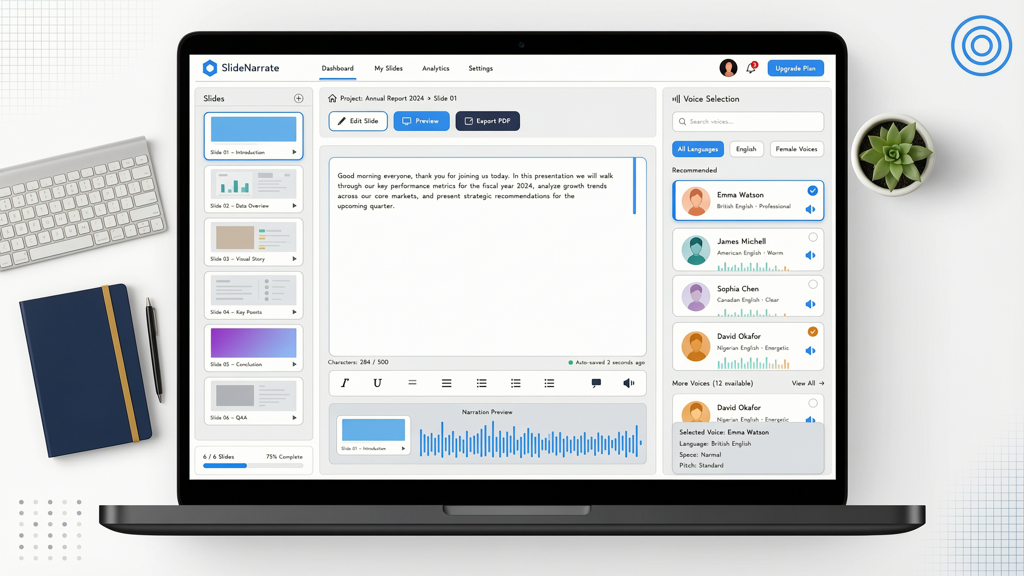
Creating a polished turn webinar slides into video output doesn’t require video editing expertise or expensive software. Follow this repeatable, scalable workflow:
- Finalize and export your slide deck
Save your presentation as a PDF or PPTX with embedded fonts and high-resolution images. Remove placeholder notes, internal comments, or draft annotations. Ensure all charts and diagrams render cleanly at 1920×1080 resolution. - Write a concise, script-aligned narration
Don’t transcribe the live talk—rewrite. Focus on clarity, brevity, and logical flow. Aim for 90–120 words per slide (roughly 30–45 seconds of narration). Use active voice (“We recommend…” vs. “It is recommended…”). Include signposting: “Next, we’ll explore three key metrics,” or “As this chart shows…” - Select narration method
For small-volume or high-touch use cases, record voiceover using a quiet room and USB microphone. For teams producing multiple webinars monthly, consider enterprise-grade TTS with natural prosody and speaker customization. Avoid generic robotic voices—opt for models trained on professional speech patterns and domain-aware vocabulary. - Sync narration to slides with precise timing
Each slide should appear before its corresponding narration begins—and remain visible until the narration ends. No flash-cutting. No overlapping audio. Tools that auto-align narration to slide duration based on word count and speaking rate significantly reduce manual adjustment. - Add subtitles and export for distribution
Generate accurate, synchronized subtitles (SRT or VTT) directly from the narration script—not via speech-to-text alone. Burn in subtitles for social platforms; deliver separate files for websites and LMS integrations. Export in MP4 (H.264) at 1080p, under 200 MB for email-friendly delivery.
This process transforms static decks into dynamic, inclusive assets—without requiring live webinar recording capability, studio time, or video editors.
Key Features to Look for in Your Recap Video Tool

Not all slide-to-video solutions support true post-webinar summary video creation. Prioritize tools that meet these functional requirements:
- Native slide import: Accepts PowerPoint (.pptx), Google Slides (via export), or PDF—preserving layers, vector graphics, and animations (if used intentionally).
- Script-first authoring: Lets you paste or upload narration text per slide before generating audio—so timing and emphasis are intentional, not reactive.
- Subtitles by design: Generates editable, time-synced captions during export—not as an afterthought. Supports multilingual subtitle exports if serving global audiences.
- Branded export options: Allows custom intro/outro frames, watermarking, and color-matched player skins for hosted video platforms.
- No live recording dependency: Works entirely from your slide file and script. Does not assume or require access to webinar platform APIs, cloud recordings, or attendee data.
One tool built explicitly for this use case is SlideToTalk. It accepts standard slide formats, supports both human voice uploads and premium TTS voices, auto-generates frame-accurate subtitles from your script, and exports fully compliant MP4s ready for CMS upload or email embedding. Because it operates solely on your slide deck and written narration, SlideToTalk enables fast, privacy-safe, and scalable webinar recap video from slides production—ideal for marketing, customer education, and internal enablement teams.
Importantly, SlideToTalk doesn’t attempt to recreate live interactions—it honors your authored intent. There’s no simulated Q&A, no AI-generated speaker avatars, and no invented “live” elements. What you get is clean, slide-faithful, narrated video—exactly what your audience needs to catch up efficiently and confidently.
Optimizing Your Post-Webinar Summary Video for Reach and Retention
A great turn webinar slides into video asset deserves strategic distribution. Apply these best practices to maximize impact:
- Host natively, not just on third-party platforms: Upload the MP4 to your website or CMS (not only YouTube or Vimeo). This keeps traffic on your domain, supports on-page SEO, and allows gated access if lead capture is a goal.
- Embed with context: Place the video inside a blog post or resource page titled “Webinar Recap: [Topic] — Key Takeaways & Slides.” Include bullet-point highlights, timestamped chapters, and a downloadable slide PDF.
- Leverage subtitles beyond accessibility: Search engines crawl caption files. Use keyword-rich narration scripts (e.g., “how to calculate CAC,” “B2B SaaS onboarding checklist”)—and ensure those phrases appear verbatim in the SRT file.
- Repurpose strategically: Extract 60-second clips for LinkedIn or X (with captions and branding). Convert narration text into a short-form blog or newsletter summary. Use slide stills as carousel posts—linking back to the full video.
- Track meaningful metrics: Go beyond views. Monitor average watch time, drop-off points (especially after slide transitions), and CTA click-through rates. If viewers consistently exit at Slide 7, revisit that slide’s clarity or narration length.
Remember: The goal isn’t just to check “video created” off your list. It’s to deepen understanding, shorten sales cycles, and position your team as a trusted, responsive resource—even after the webinar ends.
In Summary: Your Slide Deck Is Already Halfway There
You’ve invested time in research, design, and messaging. Your slide deck is a distilled representation of expertise—structured, visual, and audience-focused. Turning it into a narrated webinar recap video from slides is not an extra step. It’s the natural next phase of content stewardship.
A post-webinar summary video respects your audience’s time, meets accessibility standards, strengthens SEO, and multiplies the ROI of every webinar you host. By choosing a slide-faithful approach—with intentional narration, precise timing, and built-in subtitles—you ensure clarity, credibility, and consistency.
Whether you opt for recorded voiceovers or high-fidelity TTS, the workflow remains the same: finalize slides, write tight narration, sync deliberately, add subtitles, and distribute with purpose. Tools like SlideToTalk streamline exactly this process—no live recording required, no assumptions about your tech stack, and no compromise on visual fidelity.
So before your next webinar ends, plan the recap. Your slides are ready. Your message is clear. Now give it voice—and reach everyone who needs to hear it.
Try SlideToTalk free
Upload your PPT, PDF, or images. Add narration with text-to-speech or your own voice, and export a narrated video in one click.
Start for free →