Create Product Demo Videos from Your Sales Deck
Your sales deck already contains the core facts: product value, differentiators, use cases, and customer outcomes. It’s battle-tested, approved by leadership, and refined through real conversations. So why start from scratch when creating a product demo video? The most efficient, authentic, and scalable path is to create product demo videos from your sales deck—preserving your messaging integrity while unlocking new channels, audiences, and engagement opportunities.
Why Your Sales Deck Is the Perfect Source for Demo Videos
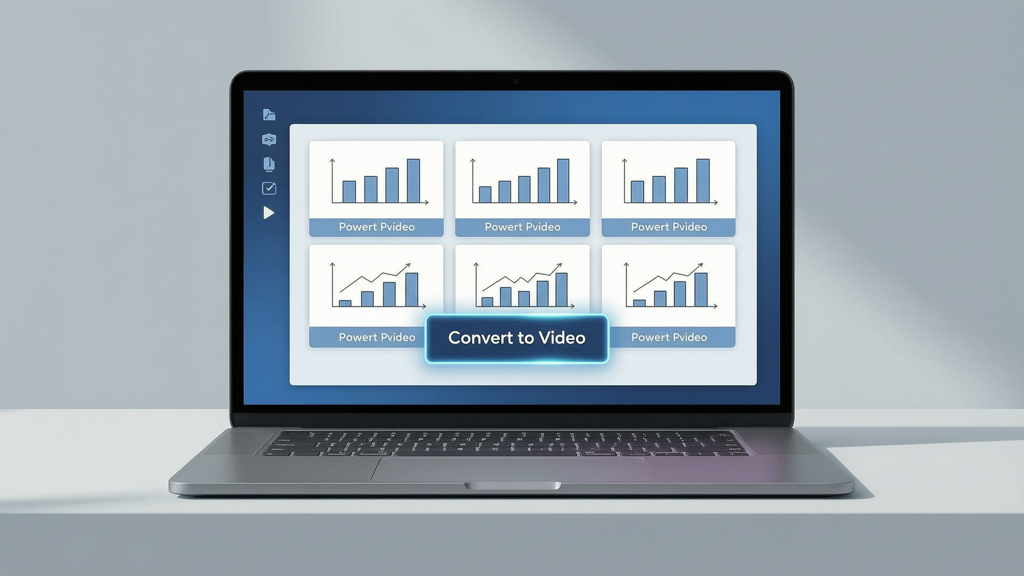
Many teams assume that high-quality demo videos require custom animation, screen recording, or dedicated video production. But that approach introduces delays, version drift, and inconsistent messaging. Your existing sales deck—whether built in PowerPoint, Google Slides, or Keynote—is already a strategic artifact: it’s been validated with prospects, aligned across product, marketing, and sales, and optimized for clarity and impact.
Turning that deck into a narrated product demo video doesn’t mean reimagining your content—it means amplifying it. You retain every visual choice, data point, and flow you’ve carefully crafted. No AI “remixing” of layouts, no forced rewrites, no stylistic reinterpretation. What changes is delivery: static slides become dynamic, silent assets become spoken stories.
This approach delivers three distinct advantages:
- Consistency: Every video reflects the same narrative, terminology, and positioning used in live demos and proposals.
- Speed: Go from final slide deck to shareable video in under 10 minutes—not days or weeks.
- Scalability: Update one source file (your deck), and all generated videos inherit the change—no manual re-recording or editing.
How It Works: From Static Slides to Narrated Demo
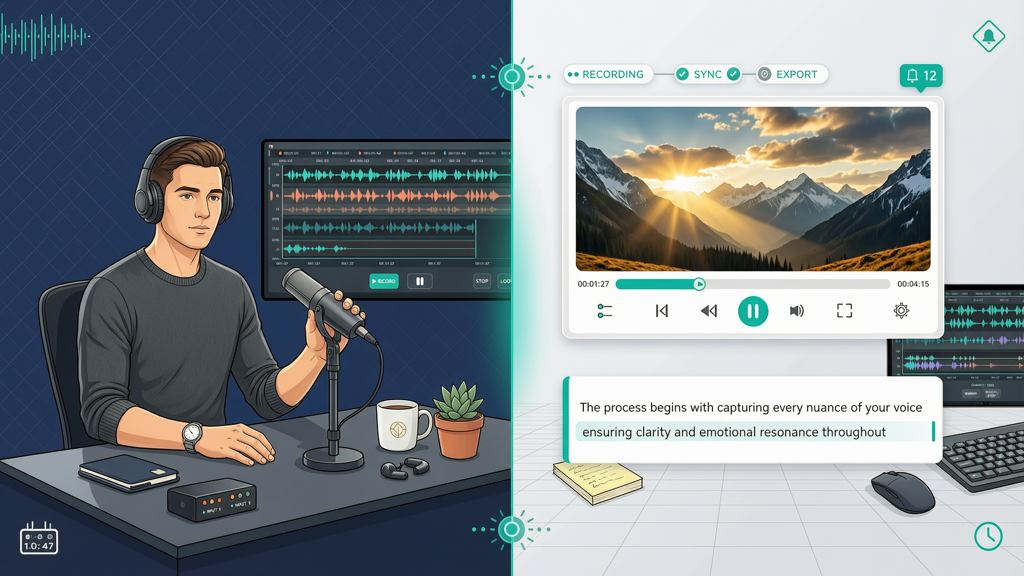
The process is intentionally straightforward—and deliberately non-intrusive to your existing workflow:
- Upload your finished sales or pitch deck (PPTX, PDF, or Google Slides link).
- Add narration: Choose between two authentic options:
- Recorded voice—ideal for post-meeting follow-ups. Speak naturally over each slide, like you would in a discovery call. This builds trust, preserves tone and emphasis, and signals personal investment.
- Text-to-speech (TTS)—perfect for standardized, evergreen assets (e.g., homepage embeds, onboarding sequences, or global campaign rollouts). Select from clear, professional voices with adjustable pace and pause timing.
- Export with smart defaults for platform-specific requirements—including aspect ratio, resolution, and subtitle embedding.
No scripting required. No storyboard approvals. No asset handoffs. Just your deck, your voice—or a polished synthetic voice—and output that feels intentional, not automated.
Optimizing Output for Real-World Use Cases
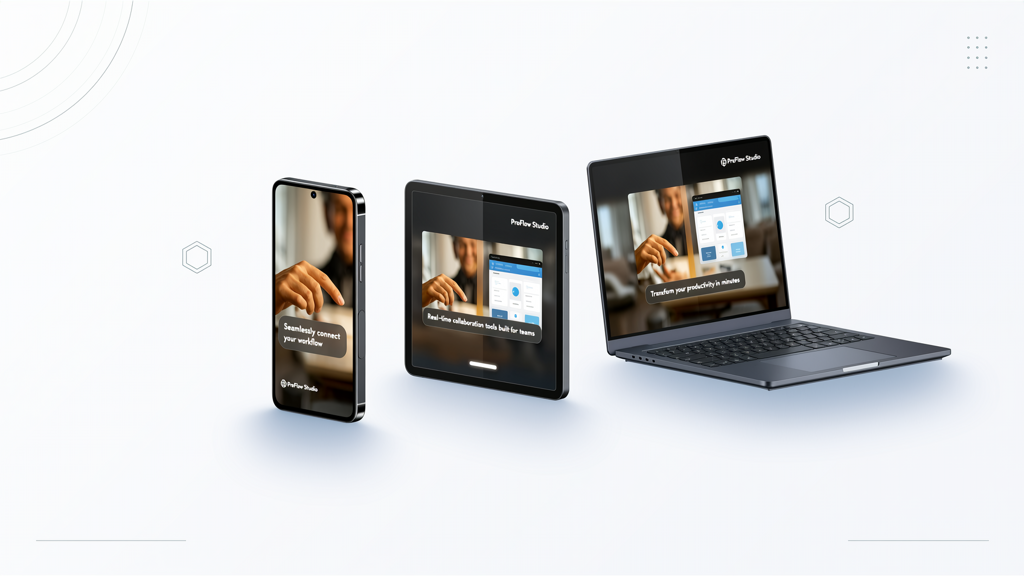
A single exported MP4 won’t serve every context equally. Platform expectations differ—and so should your video settings. Here’s how to match format to function:
For LinkedIn, X (Twitter), and Instagram Feed
- Aspect ratio: 1:1 (square) or 4:5 (vertical)—maximizes visibility in mobile feeds.
- Subtitles: Embedded and auto-enabled. Over 85% of social videos play without sound; clear, synced captions ensure your message lands silently.
- Length: Keep under 90 seconds. Front-load value—lead with outcome (“Reduce onboarding time by 60%”) before feature details.
For Website Landing Pages & Email Embeds
- Aspect ratio: 16:9—standard for desktop viewing and clean integration into hero sections or feature grids.
- Autoplay & mute: Enabled by default. Subtitles remain visible but optional to toggle—supporting accessibility without compromising aesthetics.
- File size: Optimized for fast load times (<5 MB recommended for above-the-fold placement).
For Sales Follow-Ups & Internal Enablement
- Personalization: Recorded voice + custom intro/outro (“Hi [Name], as we discussed yesterday…”). Adds warmth and continuity.
- Branding: Include subtle logo watermark and consistent color treatment—matching your slide master.
- CTA overlay: Optional end-screen with clickable button (“Book a 1:1,” “View pricing,” “Download spec sheet”).
Crucially, none of these optimizations require editing software. Tools designed for sales deck to video conversion handle formatting, caption sync, and export presets automatically—so you choose the use case, not the codec.
Honesty Matters: What Stays the Same (and What Doesn’t)
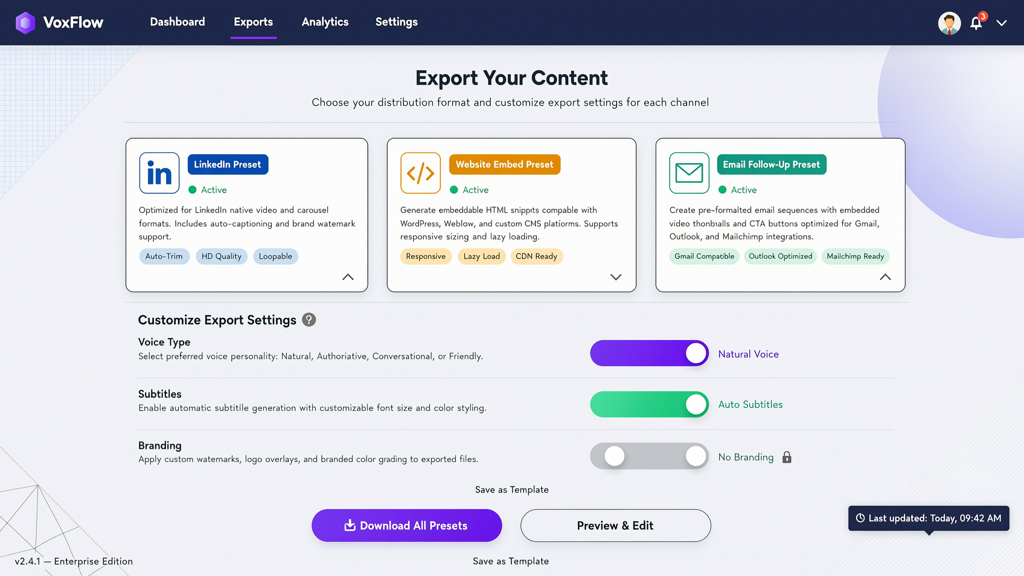
Transparency builds trust—not just with prospects, but with your internal stakeholders. When evaluating tools to create a product demo video from slides, know exactly what to expect:
What stays intact
- Slide design: Fonts, colors, animations (entrance/exit only), charts, and embedded images render exactly as built.
- Content hierarchy: Bullet points, callouts, and visual emphasis remain unchanged—no AI summarization or reordering.
- Brand compliance: Corporate templates, legal disclaimers, and footnote formatting carry through untouched.
What gets enhanced
- Pacing: Natural pauses between slides mirror human presentation rhythm—not robotic slide-flipping.
- Accessibility: Auto-generated subtitles are accurate, editable, and WCAG-compliant (contrast, timing, positioning).
- Delivery fidelity: Voice recordings preserve vocal nuance—hesitations, emphasis shifts, and conversational warmth—that text alone can’t convey.
This isn’t about replacing your expertise with automation. It’s about removing friction between your proven message and its next channel.
Putting It Into Practice: A Realistic Workflow
Here’s how top-performing revenue teams integrate turn pitch deck into video into their cadence—without adding overhead:
Step 1: Finalize & Lock the Deck
Before exporting, confirm version control: use a naming convention like SalesDeck_v2.3_Q3Approved.pptx. Avoid last-minute edits mid-video generation.
Step 2: Script Lightly (or Not at All)
For recorded voice: jot down 1–2 key phrases per slide—not full scripts. Example:
- Slide 3 (Competitive Differentiation): “Unlike legacy platforms, we embed governance *by default*—not as an add-on.”
- Slide 7 (ROI Timeline): “Most customers see measurable efficiency gains within 14 days—not months.”
Step 3: Choose Voice + Platform Target
Ask yourself: “Who sees this first—and how?”
- Prospect-facing follow-up → recorded voice + vertical crop + subtitles
- Website banner → TTS + 16:9 + branded CTA
- Partner portal training → TTS + chapter markers + downloadable transcript
Step 4: Review & Deploy
Watch the full output once—not just spot-checking. Verify:
- Subtitles align with speech (not slide text)
- Transitions feel deliberate—not rushed or sluggish
- Logo appears consistently (if enabled)
One tool built specifically for this precise workflow is SlideToTalk. It accepts native PowerPoint and Google Slides files, supports both recorded and TTS narration, auto-generates accurate subtitles, and exports optimized versions for LinkedIn, landing pages, email, and internal LMS platforms—all while preserving your original slide design down to the pixel. It’s purpose-built for demo video from powerpoint and other common deck formats, with zero requirement to learn timeline-based editors or hire motion designers.
Summary: Your Deck, Amplified—Not Altered
Creating a product demo video from slides shouldn’t mean sacrificing authenticity, consistency, or control. Your sales deck is already your strongest narrative asset—tested, trusted, and tailored. Converting it into video is about extending reach, deepening recall, and meeting buyers where they are: scrolling silently on LinkedIn, evaluating on your pricing page, or reviewing your proposal after a call.
By choosing a workflow that honors your existing content—keeping visuals intact, enabling authentic voice, respecting platform norms, and embedding accessibility by default—you transform static decks into living, breathing sales assets. Whether you turn pitch deck into video for a personalized follow-up or generate a polished demo video from powerpoint for broad distribution, the goal remains the same: let your message travel further, faster—without losing its voice.
Start with what you have. Speak clearly. Export smartly. And let your sales deck do more—without doing less.
Try SlideToTalk free
Upload your PPT, PDF, or images. Add narration with text-to-speech or your own voice, and export a narrated video in one click.
Start for free →