How Nonprofits Create Narrated Fundraising Presentation Videos on a Budget
Why Narrated Fundraising Videos Matter—Especially When Budgets Are Tight
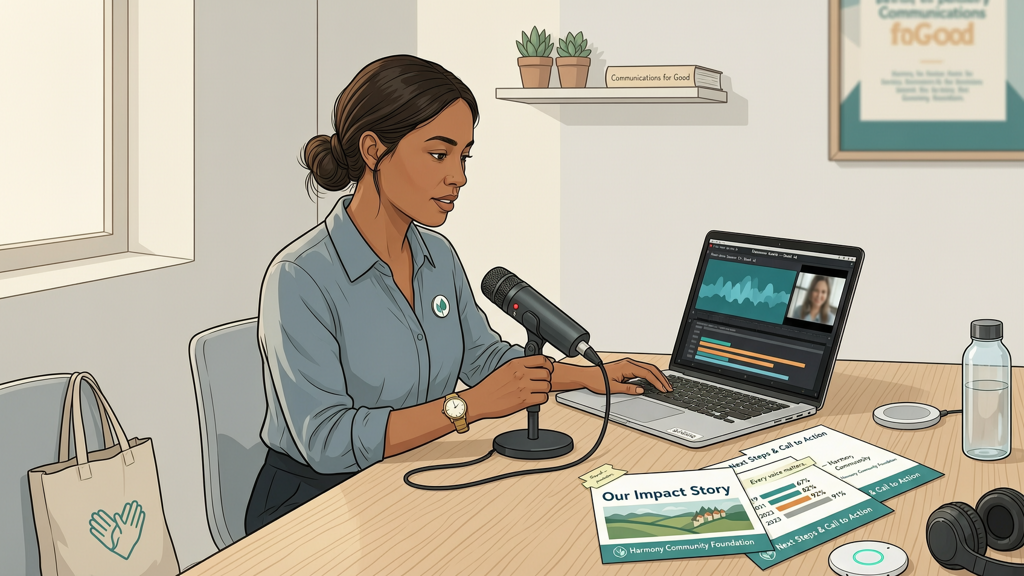
For nonprofits, every dollar spent must earn trust, inspire action, and reflect mission integrity. That’s why a compelling, well-structured fundraising presentation video isn’t a luxury—it’s a strategic necessity. Donors increasingly expect clarity, authenticity, and emotional resonance before committing support. A narrated donor deck video delivers all three: it transforms static slides into a guided, human-centered story—without requiring filming, editing suites, or voiceover talent.
Yet many teams hesitate. They assume producing such videos demands expensive software subscriptions, professional editors, or hours of technical learning. In reality, today’s AI-powered tools make high-quality narrated fundraising video from slides accessible—even for organizations operating with lean staff and minimal tech budgets. The key is choosing the right tool—one that prioritizes simplicity, affordability, and fidelity to your mission—not flashy features you’ll never use.
The Budget-Conscious Breakthrough: Free Recording Mode as Your Secret Weapon
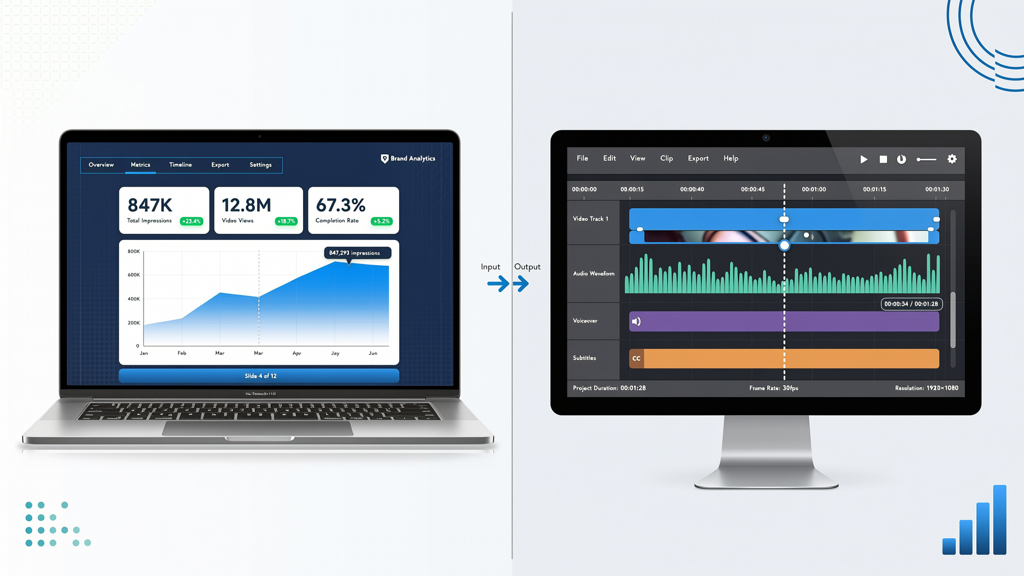
At the heart of cost-effective video creation lies one often-overlooked feature: free recording mode. This isn’t a trial gimmick or time-limited demo. It’s a fully functional, zero-character-cost capability built directly into modern slide-to-video platforms. With free recording mode, you can record your own voice narration over existing slides—live, in real time—without consuming premium credits, paying per minute, or triggering usage limits.
Here’s why this changes everything for cash-strapped nonprofits:
- No hidden fees: Record as many versions as needed while refining your message—no per-minute billing, no character caps, no surprise charges.
- Authenticity preserved: Your voice—not an AI voice—delivers warmth, urgency, and credibility. Donors connect with real people, not synthetic tones.
- Zero learning curve: If you know how to advance slides and speak clearly, you’re ready. No script formatting, no audio syncing, no export troubleshooting.
- Iterative confidence: Try different openings, adjust pacing, emphasize key impact metrics—all without financial risk.
This mode empowers even solo development officers or volunteer communicators to produce polished, mission-aligned content in under 30 minutes. And because it’s truly free—not a bait-and-switch—the barrier to entry disappears entirely.
Testing Without Risk: The Watermarked Free Tier
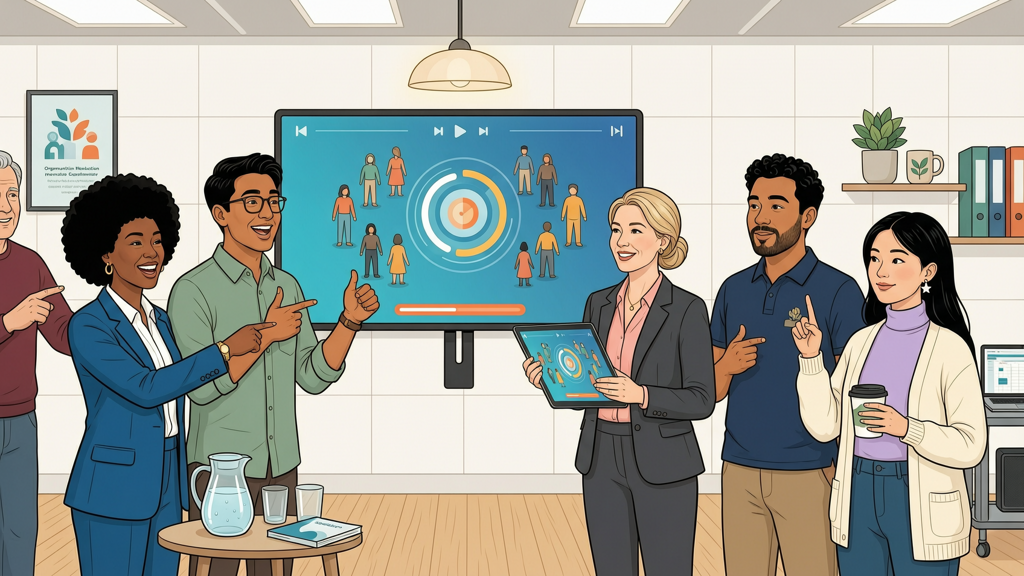
Before committing to any tool, nonprofits need space to test, adapt, and validate. That’s where a transparent, watermark-enabled free tier becomes invaluable—not as a marketing stunt, but as a responsible onboarding experience.
A watermark isn’t a limitation; it’s a signal of honesty. It tells your team: “This is what the output looks like at no cost. You can share it internally, rehearse with your board, or preview with a small group of trusted donors. When you’re ready to distribute publicly, upgrading removes the watermark—and only then.”
Crucially, this free tier includes full access to:
- Importing PowerPoint or Google Slides decks (PPTX, PDF, or native Google integration)
- Using free recording mode for unlimited voice narration
- Adding basic transitions, timing controls, and slide notes
- Exporting HD video (720p or 1080p) with visible branding
No artificial restrictions. No feature gating. No requirement to enter credit card details just to see if the workflow fits your process. You retain full ownership of your slides and narration. And because the watermark appears discreetly in the corner—not across critical data or faces—it doesn’t compromise clarity during internal review.
This level of transparency builds trust not just with your donors—but with your own team. It signals that your tools align with your values: accessibility, integrity, and stewardship of limited resources.
Practical Steps: From Slide Deck to Share-Ready Video in Under One Hour
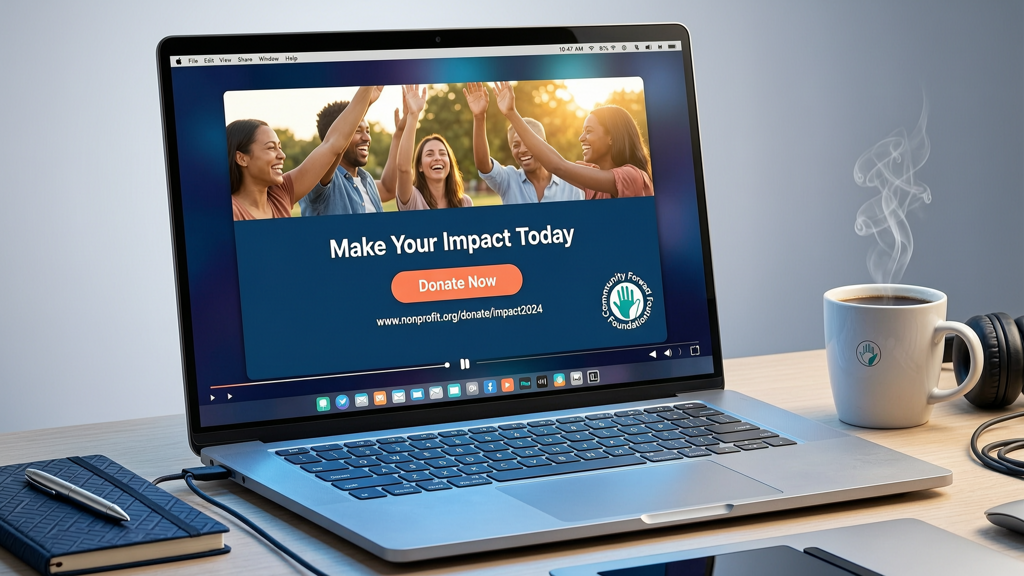
Creating a budget presentation video for donors doesn’t require a production studio. Here’s a realistic, repeatable workflow—designed specifically for nonprofit teams managing multiple priorities:
Step 1: Optimize Your Existing Deck
- Trim ruthlessly: Remove backup slides, dense footnotes, and internal jargon. Aim for 8–12 core slides max—including problem statement, solution, impact proof, donor role, and clear CTA.
- Design for listening, not scanning: Replace paragraphs with short phrases. Use icons instead of bullet points where possible. Ensure charts have clear titles and one takeaway highlighted.
- Add speaker notes: Write concise narration prompts directly in your slide notes field—not full scripts. These will guide your live recording and help maintain consistency.
Step 2: Record with Confidence Using Free Mode
- Use headphones with a built-in mic (most laptops and smartphones work well).
- Find a quiet room—even a closet lined with clothes cuts echo effectively.
- Record in sections: Start with your strongest slide (e.g., impact story), then move to context, then ask. Pause between slides—this creates natural edit points.
- Don’t aim for perfection. A slight pause, a breath, or gentle rephrasing adds humanity. Edit only major stumbles—don’t over-polish.
Step 3: Polish Thoughtfully (Not Excessively)
- Adjust slide timing to match your narration pace—most tools let you drag duration per slide.
- Add subtle background music at low volume (optional). Choose royalty-free tracks labeled "uplifting but calm"—avoid anything distracting or emotionally manipulative.
- Include your logo on the first and last slide. Add your website and donation URL as unobtrusive text on the final frame.
- Export using the free tier first—review with a colleague. Then upgrade only if you need watermark-free distribution.
Pro Tips for Maximum Donor Impact
- Name real people, not abstractions: Instead of "beneficiaries," say "Maria, a single mother in rural Appalachia who completed job training through your support." Personalization increases retention by up to 40%.
- Show, don’t just tell, impact: Embed a 5-second photo or short clip (if available) on the impact slide—even a still image conveys more than text alone.
- Anchor asks in shared values: Frame the donation amount around meaning (“$50 provides one week of after-school tutoring”) rather than abstract cost.
- End with gratitude—not urgency: Close with sincere thanks and a warm invitation—not pressure. Donors give to joy, not guilt.
Why SlideToTalk Fits This Workflow Perfectly
Among tools designed for slide-to-video conversion, SlideToTalk stands out for its intentional alignment with nonprofit realities. It was built for communicators—not designers or engineers—and reflects deep understanding of resource-constrained missions.
Specifically, SlideToTalk delivers:
- True free recording mode: Unlimited voice narration, zero character cost, no expiration. Record, re-record, refine—without counting seconds or watching a meter.
- Honest free tier: Watermarked exports let you test narrative flow, timing, and tone with stakeholders—no paywall to block early validation.
- Native slide fidelity: Preserves fonts, colors, animations, and layout integrity from PowerPoint and Google Slides—no reformatting headaches.
- Privacy-first architecture: Your slides and recordings are never used for training models or shared externally. What you create stays yours.
- Nonprofit-friendly support: Clear documentation, email-based assistance, and community forums—not chatbots or tiered support queues.
It doesn’t promise “AI magic” that replaces human judgment. Instead, it removes friction—so your focus stays on storytelling, relationship-building, and impact—not technical troubleshooting. That’s not convenience. It’s stewardship.
Summary: Clarity, Control, and Confidence—Without Compromise
Creating a narrated donor deck video shouldn’t require a grant just to get started. With the right approach—and the right tool—you can produce a nonprofit fundraising video from slides that resonates deeply, communicates clearly, and honors your donors’ time and trust—all while staying firmly within budget.
Start with your existing presentation. Refine it for spoken delivery—not visual density. Use free recording mode to capture your authentic voice, unburdened by cost or complexity. Test freely with a watermarked export to gather feedback and build confidence. Then, when you’re ready to share widely, upgrade seamlessly—only for what you truly need.
This isn’t about cutting corners. It’s about focusing resources where they matter most: your mission, your people, and the stories that move others to act. A budget presentation video for donors isn’t measured in production value—it’s measured in connection made, trust earned, and generosity inspired. And that begins long before the first frame renders.
With tools like SlideToTalk, the power to tell your story—clearly, compassionately, and cost-effectively—is already in your hands.
Try SlideToTalk free
Upload your PPT, PDF, or images. Add narration with text-to-speech or your own voice, and export a narrated video in one click.
Start for free →