Turning Course Slides into Narrated Lecture Videos for Online Teaching
Why Narrated Slide Videos Belong in Every Online Course

For educators designing asynchronous online courses in learning management systems like Moodle, Canvas, or Teachable, a well-structured narrated lecture video from slides serves as the cornerstone of student engagement and comprehension. Unlike corporate compliance training—where uniformity and policy recall dominate—teaching demands clarity, pedagogical intention, and human presence. When students revisit material independently, they rely on both visual anchors (your carefully designed slides) and auditory explanation (your voice or clear synthetic narration) to build mental models, reinforce connections, and accommodate diverse learning preferences.
Crucially, these videos must remain slide-faithful: every visual element, annotation, diagram, and bullet point on screen must align precisely with the narration. No animation detours. No off-script digressions. This fidelity ensures students can pause, rewind, and cross-reference without confusion—especially vital when reviewing complex concepts or preparing for assessments. And because accessibility is non-negotiable in education, built-in subtitles (not just auto-captions) are essential—not an afterthought, but a design requirement from the start.
Core Principles for Educators: Simplicity, Consistency, and Accessibility
Creating effective online course narrated video isn’t about technical complexity—it’s about honoring instructional design fundamentals. Here’s what distinguishes educator-focused workflows:
- Slide-first, not script-first: Your presentation deck is your lesson outline. Build narration around it—not the other way around. Avoid rewriting slides into prose; instead, expand each visual cue with concise, purposeful commentary.
- Consistent narration style: Whether you record your own voice or use high-quality text-to-speech (TTS), maintain steady pacing, warm tone, and intentional pauses. Students notice—and respond to—authenticity and rhythm.
- Subtitles baked in, not bolted on: Auto-generated captions often misrepresent discipline-specific terms (e.g., "Schrodinger" vs. "shroh-ding-er") or omit speaker emphasis. Use tools that support manual editing or SRT export so you retain full control over accuracy and timing.
- No LMS integration required: You don’t need plugins, APIs, or custom code to deliver video. Export a standard MP4 file—H.264 encoded, 1080p resolution, embedded subtitles—and upload directly to your LMS media library or course module. That’s all.
These principles keep the focus where it belongs: on pedagogy, not platform gymnastics.
How to Turn Teaching Slides into Video Lecture—Step by Step
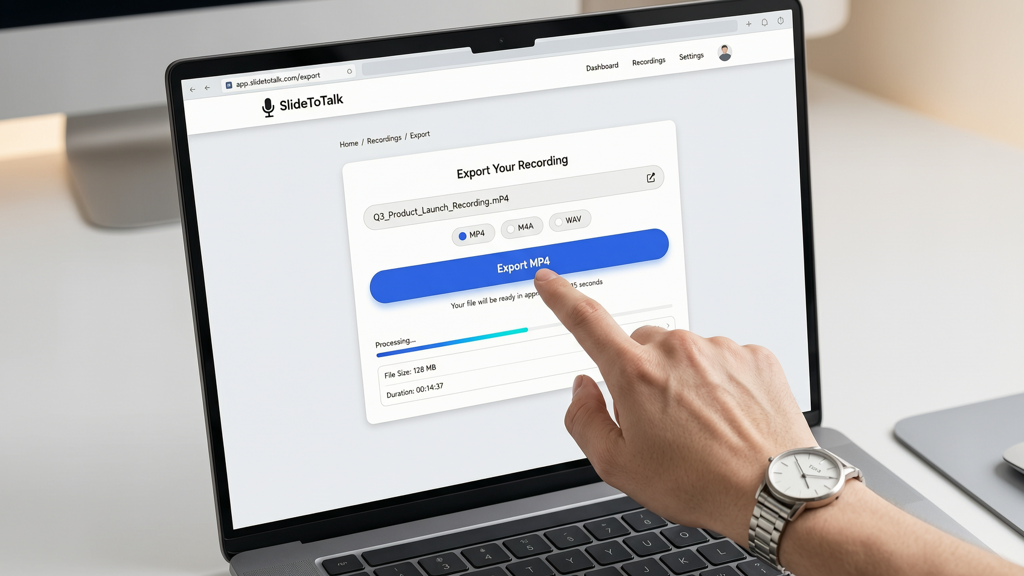
Transforming static slides into a polished, accessible lecture video involves four deliberate stages. Each supports clarity, efficiency, and inclusivity—without requiring video editing expertise.
1. Optimize Your Slides for Narration
Before generating audio, refine your deck:
- Reduce cognitive load: Limit each slide to one core idea. Remove decorative graphics, redundant icons, and dense paragraphs. If text exceeds six lines, split the concept across two slides.
- Label visuals clearly: Number diagrams (Fig. 1, Fig. 2), name axes in charts, and add brief callouts for key features. These labels become natural anchor points for narration (“As shown in Figure 2, the feedback loop begins here…”).
- Use consistent typography: Stick to one sans-serif font (e.g., Open Sans or Inter) at readable sizes (24pt minimum for body, 36pt+ for titles). High contrast (dark text on light background) ensures legibility across devices.
2. Choose Your Narration Method
You have two trusted paths—both valid, depending on time, voice comfort, and course scale:
- Self-recording: Ideal for instructors who want personal connection and flexibility. Use a quiet room, a USB condenser mic (e.g., Audio-Technica ATR2100x), and free software like Audacity or OBS Studio. Record narration first, then sync to slides—or record both simultaneously using screen + webcam capture. Tip: Read aloud slowly, pausing 1.5 seconds after each bullet to let visuals sink in.
- Text-to-speech (TTS): Excellent for consistency across modules, multilingual support, or when voice fatigue or accessibility needs arise. Prioritize TTS engines trained on academic language—not generic consumer voices. Look for adjustable speaking rate, pitch, and natural-sounding prosody (e.g., emphasis on verbs, gentle intonation on questions). Avoid robotic monotone at all costs.
3. Sync Narration to Slides Precisely
This is where many educators lose fidelity. Don’t rely on rough timing estimates. Instead:
- Break narration into discrete segments—one per slide or logical visual unit.
- Use timestamps or chapter markers to align audio with slide transitions. For example: “0:00–0:28 → Slide 1 title and learning objective”, “0:29–1:42 → Slide 2 diagram walkthrough”.
- If using TTS, generate audio files per slide (not one long track), then import into a timeline-based tool that allows frame-accurate placement.
Aim for zero lag between visual appearance and corresponding narration. Even 300ms delay disrupts comprehension—especially for neurodiverse learners or those using captions.
4. Add Subtitles and Export
Subtitles serve three critical roles: accessibility for Deaf and hard-of-hearing students, comprehension support for English language learners, and retention aid for all. Best practices:
- Export subtitles as an embedded track (not burned-in) so LMS players can toggle them on/off.
- Format SRT files with max 42 characters per line and no more than two lines on screen at once.
- Proofread for discipline-specific terminology, punctuation, and speaker intent (e.g., distinguishing statements from rhetorical questions).
- Export final video as MP4 (H.264/AAC), 1920×1080, ≤500 MB for reliable LMS upload and streaming.
Tools That Respect Your Time—and Your Pedagogy
Not all tools treat education as a distinct use case. Many prioritize flashy transitions, stock music, or social-media formats—distracting from learning. What educators need is reliability, precision, and respect for the slide as a teaching artifact.
That’s why tools like SlideToTalk are built specifically for this workflow. SlideToTalk accepts PowerPoint (.pptx) and Google Slides (via export) and generates high-fidelity, slide-faithful lecture video from slides—complete with customizable TTS narration, editable subtitles, and clean MP4 export. It doesn’t reformat your layout, insert animations, or demand new templates. It honors your existing work—and adds narration and accessibility layers without altering your pedagogical structure.
Key educator-friendly features include:
- One-click subtitle editing: Adjust timing and text directly in-browser before export—no external editors needed.
- Academic TTS voices: Voices trained on lecture cadence, with adjustable emphasis and natural pause handling for lists and equations.
- Slide-locked timing: Audio never drifts from visuals. Each slide advances only when its narration ends—guaranteeing fidelity.
- No account lock-in: Export MP4s with embedded subtitles. Upload anywhere—Moodle, Canvas, Teachable, or even private cloud storage.
Importantly, SlideToTalk does not integrate with LMS platforms. It delivers exactly what educators need: a clean, portable, accessible video file—ready for upload and use.
Common Pitfalls—and How to Avoid Them
Even experienced instructors encounter friction in this process. Here’s how to sidestep recurring issues:
- Pitfall: Overloading slides with narration text.
→ Solution: Treat slides as visual aids—not scripts. Keep on-screen text minimal. Expand verbally, not typographically. - Pitfall: Using low-fidelity TTS that mangles technical terms.
→ Solution: Test pronunciation on key vocabulary first. Choose tools offering phonetic spelling overrides or academic voice models. - Pitfall: Assuming auto-captions meet accessibility standards.
→ Solution: Always review and edit subtitles manually—or use tools like SlideToTalk that provide intuitive, in-context editing before export. - Pitfall: Exporting without testing playback across devices.
→ Solution: Preview your final MP4 on mobile, tablet, and desktop. Confirm subtitles appear correctly in native video players (not just browser extensions).
Remember: a five-minute, tightly edited lecture video from slides often has higher impact than a 20-minute unscripted talk with inconsistent pacing and missing captions.
Final Thoughts: Clarity Is the Ultimate Learning Tool
Turning teaching slides into video lecture isn’t about adding technology for its own sake. It’s about extending your presence—your expertise, your pacing, your intentionality—into the asynchronous space where students learn on their own terms. When done well, these videos become reliable, reusable, and respectful learning companions: slide-faithful, narratively precise, and fully accessible.
You don’t need studio lighting, a soundproof booth, or months of training. You need a clear goal (explain one concept per slide), a consistent method (voice or high-quality TTS), tight synchronization, and accurate subtitles. Tools like SlideToTalk exist to honor that simplicity—removing friction so you can focus on what matters most: helping students understand.
In summary, creating effective online course narrated video means prioritizing fidelity over flash, accessibility over automation, and pedagogy over polish. Start with your slides. Narrate with purpose. Caption with care. Export with confidence. Then upload—and teach.
Try SlideToTalk free
Upload your PPT, PDF, or images. Add narration with text-to-speech or your own voice, and export a narrated video in one click.
Start for free →