Loom Alternative for Narrating Slide Decks Without Screen Recording
Why You Might Need a Loom Alternative for Presentations
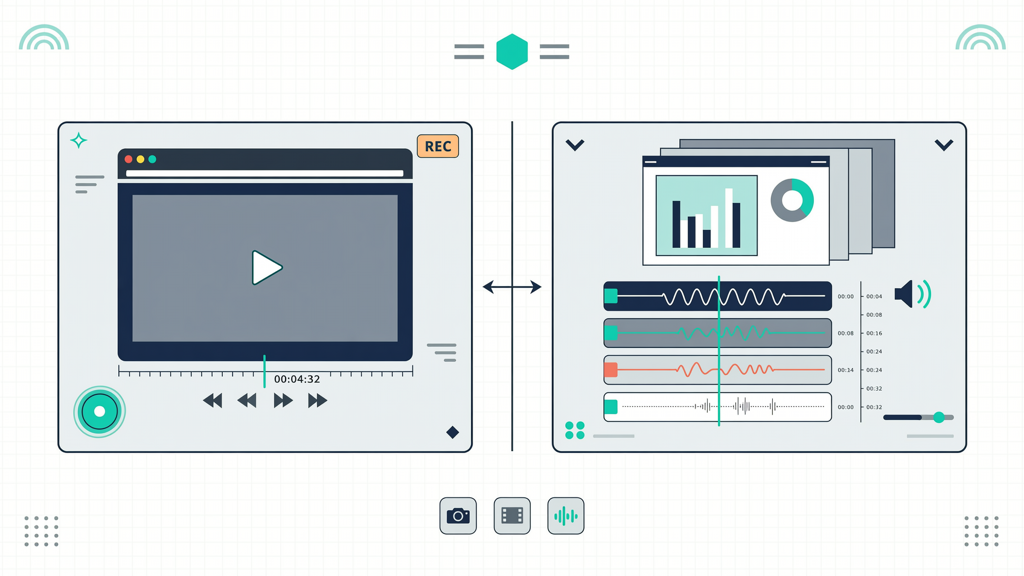
Loom excels at quick, authentic screen-and-webcam recordings—ideal for internal updates, feedback loops, or ad-hoc demos. But when your goal is a polished, consistent, and scalable presentation—such as sales decks, onboarding modules, training materials, or investor pitches—its real-time recording model introduces constraints. You’re tied to timing, lighting, audio setup, and screen navigation. One stumble means re-recording the entire flow. And because Loom captures live interaction, edits are limited to trimming; you can’t easily swap narration on slide 7 without redoing slides 1–6.
This is where purpose-built alternatives gain relevance—not as replacements for all use cases, but as specialized tools optimized for one critical outcome: delivering narrated slide decks that feel intentional, professional, and reliably reproducible. If your workflow demands consistency across versions, accessibility via transcripts, multilingual support, or seamless integration into learning management systems (LMS) or websites, a different architecture may serve you better.
How Loom Works vs. How SlideToTalk Works: A Structural Comparison

The distinction isn’t about quality—it’s about design intent and output architecture.
Loom: Real-Time Capture, Human-in-the-Loop
- Recording method: Captures your live screen (PowerPoint, Google Slides, browser tab) alongside optional webcam feed in real time.
- Narration: Requires speaking live while advancing slides manually or with keyboard shortcuts.
- Output: A single video file (MP4 or web-optimized streaming) with fixed timing, synced visuals, and audio.
- Editability: Limited to trimming start/end points or cutting segments. No frame-level slide replacement or independent audio re-recording per slide.
- Consistency: Each playback reflects the exact session—tone, pace, and errors included. Re-recording is required for revisions.
SlideToTalk: Static Slide Rendering + Modular Narration
- Recording method: Does not record your screen or webcam. Instead, it imports your slide deck (PPTX, PDF, or Google Slides), renders each slide as a high-fidelity static image, and layers narration on top.
- Narration options: Choose between natural-sounding text-to-speech (TTS) voices or record your own voice per slide—freely, without time pressure or live navigation.
- Output: Generates a self-contained, responsive HTML5 presentation or downloadable MP4. Each slide retains its individual timing, narration, and visual fidelity—no dependency on live screen capture.
- Editability: Edit any slide’s narration independently—swap TTS voice, adjust speed, re-record audio, or update script text without touching other slides.
- Consistency: Every export is identical. Update a script line? Regenerate. Change a voice? Republish. The output remains clean, repeatable, and version-controlled.
This architectural difference makes SlideToTalk especially valuable when you need to scale communication: produce multiple language variants, maintain compliance-aligned scripts, or distribute identical training content across global teams—all without scheduling new recording sessions.
When “Narrate Slides Without Screen Recording” Becomes a Strategic Advantage
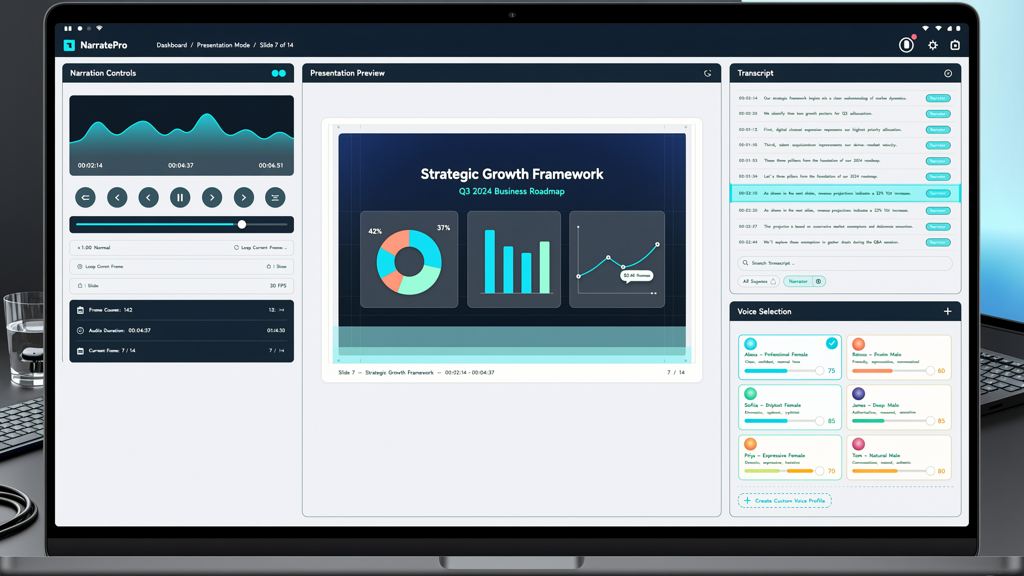
Not every scenario benefits equally from decoupling narration from live screen action. Here’s where skipping screen recording delivers measurable value:
- Accessibility-first delivery: Built-in transcript generation, speaker labels, and synchronized captions come standard—no manual captioning pipeline needed. This supports WCAG-compliant content out of the box.
- Remote or asynchronous collaboration: Team members can record narration from any location, on any device—even without a quiet room or headset. No need to coordinate screen-sharing logistics.
- Iterative refinement: Marketing, legal, or compliance teams can review and approve narration scripts before voiceover begins—reducing rework and ensuring message accuracy.
- Brand voice control: Use consistent TTS voices across all customer-facing decks—or assign specific team members to record key sections while others handle visuals or scripting.
- Low-bandwidth resilience: Since SlideToTalk doesn’t stream live screen data, final exports load quickly and play smoothly on mobile devices or older hardware—critical for field sales or frontline training.
Importantly, this approach doesn’t eliminate human presence—it shifts emphasis from performance to precision. You’re not aiming for spontaneity; you’re optimizing for clarity, retention, and reuse.
Practical Tips for Getting Started with a Loom Alternative for Presentations
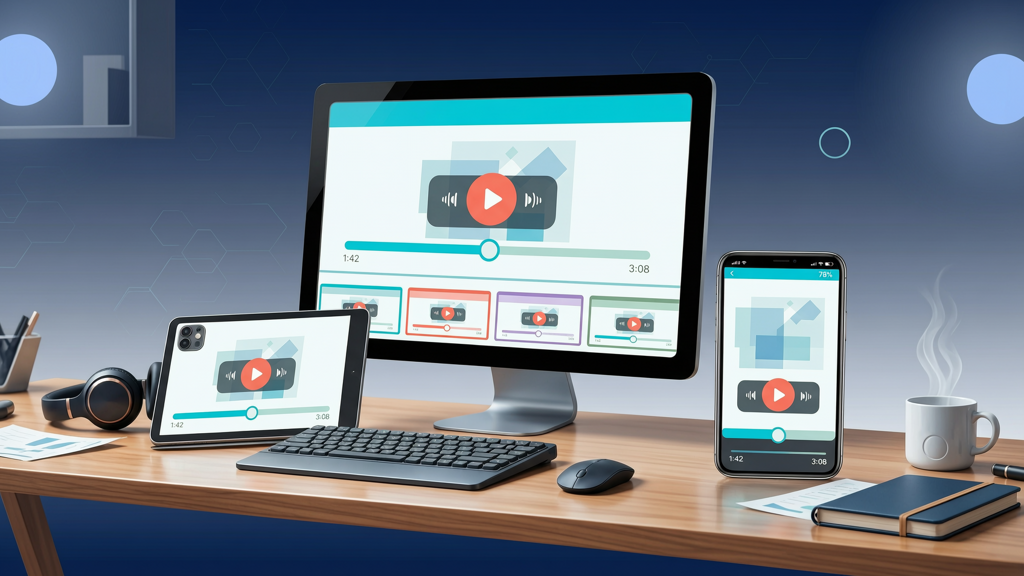
Moving from a screen-capture mindset to a slide-narration workflow requires small but meaningful adjustments. These tips help ensure smooth adoption:
1. Optimize Your Slides for Narration (Not Just Viewing)
- Reduce text density: Slides should guide—not replace—your narration. Aim for ≤25 words per slide; use visuals, icons, and minimal bullet points.
- Add subtle visual cues: Arrows, numbered steps, or highlighted areas help direct attention during playback—even without live cursor movement.
- Use consistent fonts, colors, and layouts: Predictable design improves comprehension and reduces cognitive load for viewers.
2. Script Before You Record—or Select TTS
- Write concise, conversational narration for each slide—not full paragraphs. Read it aloud to check pacing and natural phrasing.
- If using TTS, preview voices with sample text first. Adjust speed (typically 140–160 wpm works best) and pause duration between points.
- For recorded voice: Record in short segments (1–2 slides at a time), using headphones with a built-in mic or USB microphone. Silence background noise before exporting.
3. Leverage Modularity for Updates and Localization
- Tag slides by topic or audience (e.g., "onboarding-technical", "sales-executive") to simplify future repurposing.
- Export narration scripts as plain text—ideal for translation workflows or compliance archiving.
- Reuse narration assets: A well-recorded product overview can be dropped into multiple decks without re-recording.
4. Publish Strategically
- Embed HTML5 output directly into internal wikis, LMS platforms (like Moodle or Cornerstone), or intranet portals—no login or app required.
- Share MP4s via email or cloud folders for offline viewing (e.g., for field reps without reliable connectivity).
- Enable analytics (if supported) to track completion rates, average watch time per slide, or drop-off points—then refine based on behavior, not assumptions.
SlideToTalk in Context: A Purpose-Built Solution
Among tools designed specifically to narrate slides without screen recording, SlideToTalk stands out for its balance of simplicity and depth. It accepts native PowerPoint (.pptx), PDF, and Google Slides imports—preserving animations, transitions, and vector graphics where supported. Its interface guides users through three clear stages: import, narrate (TTS or voice), and publish. There’s no timeline editor to master, no rendering queue to monitor, and no subscription tier gating core functionality like transcript export or MP4 download.
Unlike general-purpose video editors or AI video generators, SlideToTalk focuses exclusively on the slide-deck-to-narrated-output path—so every feature serves that goal: adjustable slide duration, auto-pause after narration, speaker notes visibility toggle, and one-click language switching for multilingual TTS. It does not attempt to replace Loom for live walkthroughs, troubleshooting, or collaborative whiteboarding. Instead, it answers a distinct need: how to turn static slide content into authoritative, accessible, and consistently delivered spoken experiences—without ever pressing ‘record’ on your screen.
That focus enables reliability. Whether you're a solo founder preparing investor materials, an HR lead rolling out company-wide policy updates, or an educator building self-paced course modules, SlideToTalk provides a predictable, low-friction path from deck to delivery.
Final Summary: Choosing the Right Tool for the Outcome You Want
There is no universal “best” tool—only the best tool for your intended outcome.
Choose Loom when you need:
- Authentic, real-time demonstration (e.g., showing how to use software)
- Quick personal updates (“Here’s what I shipped this week”)
- Collaborative feedback on live workflows or UI interactions
Choose a Loom alternative for presentations like SlideToTalk when you need:
- Polished, error-free narration across dozens of slides
- To narrate slides without screen recording—eliminating setup, timing, and environmental dependencies
- Repeatable, versioned outputs that support accessibility, localization, and compliance
- Modular editing: change voice, script, or timing on one slide without affecting the rest
The comparison “Loom vs SlideToTalk” isn’t competitive—it’s complementary. Many professionals use both: Loom for rapid internal syncs, SlideToTalk for external-facing, high-stakes, or scalable content. Recognizing that distinction empowers smarter tool selection—not based on features alone, but on the nature of the communication task at hand.
In short: if your priority is authentic presence, Loom delivers. If your priority is polished repeatability, a dedicated solution for narrating slides without screen recording—like SlideToTalk—is purpose-built to help you succeed.
Try SlideToTalk free
Upload your PPT, PDF, or images. Add narration with text-to-speech or your own voice, and export a narrated video in one click.
Start for free →